Free & open-source · part of the FLET toolkit

FLEx List Migrator

Move list items for text analysis — Text Chart Markers, Text Markup Tags and Text Constituent Chart Templates — between FieldWorks Language Explorer (FLEx 9) projects. Share a curated list with a colleague, or copy your carefully built categories from one project to the next.

Windows only — requires FieldWorks Language Explorer 9. Close FLEx before running.

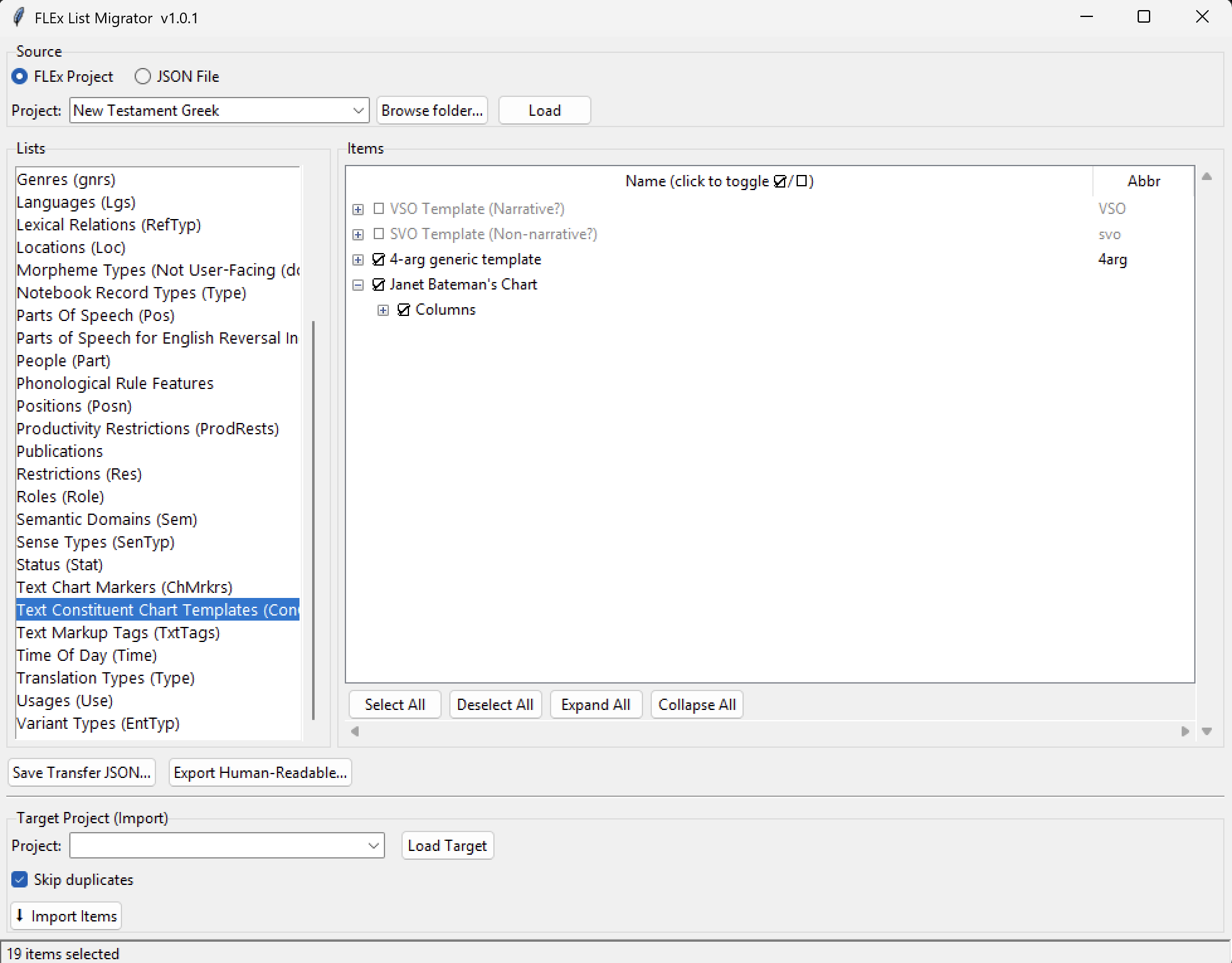
The FLEx List Migrator window. The Source panel is set to a FLEx project. The Lists panel shows Text Chart Markers, Text Constituent Chart Templates and Text Markup Tags at the top, with the lists that aren't supported yet greyed out below. The Items panel shows three chart templates checked, above the Select All, Deselect All, Expand All and Collapse All buttons, then Save Transfer JSON, Export Human-Readable and the Target Project import controls. The status bar reads: 35 items checked in 1 list.
Browse a project's lists and check the items you want, in one list or several — whole chart templates with their columns, or single markers — then export or import. (35 items checked here.)

What it does

Everything you need to move lists

FLEx keeps your categories, terms, labels, chart templates, and more in named possibility lists — not your linguistic data itself, but the vocabulary you tag it with. This tool lets you copy exactly the list items you want from one project to another, with sensible matching and a safe, transactional import.

Browse your lists

Open a source FLEx project and browse its possibility lists. Text Chart Markers, Text Markup Tags and Text Constituent Chart Templates can be exported and imported; other lists are shown but not supported yet. Tick exactly the items you want to move; Select All, Deselect All, Expand All, and Collapse All make big lists quick.

Export to a portable file

Save Transfer JSON… writes your selection to a compact file you can email or share. Anyone with this tool can load it as a source — no live FLEx project required to pass items around.

Import with smart matching

Load a target project and click Import Items. The matching list is found automatically — by GUID, or by list type when a project gave the list its own GUID. Keep Skip duplicates on to avoid re-adding items the target already has — so items land where they belong.

Human-readable export

Produce a nicely formatted HTML page (lists on separate tabs, collapsible) or a plain-text dump of any list or selection — perfect for documentation, review, or sharing with a non-technical colleague.

Safe, transactional writes

Every import is wrapped in a single transaction. If anything goes wrong, nothing is half-written to your project. Your source project is only ever read, never modified.

No install, no dependencies

A single portable executable. It bundles everything it needs — you don't have to install Python, FLExTools, or flexlibs separately. Just download and run.

Step by step

How it works

A typical migration takes just a few clicks. FLEx must be closed while the tool has a project open. For every step in detail, see the user guide.

  1. Choose a source

    Point the tool at a FLEx project folder and click Load — or load a saved .json file, or one of the ready-made templates bundled with the app.

  2. Pick a list and check items

    Tick the items you want to move, in one list or several — your ticks are kept when you switch lists. Hierarchical lists expand so you can check nested items — a discourse chart template and its columns, or a group of chart markers.

  3. Export or import

    Save Transfer JSON… writes everything you checked, from every list, to one portable file to share; or load a target project below and click Import Items to add it all in one go, each list's items into its matching list. Export Human-Readable… produces an HTML or plain-text version instead.

  4. Review the result

    Matching is automatic (by GUID, or by list type), and the confirmation lists anything that will be skipped before you import. The import runs as one transaction, so your project stays consistent.

Close FLEx first. FLEx locks its project databases while it is open. Quit FieldWorks Language Explorer completely before loading a source or target project in the List Migrator. Shared project? Do a Send/Receive in FLEx before importing, and again afterwards to share the new items.

Get it

Download

A portable Windows executable — no installer. Download, double-click, and run.

First run on Windows: because the app is a small independent project, Windows SmartScreen may show a "Windows protected your PC" warning. Click More info → Run anyway. The download is served directly from the project's GitHub releases.

Before you start

Requirements

  • Windows. FieldWorks Language Explorer is Windows-only, and so is this tool.
  • FieldWorks Language Explorer 9 installed on the same machine — the app won't run without it. Download FLEx from SIL (opens in a new tab). The tool reads and writes FLEx data through the installed FieldWorks components.
  • FLEx must be closed while you have a project loaded in the List Migrator.
  • No separate install of Python, FLExTools, or flexlibs is needed — the portable .exe bundles them.

FLEx is required even just to open a shared .json file. The app reads and writes through FLEx's own components and checks for FLEx 9 when it starts, so it won't run on a computer without FLEx.

For developers

Running & building from source

The app is written in Python with a Tkinter GUI. FLEx data access is provided by flexlibs.

Run directly from source:

pip install ./flexlibs2
python flex_list_migrator.py

Build a standalone executable with PyInstaller:

pip install ./flexlibs2 pyinstaller
pyinstaller build.spec
# → dist\FLEx List Migrator.exe

See the README on GitHub (opens in a new tab) for the full file overview and the FLExTools testing module used to validate the read/write paths against a live project.

Questions

Frequently asked

Does this modify my source project?

No. The source project (or JSON file) is only ever read. Changes are written only to the target project you explicitly load and import into — and that write is wrapped in a single transaction.

Which lists can I move?

This version exports and imports Text Chart Markers, Text Markup Tags and Text Constituent Chart Templates, with every field FLEx shows for their items: name, abbreviation, description, discussion, status, confidence, researchers, restrictions and subitems. Other lists (Parts of Speech, Semantic Domains, entry types, custom lists and more) can be browsed but not exported or imported yet. Support for them may come in a future release; see the known issue.

How are items matched between projects?

By the list's GUID first. If a project gave the list its own GUID, it is found by list type instead (for example, the Text Chart Markers list), and by name as a last resort. If nothing matches, the tool asks which list to use.

Can I share lists with someone who doesn't have my project?

Yes. Export your selection to a portable JSON file and send it. The recipient loads that file as a source in their own copy of the tool and imports it into their project.

Do I need FLExTools or flexlibs installed?

No. The portable .exe bundles everything. You only need FieldWorks Language Explorer 9 itself installed on the machine.

Is it free?

Yes — free and open source under the AGPL-3.0 license. Source code is on GitHub.