User guide
Everything FLEx Scratchpad does, in the order you will meet it: the notebook, writing, examples read live from your FieldWorks project, styling and visual filters, audio, collections, text charts and chart notes, searching the charts, exports, backup, the settings and shortcuts, and the questions people ask. Every picture is the real program showing its built-in demo project, an invented language.
Contents
- Getting started
- The notebook: tabs, folders, tags, search
- Writing: Markdown, headings, blocks, tables, links, files
- Examples from FLEx
- Styling, text markup tags and visual filters
- Hearing an example
- Example collections
- Text charts
- Chart notes and custom columns
- Searching the charts
- Exports
- Backup and storage
- Settings and keyboard shortcuts
- Your notes are files
- Questions people ask
- When something goes wrong
1Getting started
FLEx Scratchpad is a notebook for Windows that reads your FieldWorks project. You write in it as in any notes program; the interlinear examples, lexical entries and text charts in your notes are read from the project when they are shown, and the program can never change the project.
Pick your project
Install it from the download on the home page (an installer or a portable zip; both are the same program) and start it. Open Settings (the ⚙ button, or Ctrl+,) and choose the FLEx project: the list shows the projects FieldWorks has on this computer. The project is opened for reading only. FieldWorks may be open on the same project at the same time; if it refuses to share, the status pill at the top right says so and what to do (in FLEx: Project Properties › Sharing › Share project contents with programs on this computer).
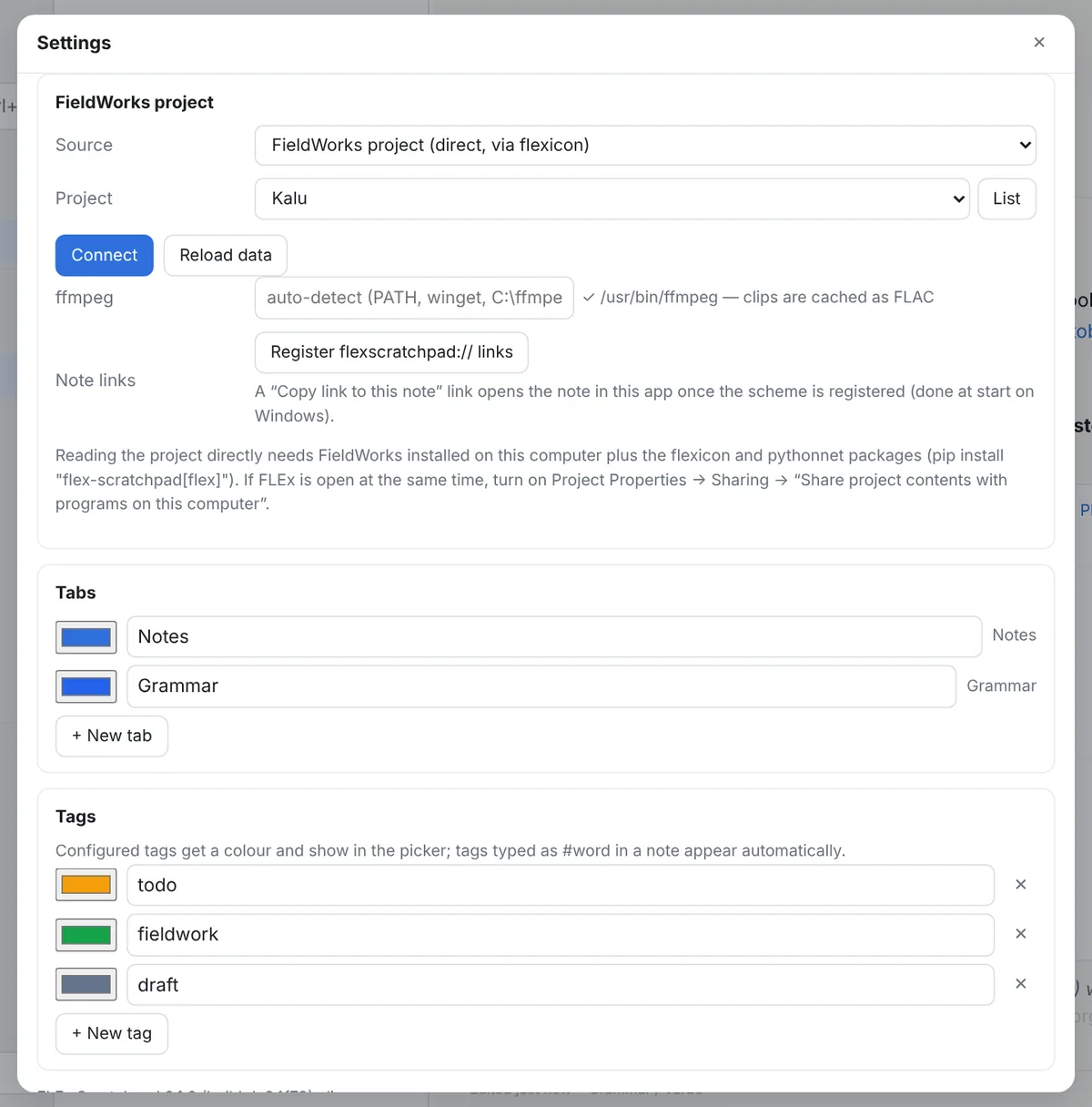
.flextext file or the demo), and the doors to tag styles, visual filters and backup. The project names here are invented.Two other sources exist for when there is no FieldWorks on the computer: a .flextext file exported from FLEx (texts only), and the built-in demo project, an invented language used for the pictures in this guide and for trying things out.
The notebook is a folder of your choosing (by default Documents\FLEx Scratchpad). Everything you write goes there and nowhere else; see Your notes are files.
The window
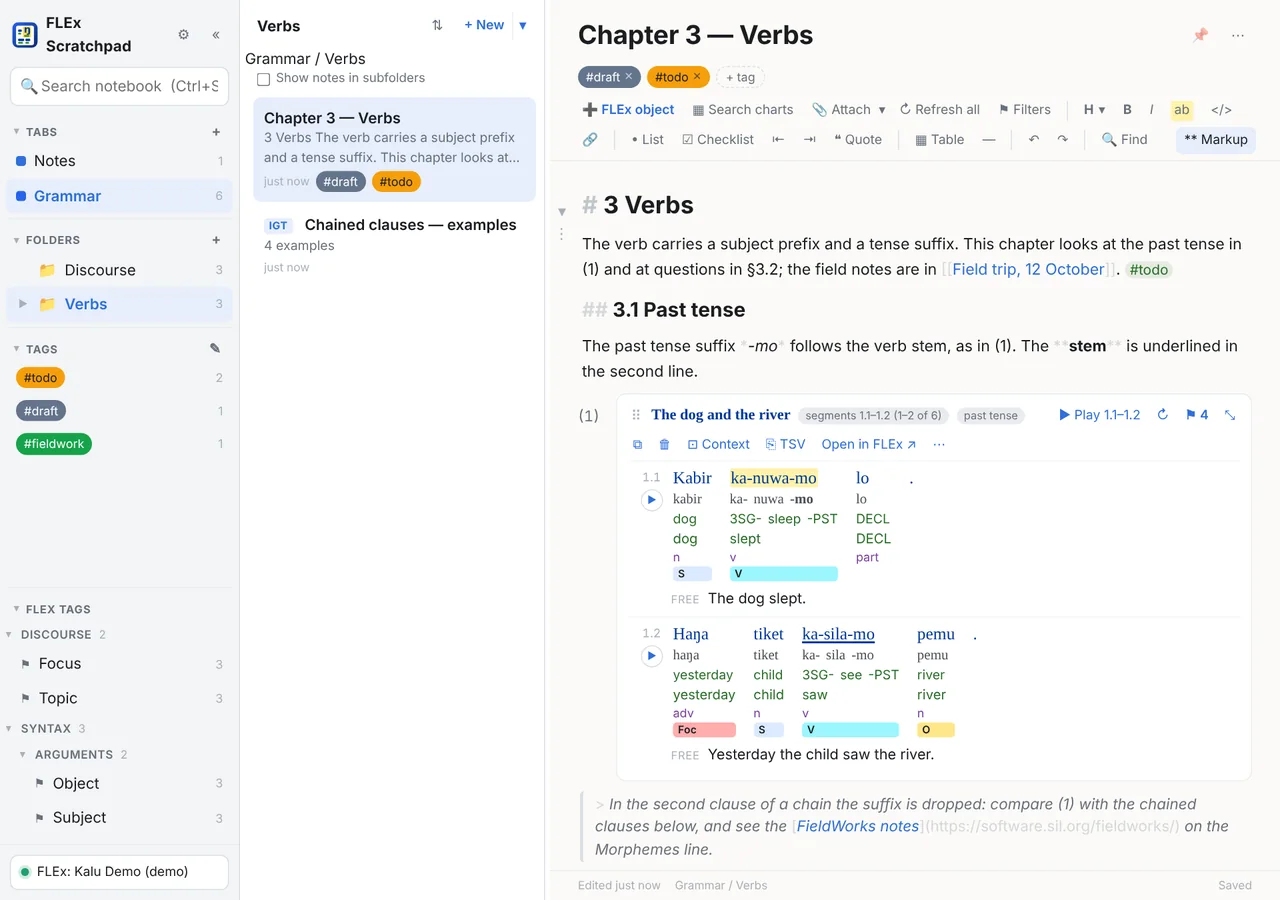
- The rail on the left: your tabs, the folders of the current tab, the tags, and the FLEx text markup tags the tab's notes use. Each part folds with a click on its heading and the dividers drag. Ctrl+\ hides and shows the left panes.
- The note list for the current tab, folder, tag or search, with an excerpt of each note.
- The note: its title, its tags, the toolbar, and the text. Notes save by themselves a moment after you stop typing; the state is shown next to the title.
- The status pill at the top right names the FLEx project, says when it is being read, and shows what the program is doing when that takes a moment.
A new notebook opens with a Welcome note that is a short tour you can delete.
Read-only and offline
The program asks FieldWorks for read-only access, every time. It has no code path that writes to a project, and its own test suite fails if one appears. Its exports are new files that you import yourself. It never needs the internet: everything it uses comes in the download.
2The notebook
Tabs, folders, tags
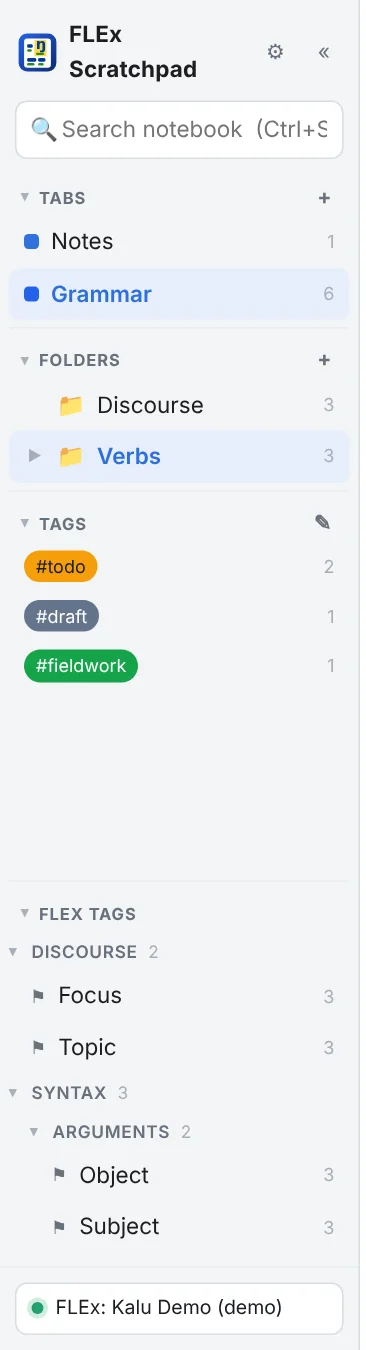
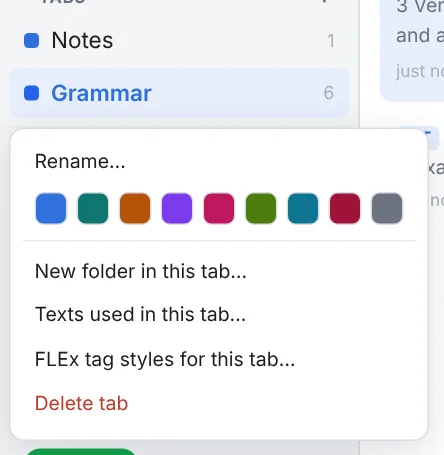
- Tabs are the top level: the + next to Tabs makes one, right-click a tab to rename it, give it a colour, reorder or delete it. Each tab is a folder in the notebook.
- Folders live inside a tab and nest as deep as you like: + next to Folders, right-click for rename and delete. A folder lists only its own notes; tick Show notes in subfolders under the list's title to see everything below it, each note with its subfolder.
- Tags are notebook-wide, with colours: + tag on a note, or type
#taganywhere in the text, which counts too. Click a tag in the rail to list the notes carrying it (a tag looks through the whole tab).
Notes and the list
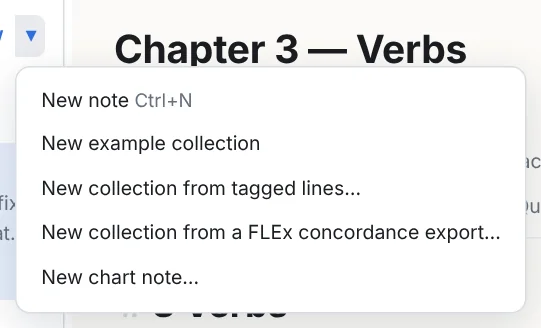
Ctrl+N makes a note in the current folder; + New ▾ offers the other kinds: an example collection, a collection from tagged lines, from a concordance export, and a chart note.
- Rename with F2 or by editing the title. Pin a note to keep it at the top of its list.
- Move a note by dragging it onto a tab or a folder in the rail, or ⋯ → Move to…. Duplicate from the same menu.
- Delete sends the note to the notebook's trash, which keeps everything until you empty it in Backup & storage. Nothing is ever destroyed by a click.
- Sort the list by date or title with the ⇅ button over it.
Search
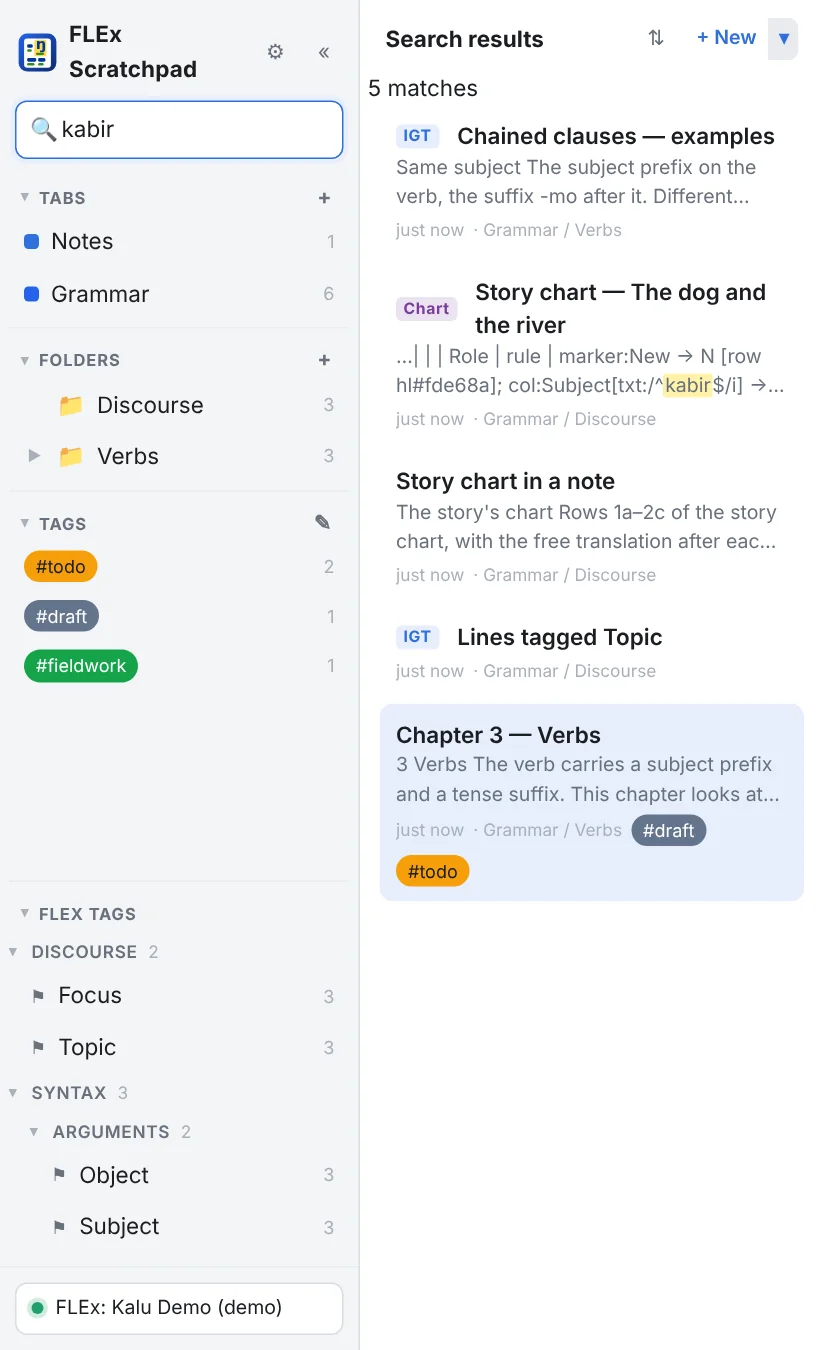
The box at the top of the rail (Ctrl+Shift+F) searches the whole notebook: titles, text, tags, and the content of the FLEx objects a note quotes, so a vernacular word, a gloss or a free translation finds the notes that cite it. Diacritics are ignored unless you turn that off in Settings. The syntax:
| Type | Finds |
|---|---|
kabir river | notes with both words, anywhere |
"the dog slept" | the exact phrase |
tag:fieldwork, tab:Grammar | notes with that tag, in that tab |
tagged:Topic | notes whose examples carry that FLEx text markup tag |
marker:Topic | notes whose charts carry that chart marker |
Ctrl+F finds inside the open note, with next and previous; a hit inside a folded section opens it.
The left pane
The rail's four parts (Tabs, Folders, Tags, FLEx tags) never crowd one another out: a click on a heading folds that part, the divider between two open parts drags, a double-click on a divider resets them, and a heading always stays in view, so nothing is ever out of reach. The rail and the note list can also be dragged narrower or wider.
3Writing
A note is Markdown, written in a block editor that shows the markup faintly or hides it, with headings that fold, tables, links, attached files, and the FLEx objects of the next sections.
Markdown, markers shown or hidden
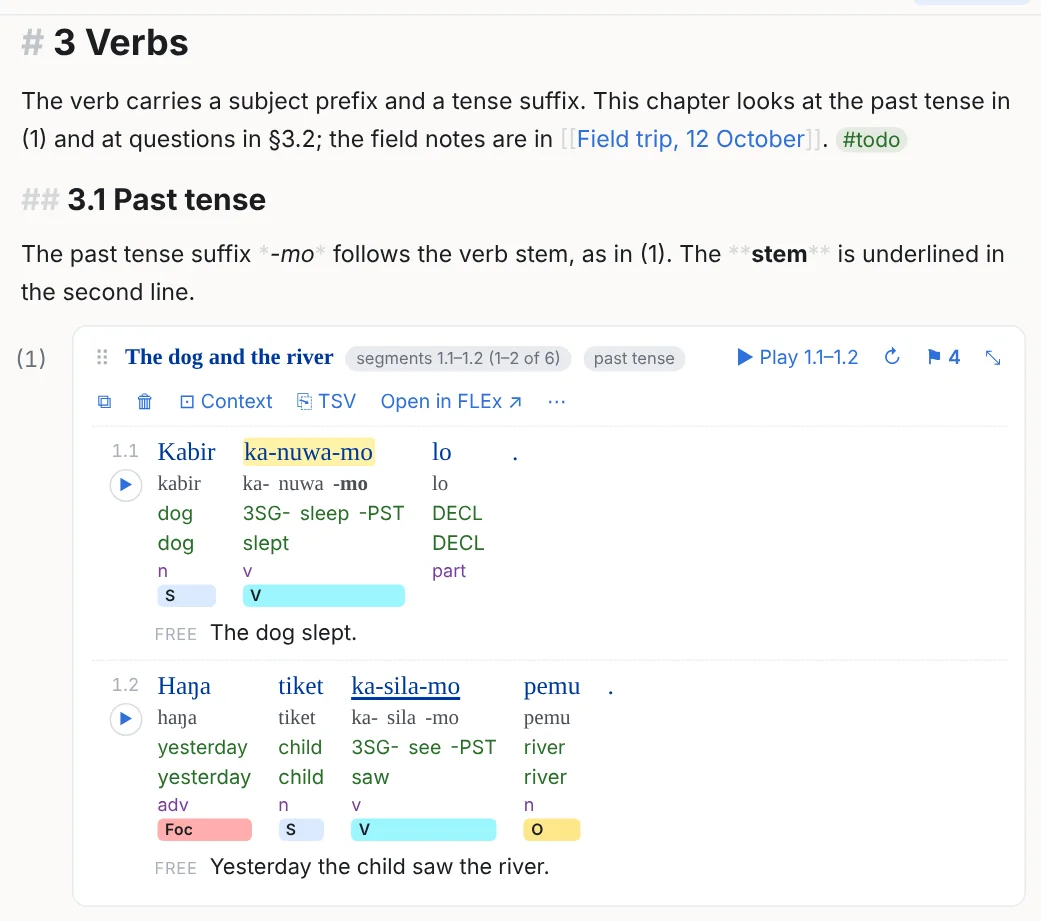
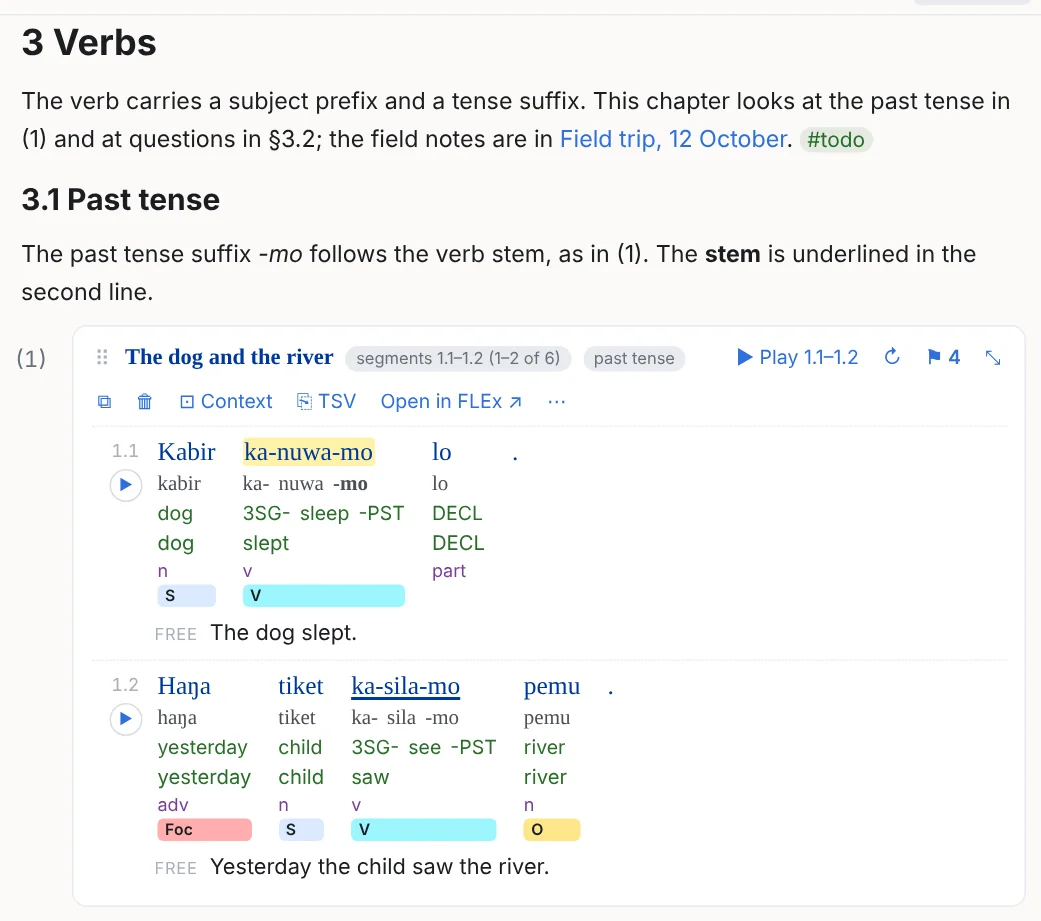
Type **bold**, *italic*, ==highlight==, ~~strike~~, `code`, #tag, [[Another note]], or use the toolbar and the shortcuts (Ctrl+B, Ctrl+I, Ctrl+Shift+H, Ctrl+Shift+X, Ctrl+E). With markers hidden, only the markup at the caret shows, so you can still edit it; the caret never lands inside a hidden heading or list prefix, and a new heading or list item starts to the right of its markup.
Headings that fold and stick
# to ######, or the toolbar's H ▾ (Ctrl+Alt+1 … 6; Ctrl+Alt+0 is plain text). The same menu promotes or demotes every heading of the note, or of the selected blocks, one level (Ctrl+Alt+[ / ]), keeping their distances; it refuses when that would merge two levels.
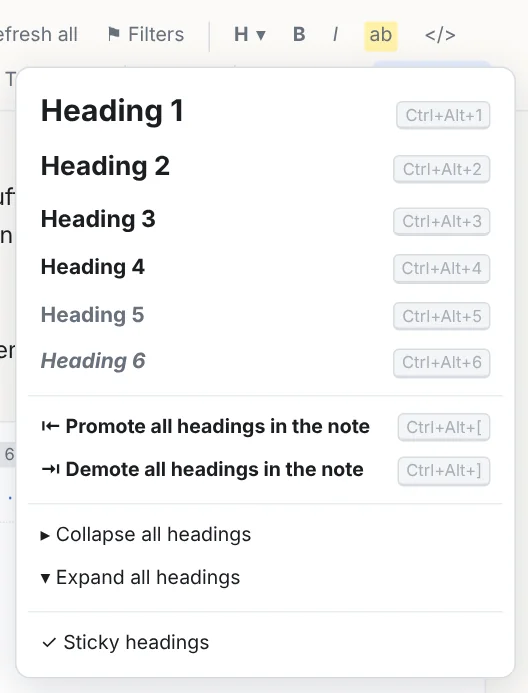
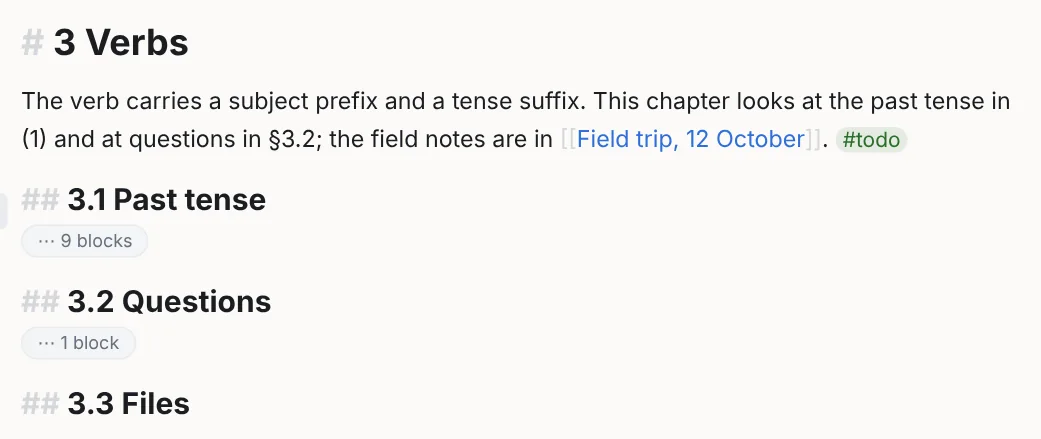

A closed heading hides everything up to the next heading of its level or higher and moves with its section; Collapse all / Expand all are in the menu. The sticky headings strip shows the outline chain above the viewport; its ▾ folds that section in place and takes you to the heading. Switch it off in the H ▾ menu or Settings.
Lists, checklists, quotes
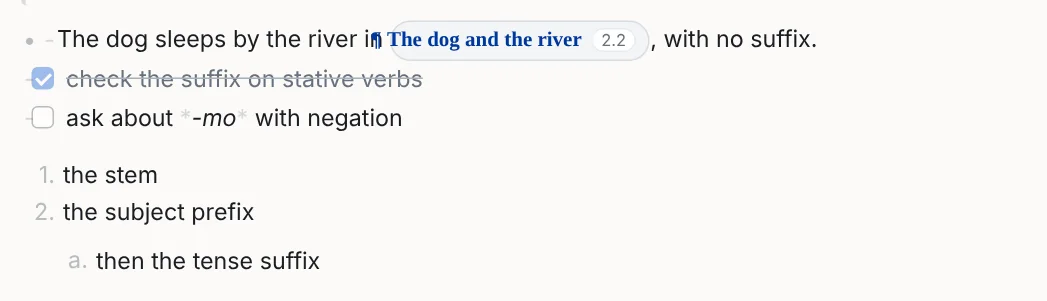
- , 1. , - [ ] and > start a bullet, a numbered item, a checkbox and a quote (Ctrl+Shift+8 / 7 / 9). Enter continues the list, Enter on an empty item leaves it. Tab / Shift+Tab (or Ctrl+] / [, or the toolbar's ⇥ ⇤) nest an item up to four levels, each with its own bullet; nested numbers show as letters and roman numerals. Numbers are computed: type 1. to start over, or a larger number to start there, and the block menu has Start numbering at…. Click a checkbox to tick it.
Blocks: the bar, the menu, moving
A note is a column of blocks (paragraphs, headings, lists, tables, examples…). Between any two of them is a gap:

- The bar between blocks inserts a paragraph, an example, a table or more at that spot, and removes the block above or below. A − button asks twice (Remove?) and the message after a removal has Undo. It only appears once the pointer has rested in the gap, and Settings can turn it off.
- The block menu (⋮ beside a block, or right-click a block that is not running text) has Insert a new block above or below: paragraph, heading, list, checklist, quote, table, FLEx example, divider; plus move, duplicate, delete, and the heading levels and numbering for the block it belongs to. Typing / on an empty line opens the same insert menu.
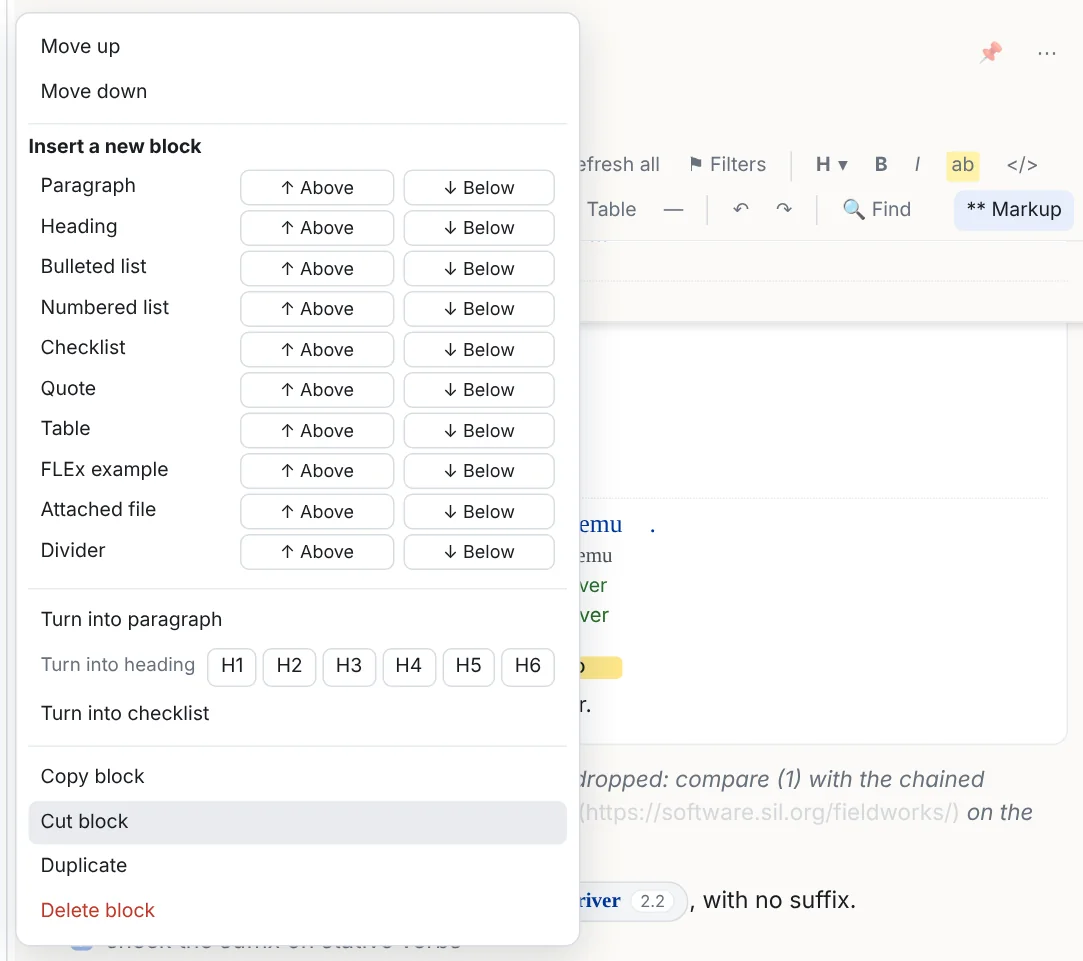
- Select across blocks by dragging out of a block, Shift+click, or Shift+↑ / ↓; Ctrl+A twice takes the whole note. Cut, copy, paste, delete and typing act on the selection.
- Move blocks with Alt+Shift+↑ / ↓, or drag the ⋮ handle (with a selection, every selected block goes; Ctrl copies). A closed heading moves with its section. Ctrl+D duplicates.
Tables
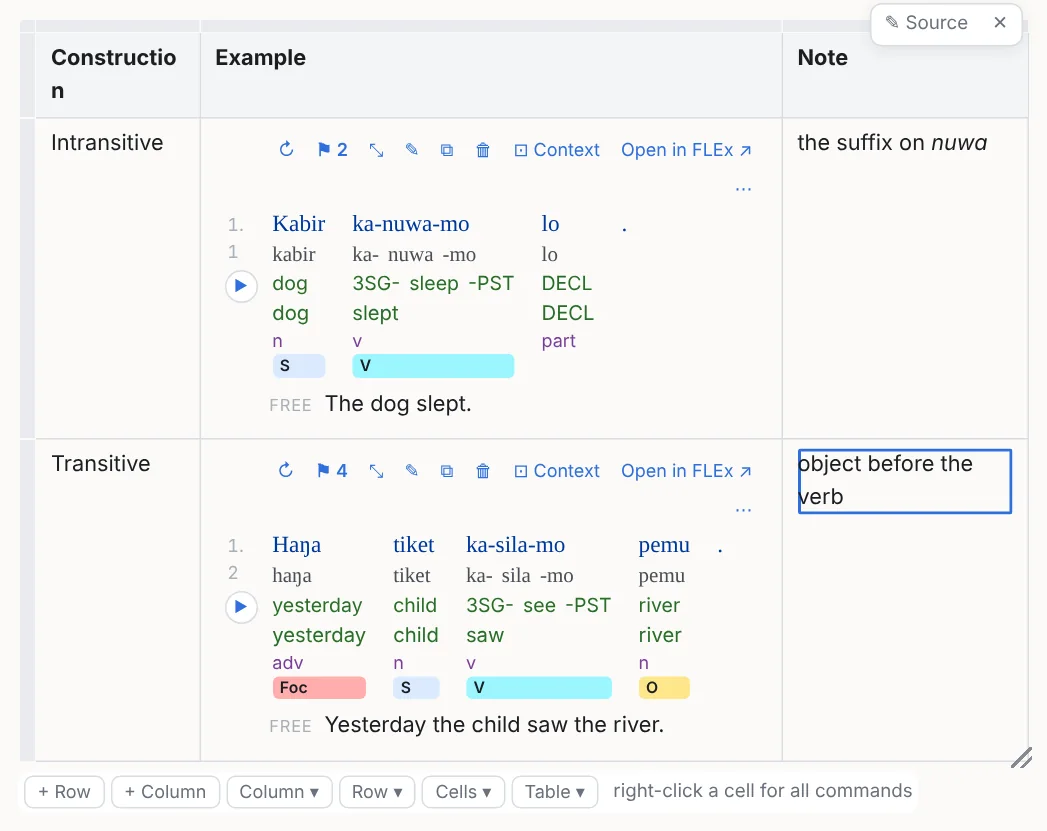
The Table button inserts one; a grid pasted from Excel or Word becomes a table too, merged cells included. Click a cell to edit it: Tab moves on (a new row at the end), Enter goes down, Shift+Enter breaks a line inside the cell, Alt+↑ / ↓ move between rows. The bar under the table has Column ▾, Row ▾ and Table ▾ (alignment, bold, width, background and text colour, wrap, striped rows, borders, header row and column, the vernacular font, freeze panes, an indent) and the add buttons; deletions ask twice and leave an Undo.
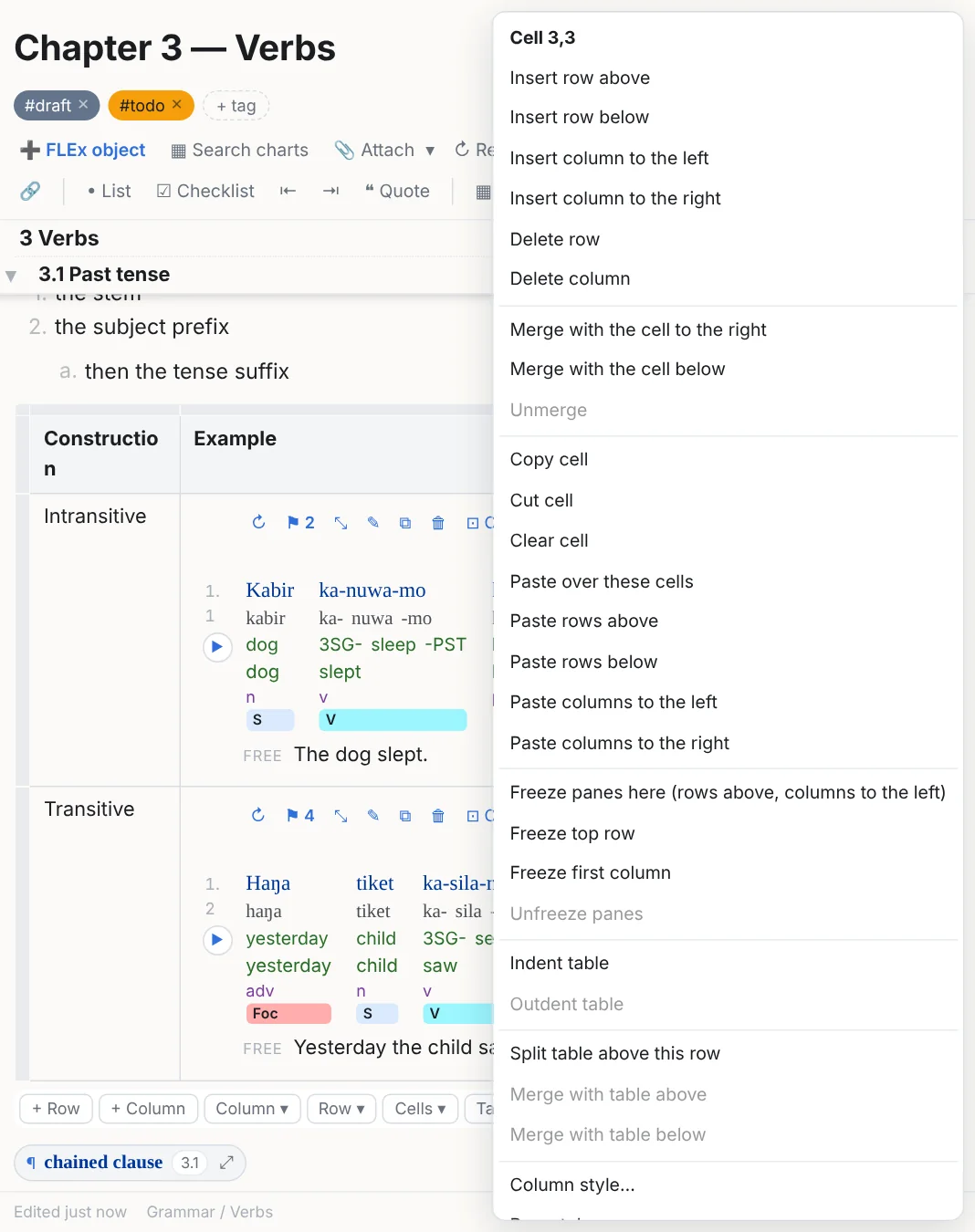
Drag across cells to select a range, click a row or column handle for a whole one; the context menu merges and splits cells, copies and pastes rows, columns and cells (also as TSV for a spreadsheet), and inserts or deletes. A table's style line is saved after it in the file, so a table is still a plain Markdown table anywhere else. An example in a cell is drawn in full when the cell says expanded, else as a chip that previews on hover.
Links

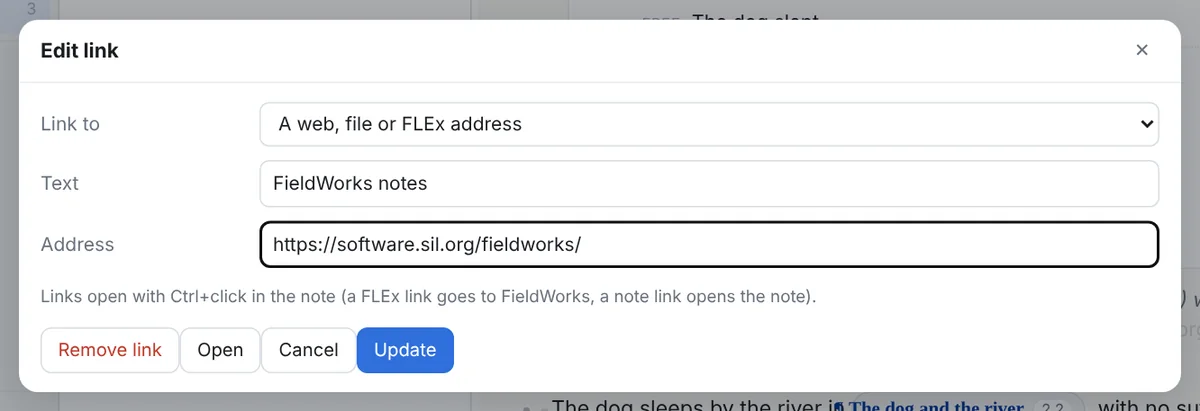
Ctrl+K makes the selected text a link, filling the address from the clipboard when one is there, or links to another note in this notebook as [[Note title]]. Ctrl+click follows at once, and [[Note title]] links work too. A FLEx hyperlink (silfw://…) opens the object in FieldWorks; every example and entry carries one (↗).
Attached files
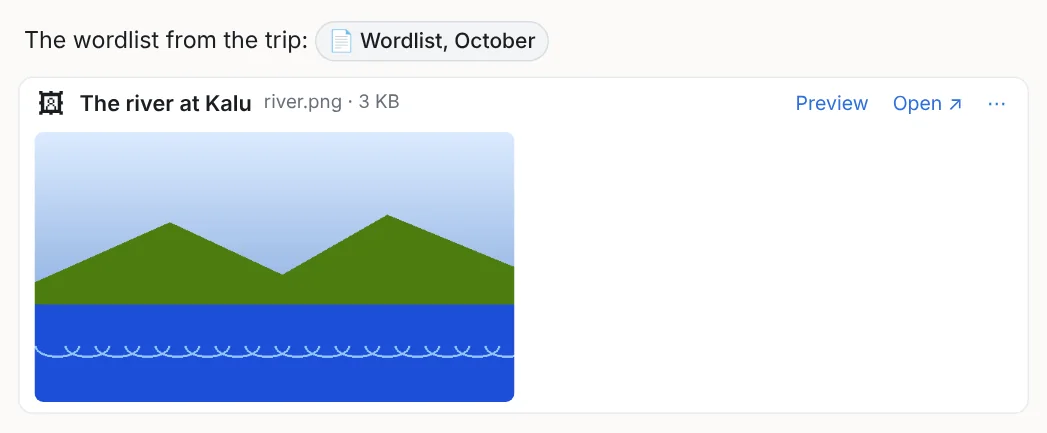
Drop a file into a note, or use 📎 Attach: the file is copied into the notebook's attachments folder (the ▾ next to the button, or Alt while dropping, links to the file where it is instead). A chip opens the file in its own program with a click; a picture or a video shows in the note; a web page, such as a FlexText Audio Segmenter listening page, previews inside the note with Open in browser. A pasted screenshot becomes a picture in the note. Exports write the chip as a link to the file.
Undo, saving, scripts
Ctrl+Z / Ctrl+Y undo and redo, including table operations, block moves and styling of examples; the toolbar has the same. Notes save by themselves; Ctrl+S saves now. If a note's file changed on disk (another program, a sync folder) the note says so and offers to reload it. Text is Unicode throughout: right-to-left text lays out right to left, each writing system is drawn in its FLEx font, and character ranges count letters with their combining marks as one.
4Examples from FLEx
An interlinear example in a note is a reference to a text and its lines; the words, morphemes, glosses and translation are read from the project when the note is shown. There are three ways to put one in, and none of them involves typing an identifier.
Paste lines copied in FLEx
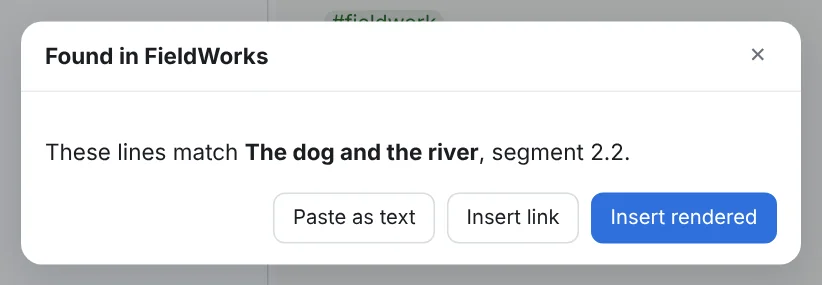
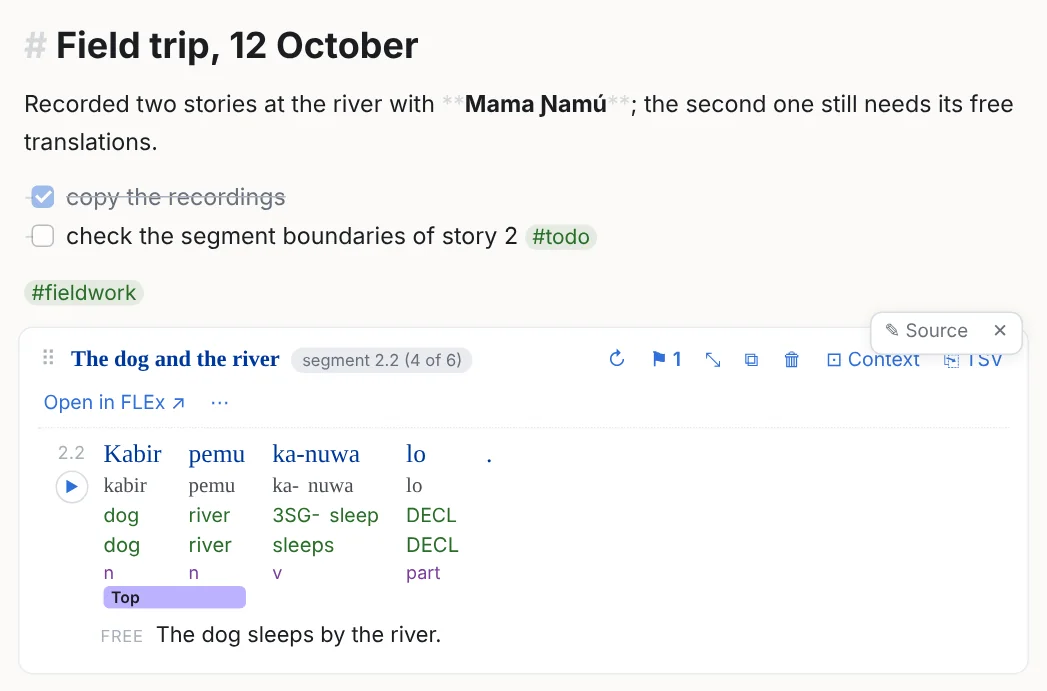
In FieldWorks, select interlinear lines in the Gloss or Print view, copy, and paste into the note. The program reads the rows (Word, Morphemes, Lex. Gloss, Free…), finds the lines in the open project (by the baseline, else by the morphemes or glosses, and by FLEx's own line numbers when the copy carries them), and shows what it found before inserting. A range that FLEx copied with gaps still lands on its lines. While it looks, a small spinner by the caret offers Paste as text instead. Ordinary text pastes as text.
The FLEx object dialog
Ctrl+Shift+L, or the toolbar's FLEx object, opens the dialog with four views:
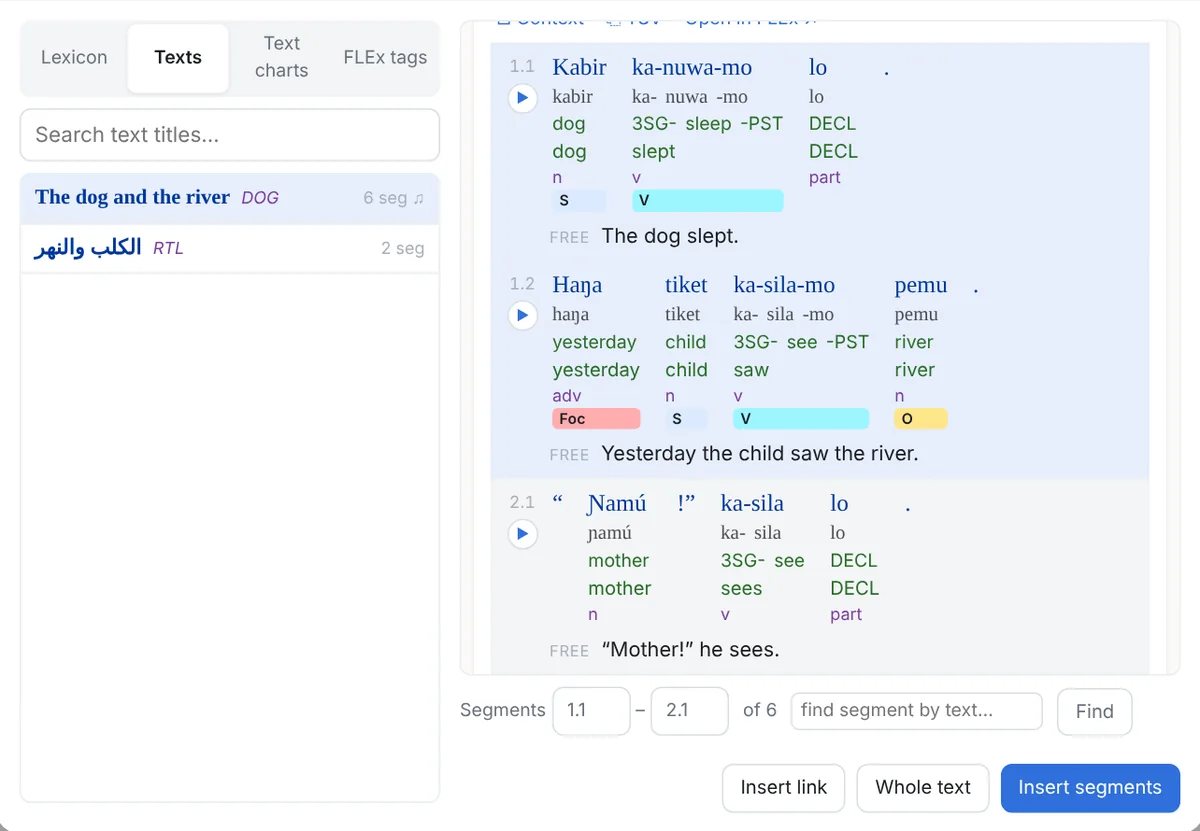
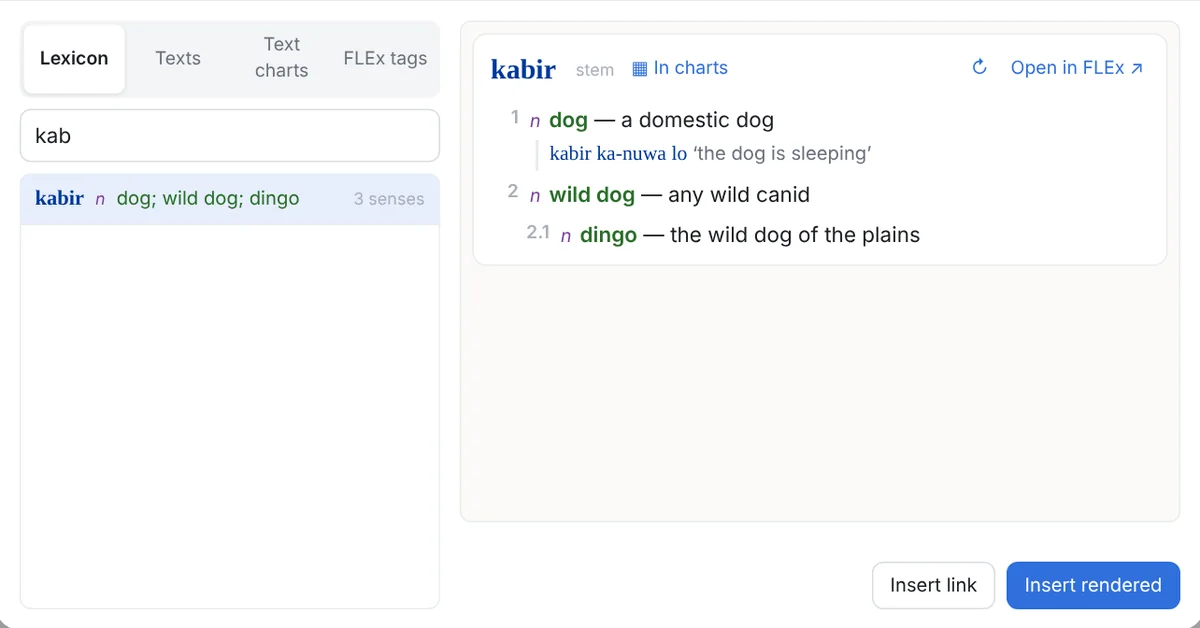
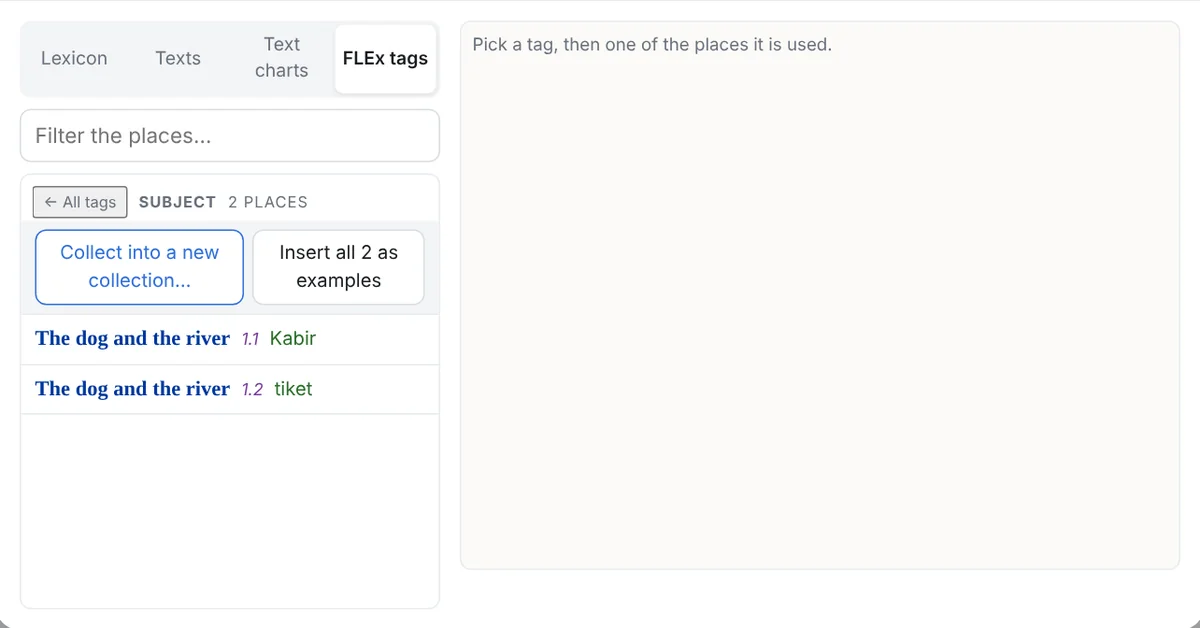
The fourth view, Text charts, is described under Text charts and Searching the charts. The dialog inserts into the block you were in, or into the table cell you were editing; when there is text before the caret, the object goes in as an inline chip.
Paste a FLEx hyperlink
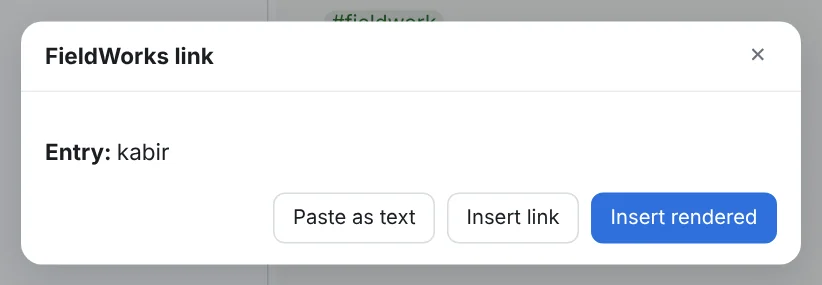
In FieldWorks, Edit › Copy Location as Hyperlink puts a silfw:// link to the current record on the clipboard. Pasted into a note, it is resolved to what it names, an entry, a sense or a text; you choose Insert rendered or Insert link. The link must name the open project.
What an example shows
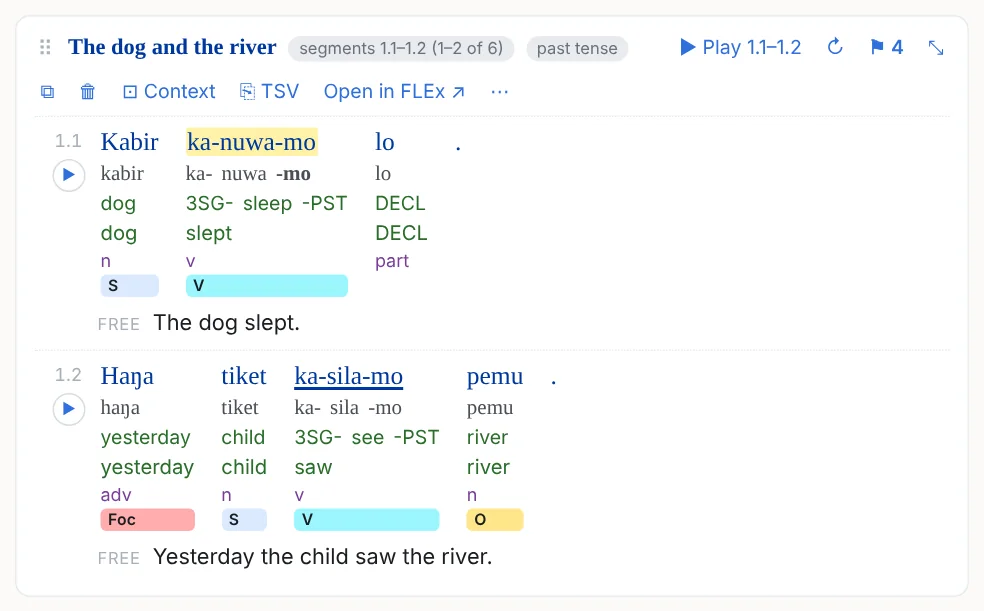
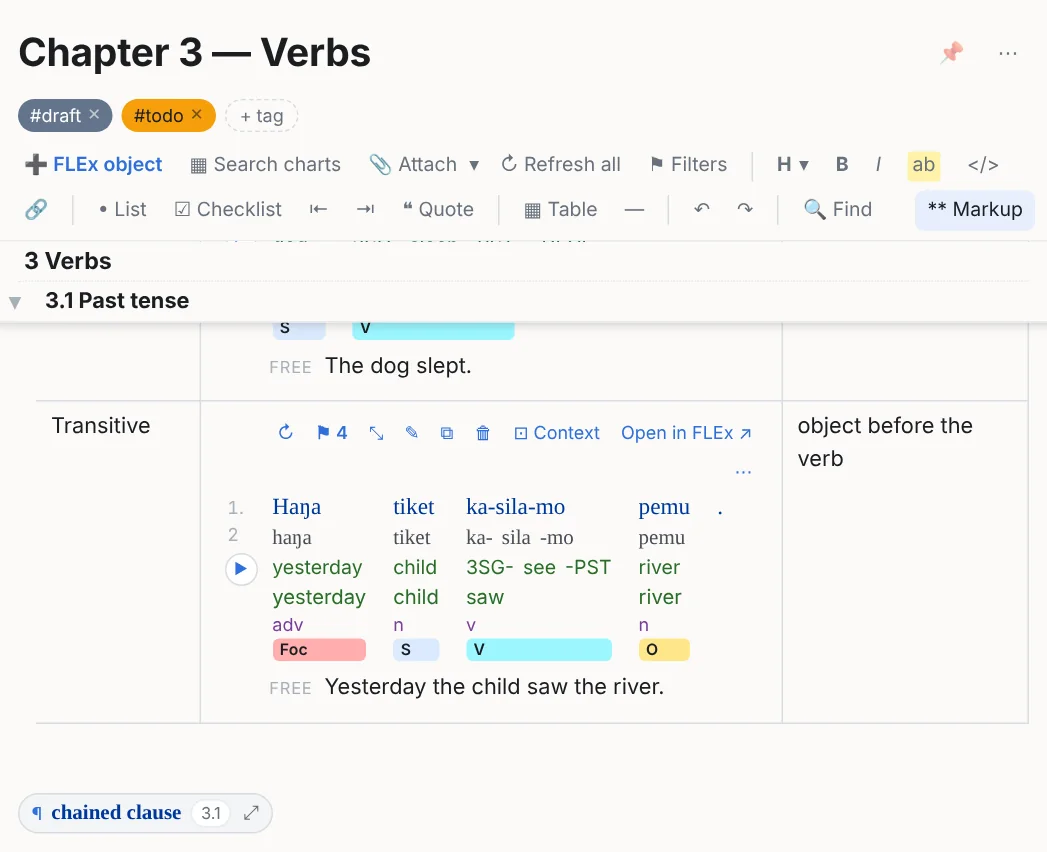
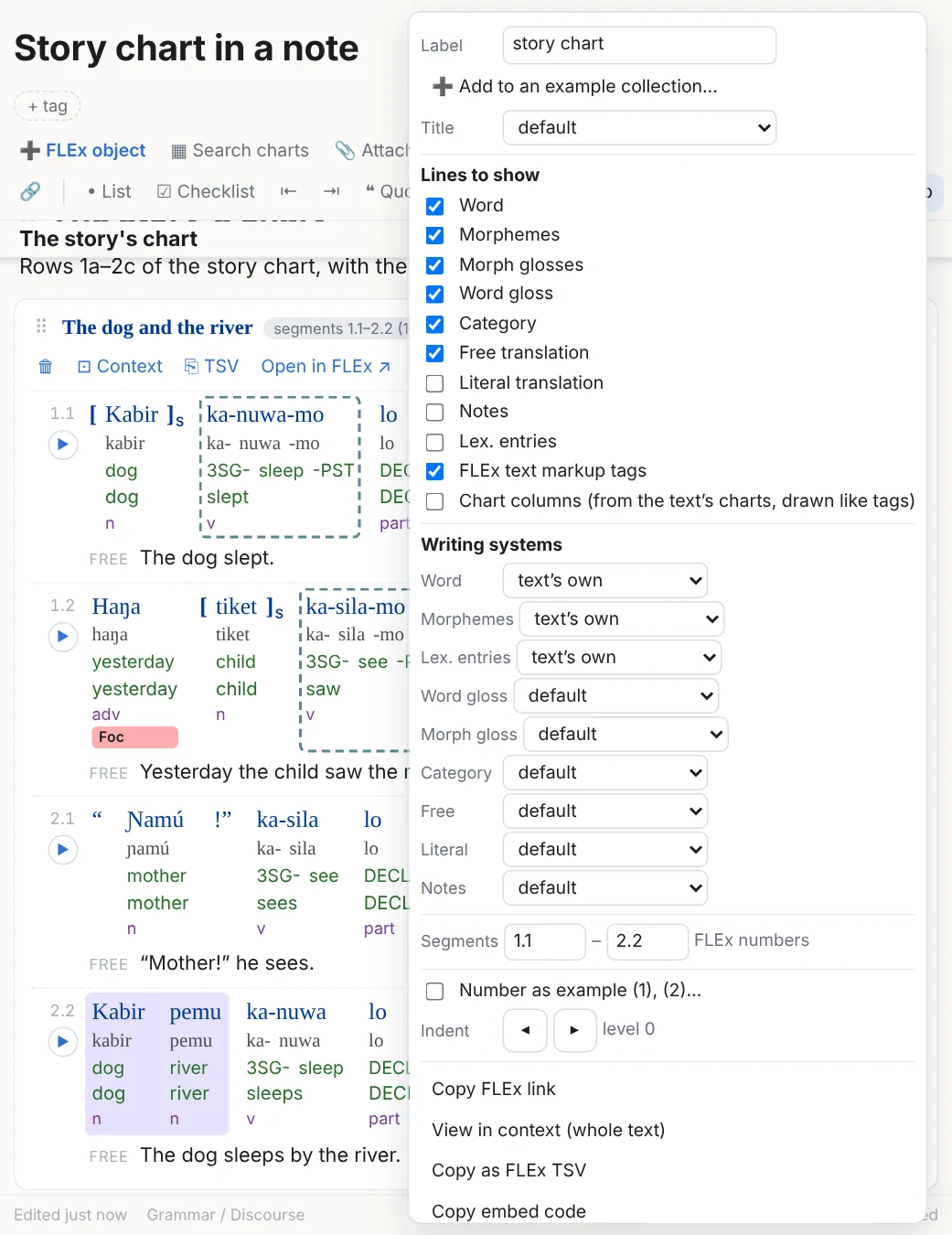
Each line shows the lines you choose, FLEx's own line number, the free (and literal) translation and notes. The header has the text's title with the link into FLEx (↗, which opens the text: see below), ↻ to re-read the lines after an edit in FieldWorks, ⚑ for the tags, ⤡ to collapse it, and ⋯:
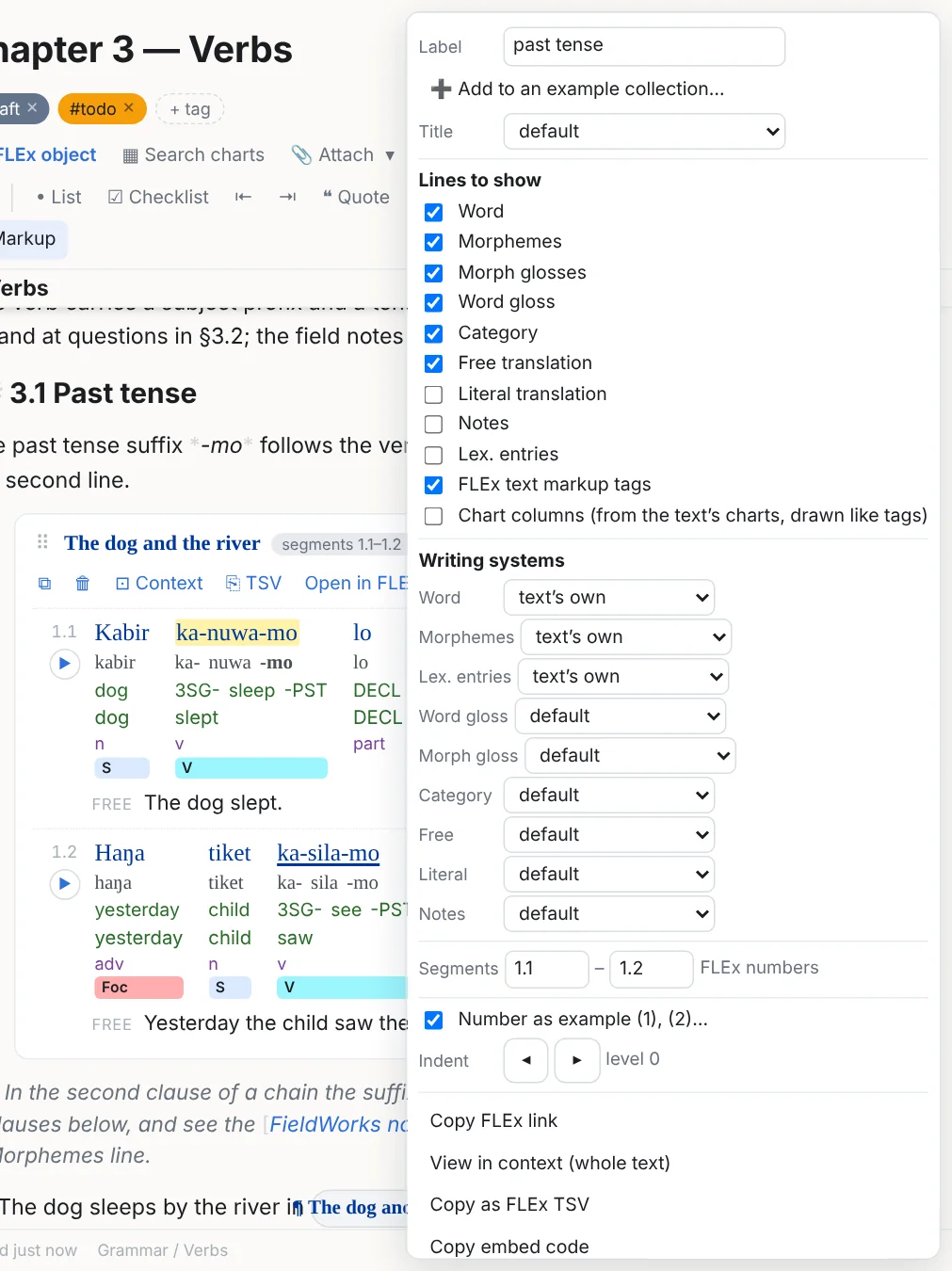
- Lines: Word, Morphemes, Morph glosses, Lex. entries, Word gloss, Category, Free, Literal, Notes, the FLEx text markup tags, and Chart columns (see below); each in a chosen writing system when the project has several.
- Range: the lines shown, which you can widen or narrow after the fact.
- Numbering and indent: Numbered example gives it (1), (2)… through the note, renumbered as you edit; the indent steps it in like a list level (Tab on the example).
- Label: a short name shown on the example and used in links and exports.
- Add to an example collection…, Show these lines as a text chart…, Duplicate, Edit source, Remove.
A line that is empty in FLEx (a stray Shift+Enter) is left out; punctuation alone is not empty. Morph glosses wear the morph type's hyphens and equals signs.
silfw:// links open a text or a lexical entry, but not yet a particular paragraph or line inside a text, and a sense may open its entry rather than the sense itself. So ↗ on an example, a chip, the readable copy in a file or a link in an export opens the example's text in FLEx, at its start; the FLEx line numbers shown with the example say where to look.Chips, inline and collapsed
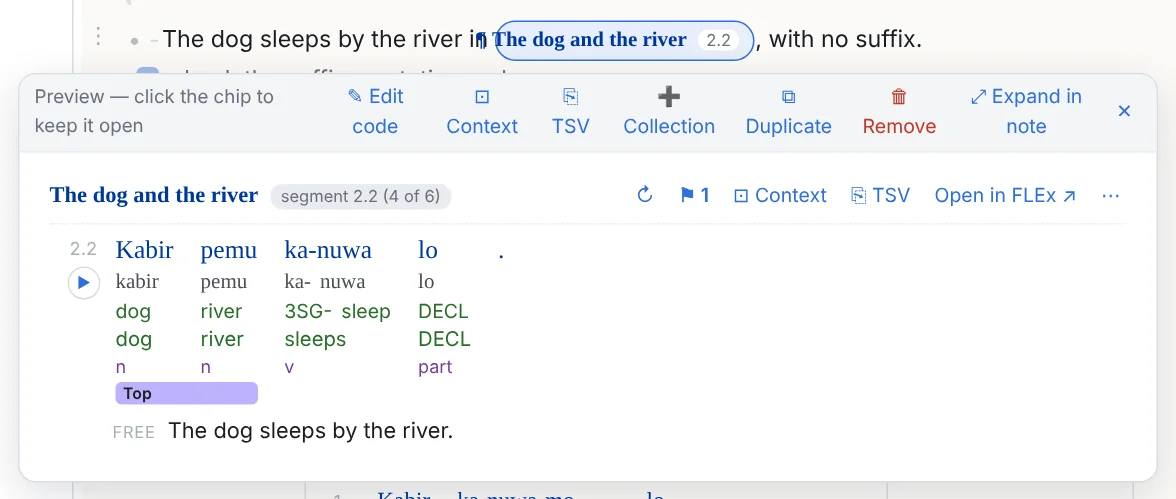
An object inside a sentence is a chip: the text's abbreviation and line numbers, or the entry's headword. It previews on hover, pins open on a click (with Expand in note, styling and the collection button), deletes whole with Backspace, and drags like any object. An example on its own line collapses to a chip with ⤡ and expands with ⤢. In exports a chip is a link into FLEx.
Drag any object by its ⠿ handle: into a sentence (it becomes inline), into a table cell, or between blocks. Ctrl while dropping copies instead of moving.
Entries

An entry shows its headword, lexeme and citation forms, morph type, homograph number, category, and its senses with glosses, definitions, examples, sub-senses, notes and semantic domains; the ⋯ menu picks which. ▦ In charts on the card shows which chart columns the lexeme sits in (column profile). An inline entry is a chip with the headword.
Live, refreshed, and staying on its lines
- Live: an example is read from the project when the note is shown. What FieldWorks saved after the project was opened shows after ↻ on the example (which re-reads the project from disk) or Refresh all on the toolbar.
- Snapshots: every object fetched is also kept in the notebook, so the note still reads when FLEx is closed or the project is elsewhere; the example then says snapshot.
- It stays on its lines: when you split, merge or delete lines in FLEx, the example keeps showing the lines it was made from and its highlights stay on the same words; it says what happened. A line that is gone is shown from the snapshot with a warning, never replaced by whatever line now has its number.
- Readable without the program: the file also carries a plain-text copy of every object after it, with a link into FLEx (Your notes are files).
- Copy some lines: click a line's number (Shift+click for a range) and the bar that appears copies those lines as tab-separated rows with their own reference on the first line; pasted into another note they become a new example of just those lines, pasted into a sheet they are the rows.
5Styling, text markup tags and visual filters
Words, morphemes, letters
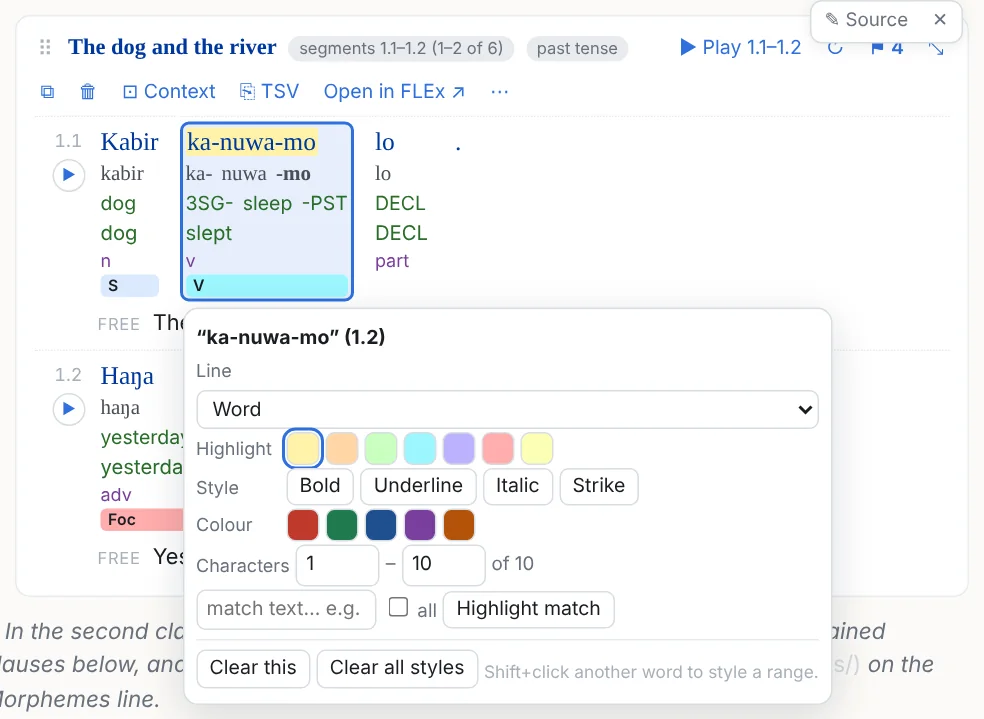
Click a word in an example: Highlight (in a chosen colour), Bold, Underline, Italic, Strike, Colour. Shift+click another word for a range. Characters styles part of a word (letters count with their marks); Match text styles every word, morpheme or gloss that matches, on the line you choose. Drag across the words of a free or literal translation, let go, and pick a style for that stretch; a plain click styles the whole line. The styling is written into the example's reference in the file and carried into every export.
FLEx text markup tags
Tags placed in FieldWorks' Text Tagging view (items of the project's Text Markup Tags list, placed over words) are read with the text and drawn in every example that shows those words. By default a tag is a small bar under its words with its abbreviation, in FLEx's own colour when it has one; tags that overlap stack.
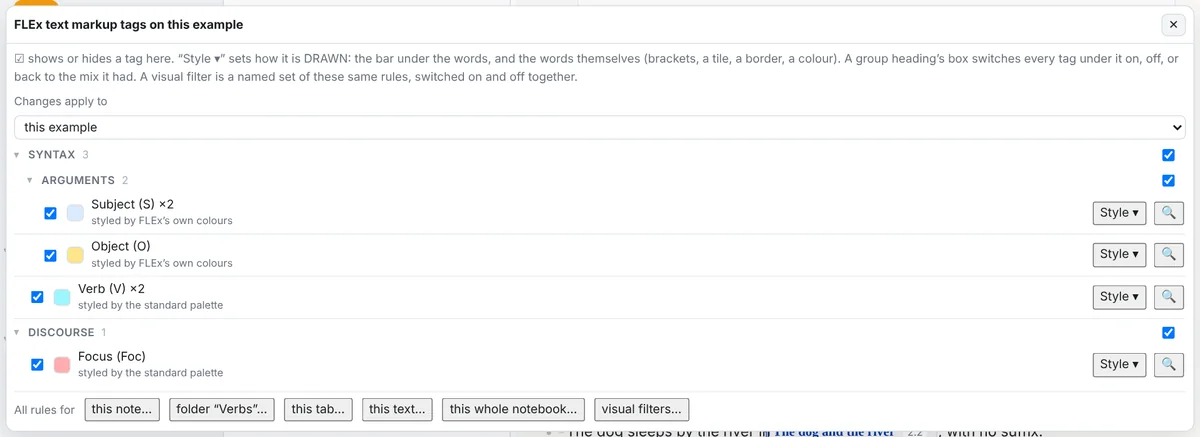
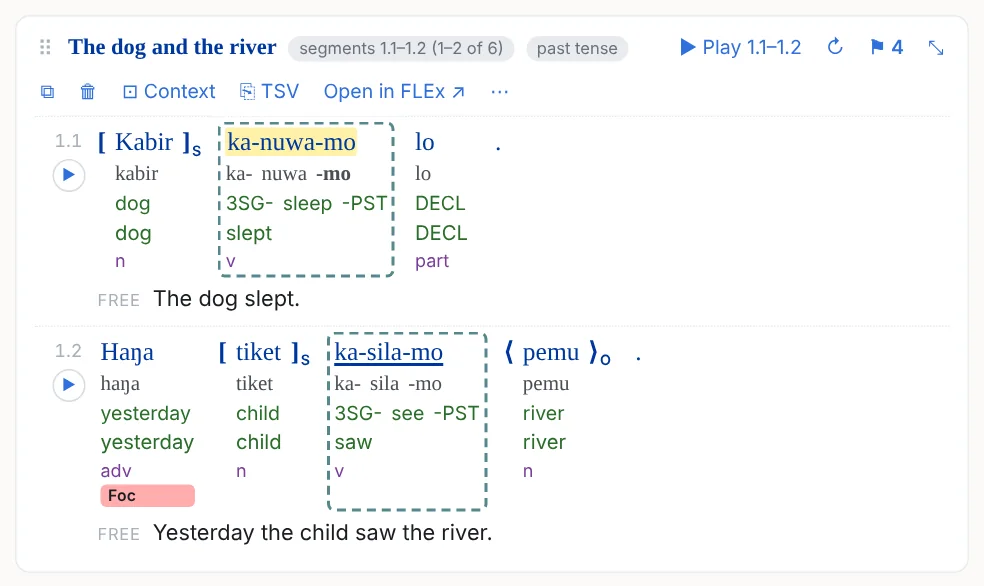
A tag's Style ▾ offers, besides the bar: brackets round the tagged words ([ ], ⟨ ⟩, ⌈ ⌉, { }, ( ) and more), a marker over the word line, a tinted tile behind the words and their lines, a border round them (its line style, thickness and colour), a text colour, bold, italic, underline, and the bar on or off; or the tag hidden altogether. When the text has a chart, the ⚑ popover also lists the chart's columns, so an example can show which column its words sit in.
Where a style applies
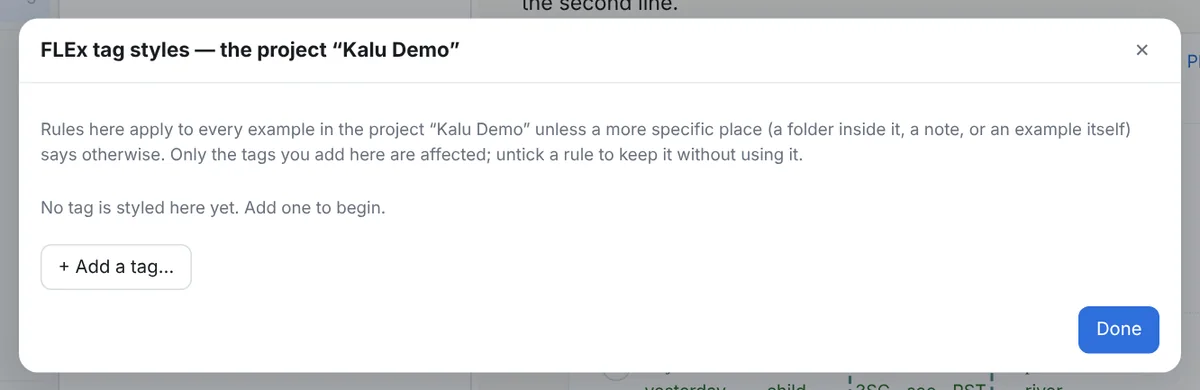
Every change in the ⚑ popover goes to the scope its Changes apply to select names: this example (written into the example itself), this note, each folder the note is in, the tab, the text (wherever lines of that text appear), the whole notebook, or a visual filter. The most specific wins, and shown / hidden is settled apart from the look, so "hide here" keeps the colours chosen further out. The same choices are in a tab's and a folder's right-click menu (FLEx tag styles…), in Settings for the whole notebook, and in the note menu for the selected examples.
Visual filters
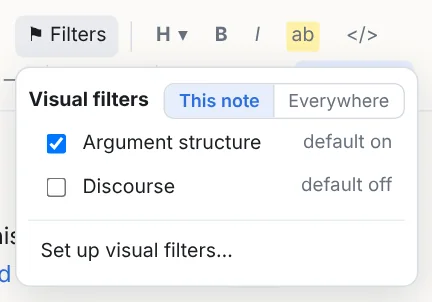
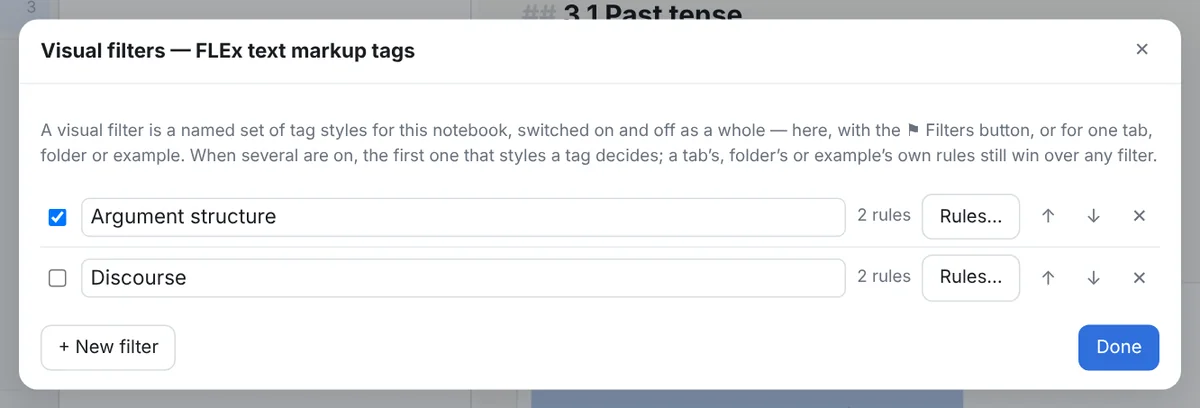
A visual filter is a named set of tag styles (and chart marker, column and structure styles) that you switch on and off as one, like a highlighting filter in Logos: Argument structure with brackets round subjects and objects, Discourse with tiles under topics. They are ordered, and a scope can switch one on or off for itself: the toolbar's ⚑ Filters does it for the open note or for everywhere. A filter's rules are edited in the same dialog as a scope's, and a filter only affects the tags you added to it.
Finding notes by tag
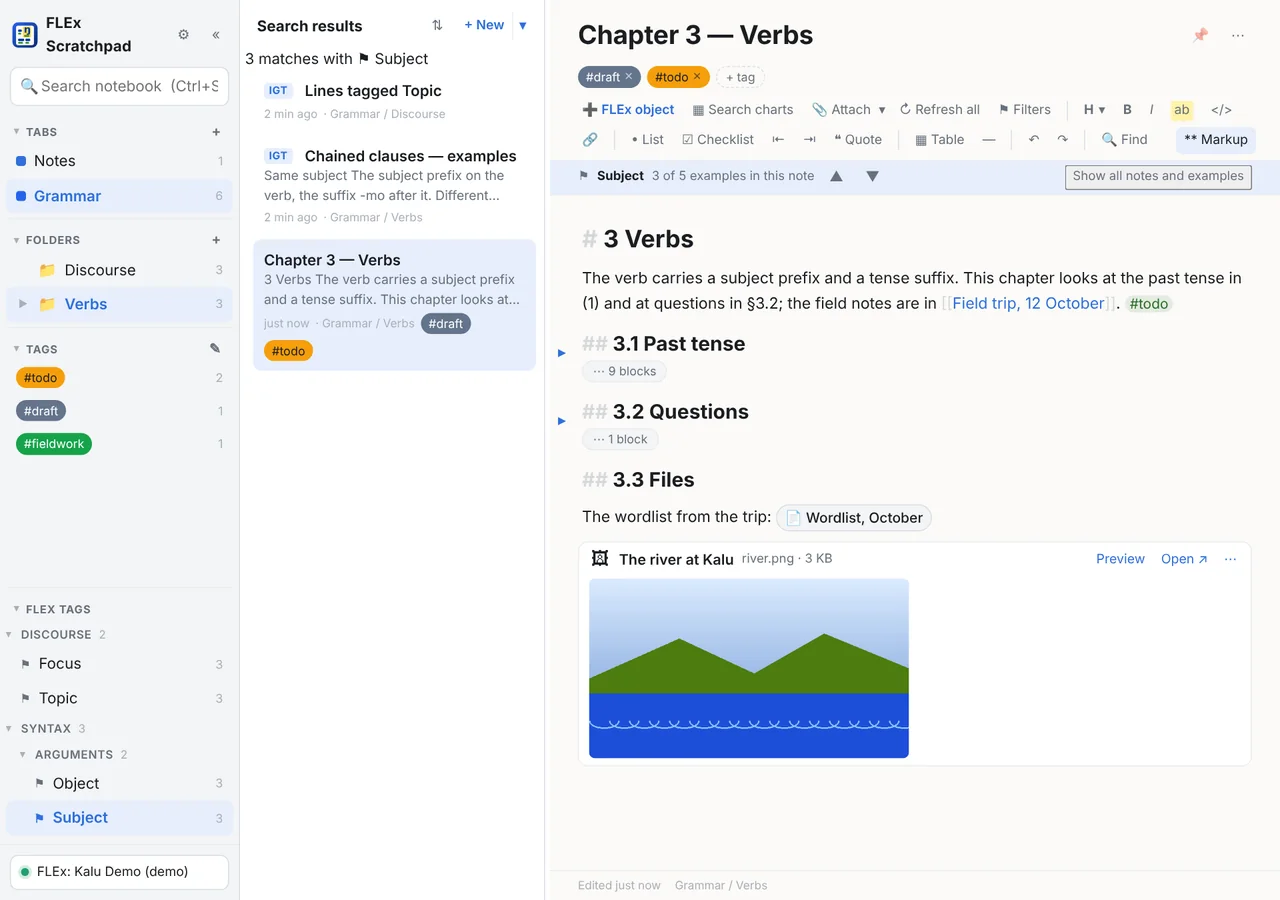
The rail's FLEx tags lists the text markup tags the tab's notes use. Click one: the list shows only the notes whose examples carry it, and in the open note those examples are marked, the others dimmed, with a bar to step through them. The search box does the same with tagged:Topic, and the FLEx object dialog's FLEx tags view lists every place in the project a tag is used.
6Hearing an example
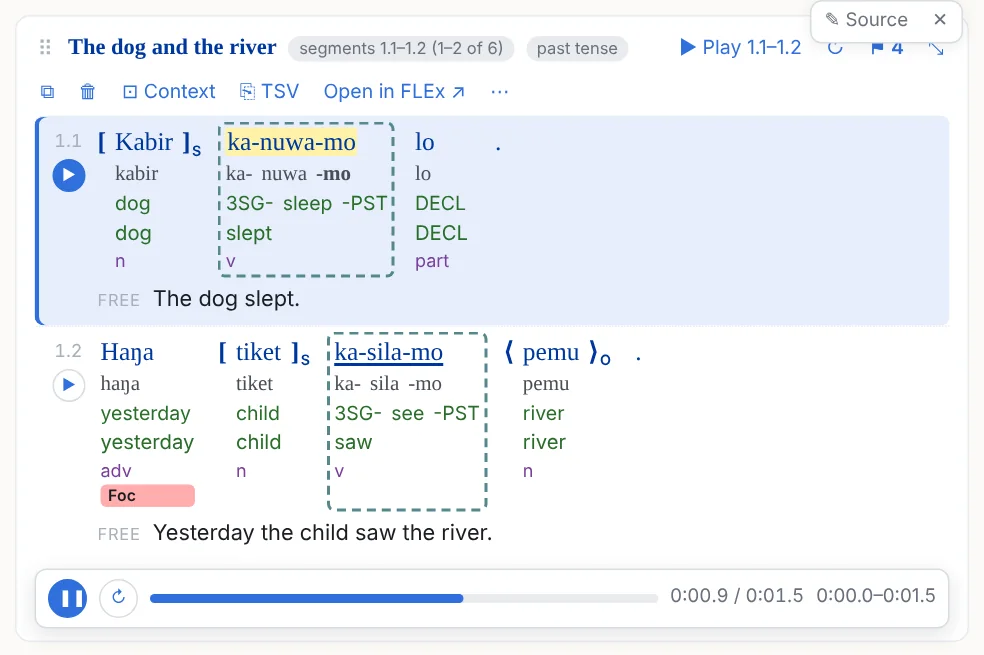
When a text in FLEx is time-aligned (its lines have begin and end times and a media file; where that comes from), each line of an example has ▶, a range has Play 1–3, and a transport strip offers pause, loop and scrubbing. The playing line is lit and the note scrolls to it unless you are scrolling yourself; the player stays at the bottom of the view while the example runs on below it. Whenever something plays and its player is not on screen, a Now playing bar at the bottom of the window has pause, stop and the position; Esc stops.
The first time a line plays, its stretch of the recording is cut and kept in the notebook, so it still plays when the recording is somewhere else. When a text's media file cannot be found, the example says so with Browse…; the file you pick is remembered for that text and its folder for the others. Charts play too (Playback), and the web page and slideshow exports carry the players (Audio in the exports).
7Example collections
A collection is a note that is only examples, numbered in order, sorted into groups, each with a note of its own, and the one kind of note that exports as a FLEx text.
Making one
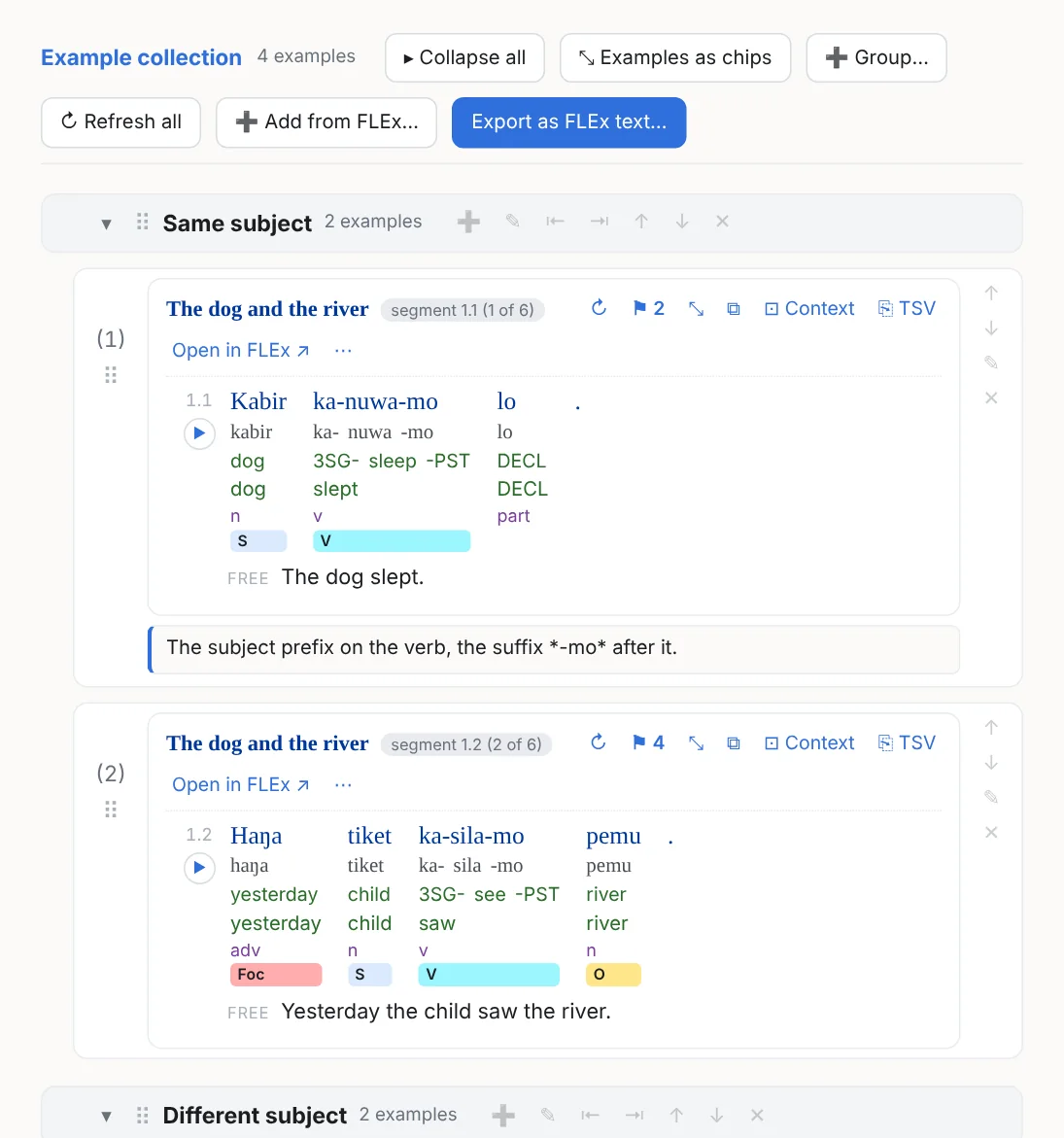
- + New ▾ → New example collection (Ctrl+Shift+N): an empty collection. Paste FLEx rows into its paste box, use Add from FLEx…, or choose Add to an example collection… on any example in any note (its ⋯, or + Collection on a chip's preview).
- In an ordinary note, ⋯ → Collect the examples into a new collection… copies its examples into one: the examples in the highlighted part of the note if you selected some, else all of them.
- Chart rows found by the chart search can be collected too; they appear as cards, and the FLEx text export leaves them out.
Groups, notes, chips, selections
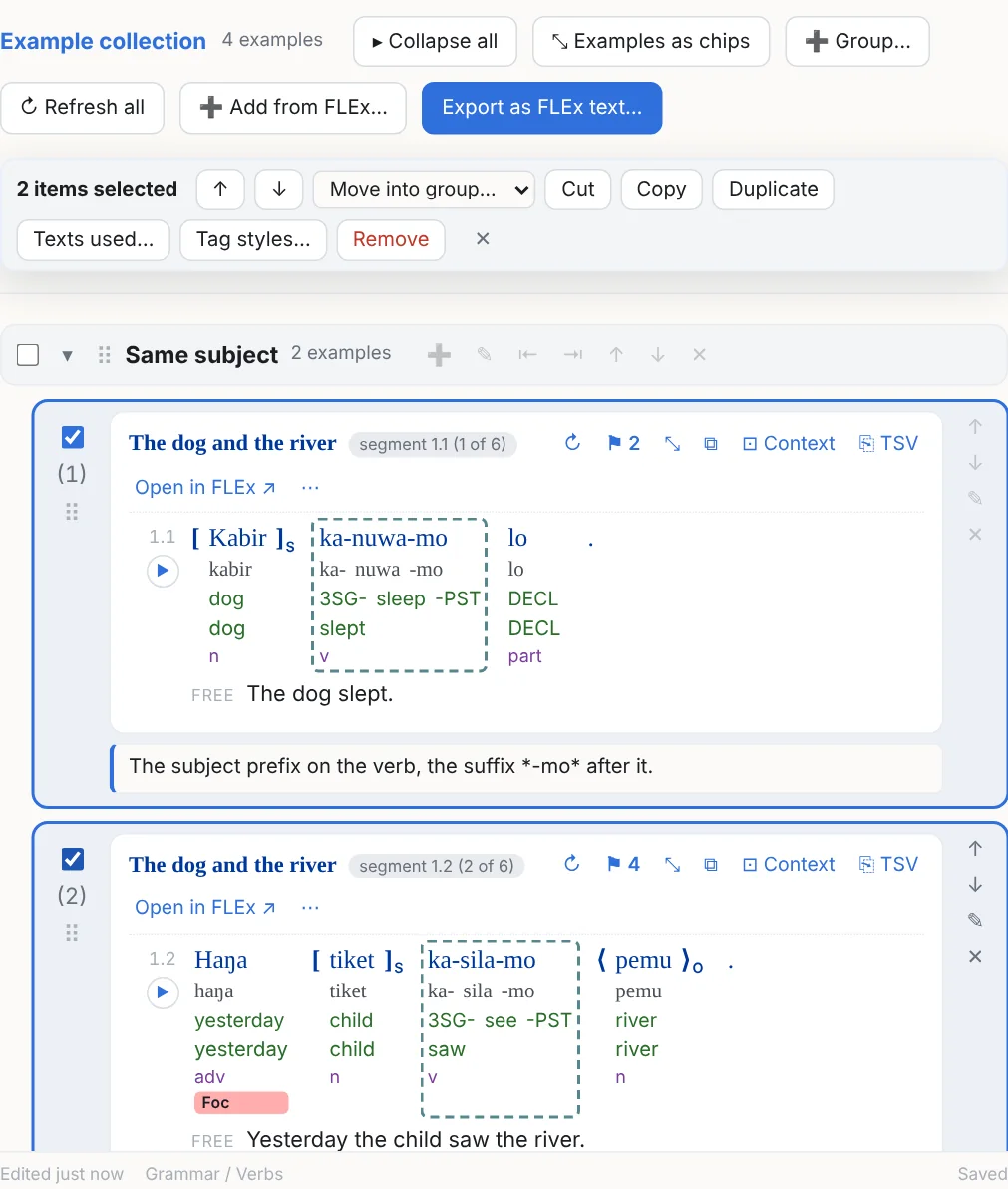
- Groups (+ Group…) are labelled headings with levels (⇤ ⇥), collapsible (▸ / ▾, Collapse all), renamed by double-click; drag examples onto them or use ↑ ↓. Numbering runs straight through the groups, which only organise the view and are not exported.
- A note on an example (✎) is exported: FieldWorks shows it as a note on the example's first line.
- Chips: ⤡ collapses an example to a chip in the collection too; Examples as chips / in full in the header does all of them. Collapsed examples still export.
- Several at once: a checkbox per example and group (Shift for a range, Ctrl+A for all); the bar moves them (Alt+Shift+↑ / ↓), moves them into a group, cuts, copies and pastes them (Ctrl+X / C / V, into a note or another collection), duplicates (Ctrl+D), sets their tag styles, lists their texts, and removes them (with Undo). Dragging a ticked card moves them all.
- ↻ in the header re-reads every example from the project.
Collections by rule
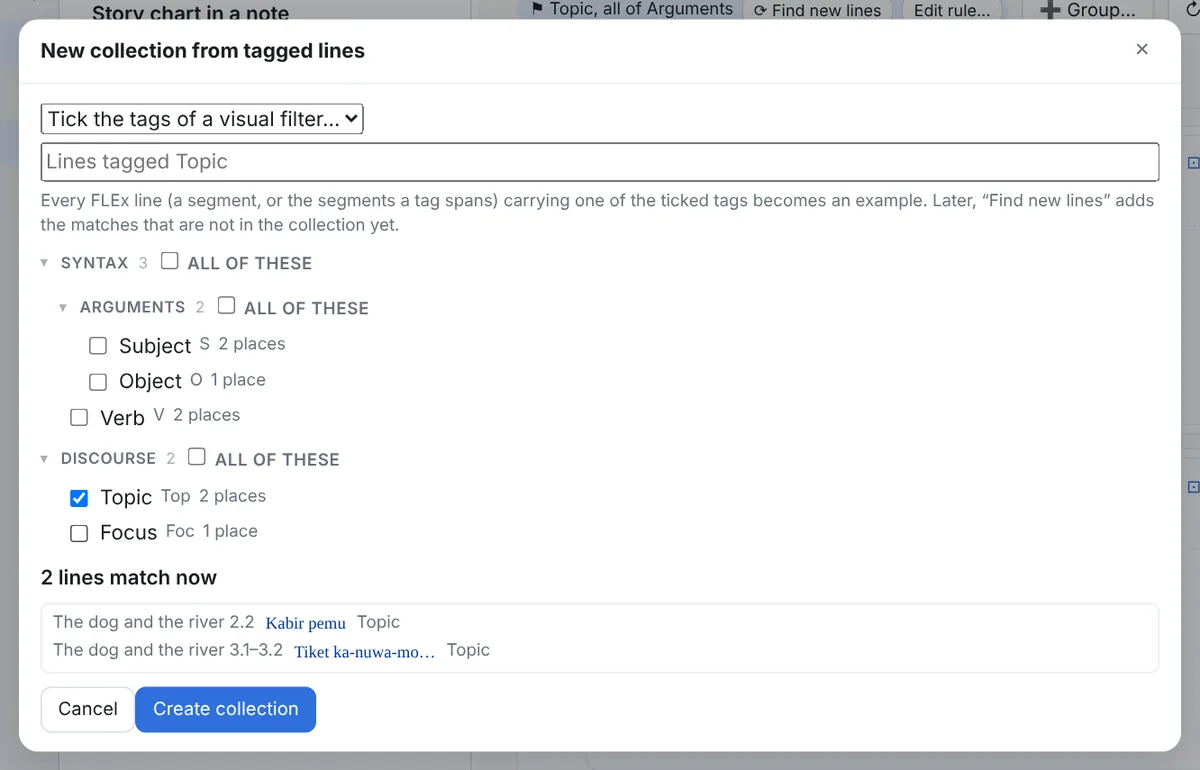
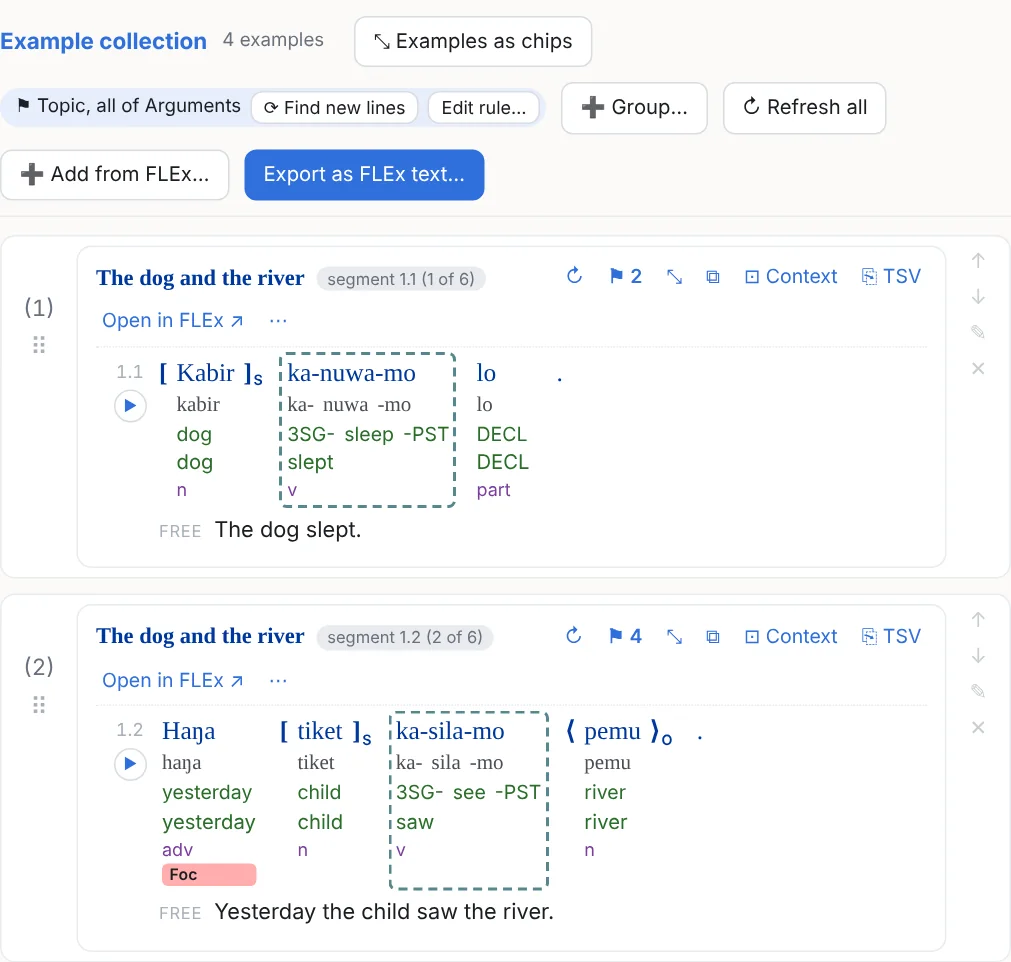
Tick FLEx text markup tags (a group's box takes every tag under it; a select ticks a visual filter's tags in one go) and every line in the project carrying one becomes an example, in text order, one example per line however many tags it has. The rule is saved in the collection: ⟳ Find new lines appends the matches not in it yet and selects them (a line you removed comes back; keep it in a group instead), Edit rule… changes the tags. A rule can also be a chart search: ⟳ Find new rows then.
From a FLEx concordance export
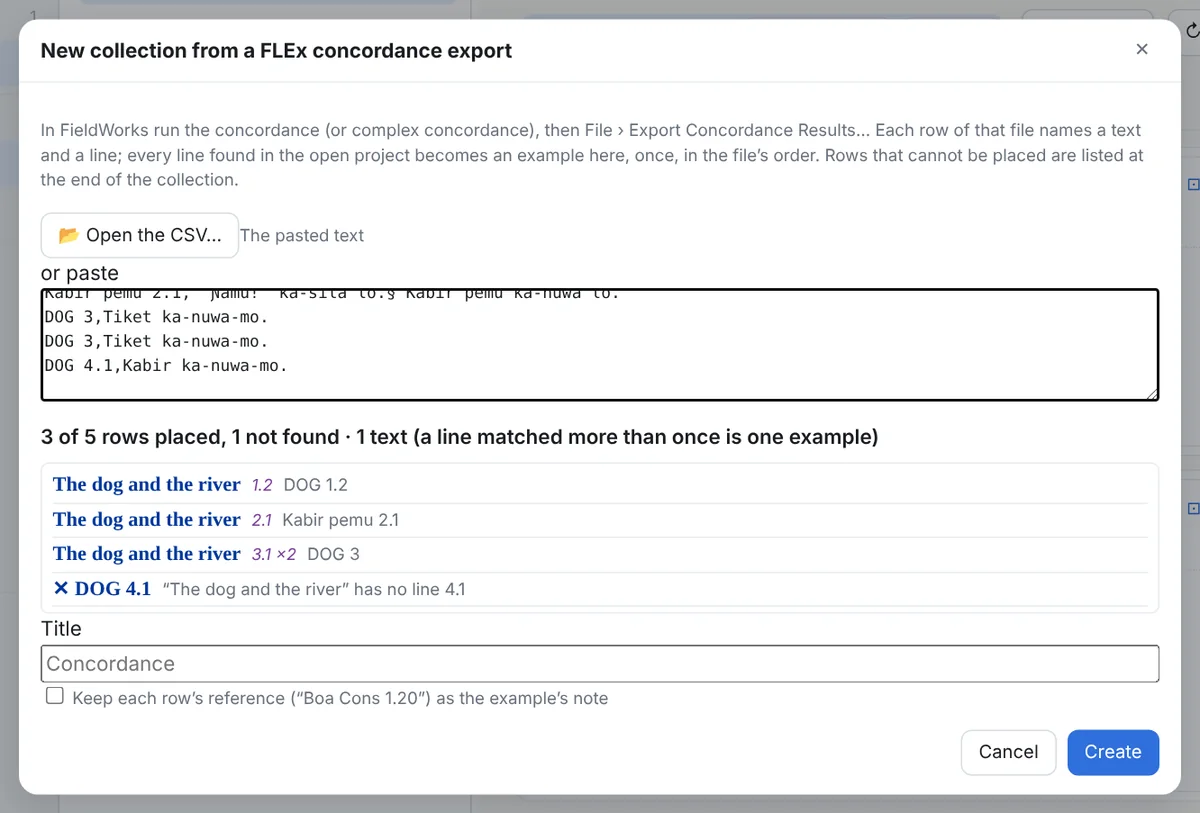
In FieldWorks run a concordance or complex concordance, then File › Export Concordance Results…, which writes a CSV of Ref,Occurrence rows. Here, + New ▾ → New collection from a FLEx concordance export…, open that file (or paste its contents into the box). Each row is placed: the text by its abbreviation or title in any writing system, the line by FLEx's number, the baseline checked against the occurrence. Every line found becomes an example, once, in the file's order; the rows that could not be placed are listed in a paragraph at the end of the collection, never dropped silently. Keep each row's reference as the example's note keeps the Ref and how often the line was hit.
Which texts a note uses
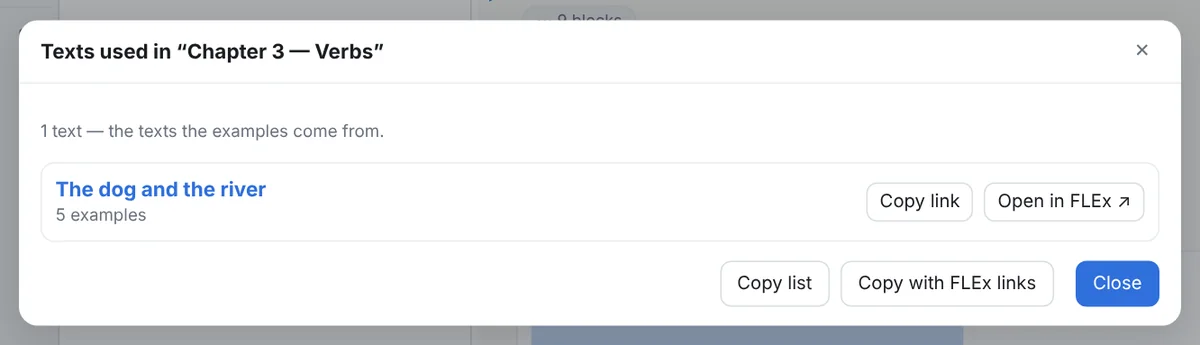
One row per source text, with how many examples and links draw on it, the notes it appears in, and its link into FLEx; for a note, the highlighted part of a note, a folder with its subfolders, a whole tab, or a collection's selection. Copy list and Copy with FLEx links put it on the clipboard as a Markdown list.
Export as a FLEx text
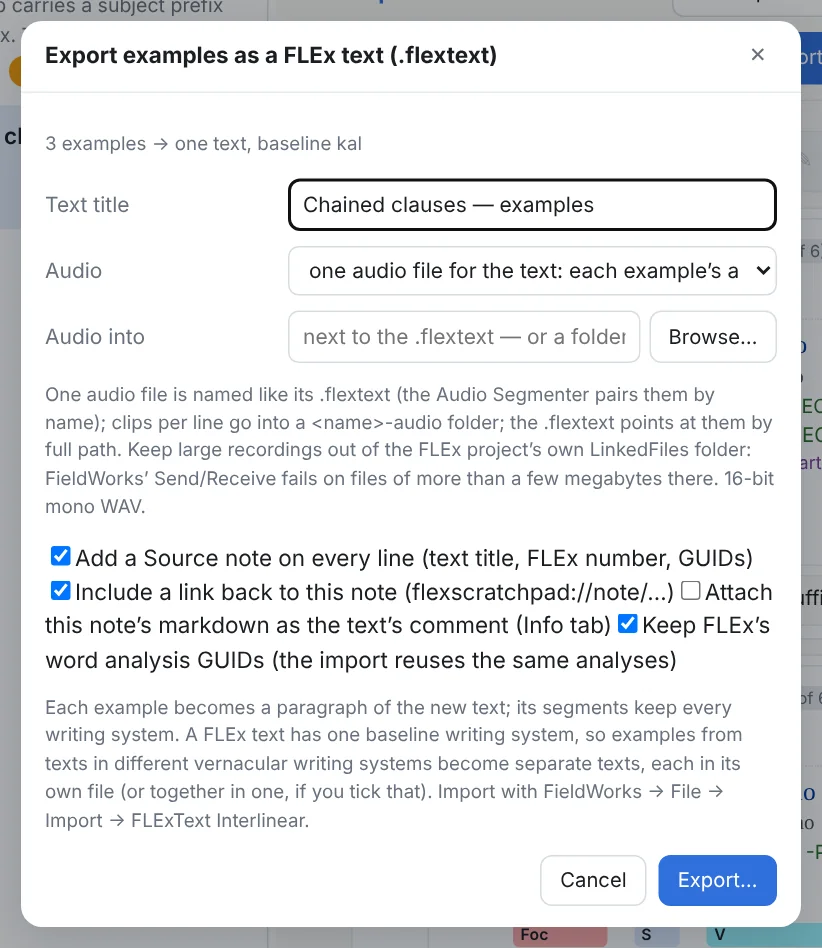
Why you would want this. FieldWorks works on one text at a time. A collection exported as a FLEx text makes the examples you chose, from many texts, into one new text you import into FLEx: every serial-verb sentence in your corpus, say, or every clause with a particular particle, side by side as one text you can gloss, tag, chart or concord on its own, without touching the texts they came from. With its audio, it also opens in the FlexText Audio Segmenter to check or cut.
Only a collection exports a .flextext: one paragraph per example, one phrase per line, every writing-system alternative, the word identities kept so FieldWorks reuses the analyses on import, a Source note per line naming the text and line it came from. Examples from texts in different baseline writing systems become one file each. The Audio choice: one audio file for the text (the default: every example's recording in order with a click between examples, named like the .flextext and saved beside it, which the FlexText Audio Segmenter pairs with it by name), one small file per line, the original recordings and offsets, or none; or into a folder you choose, such as a lameta session folder; the .flextext then points at the recording by its full path. Keep large recordings out of the project's own LinkedFiles: FieldWorks' Send/Receive fails on files of more than a few megabytes there (see the FAQ). The file is a new text with new identities: importing it cannot touch the texts its examples came from, and the program refuses to write a file FieldWorks' importer would stumble on.
8Text charts
FieldWorks' constituent charts, as living objects in a note: the whole chart or a range of its rows, with the column headings, the free translations spliced in, styling by click and by rule, three layouts, playback, and a search over every chart of the project.
A chart in a note
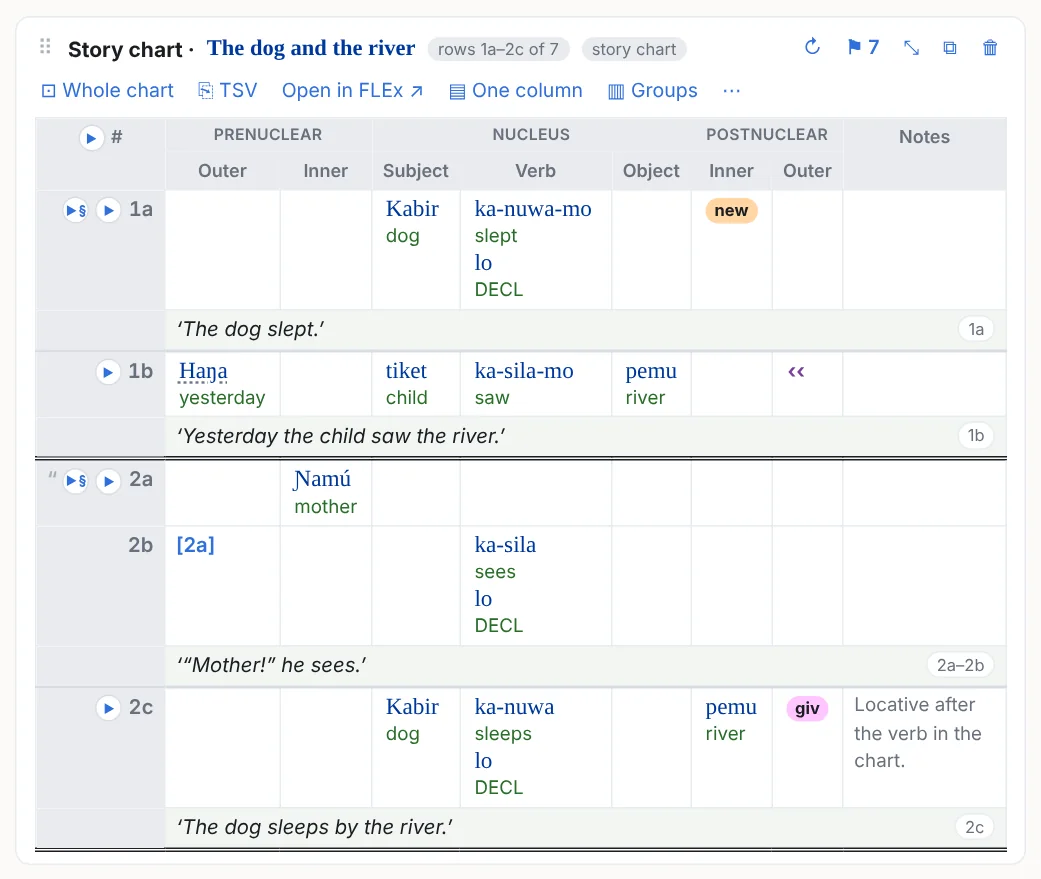
Ctrl+Shift+L → Text charts: pick a chart (a text has one per template it was ever opened with; those with rows are listed first and empty ones say so), click the first and last row, Insert rows, or Whole chart. The column headings always come along. A chart has no name of its own in FieldWorks, so it goes by its template. Rows are addressed by their identity, not their number, so a chart re-numbered in FLEx keeps the same rows here.
The chart's menu
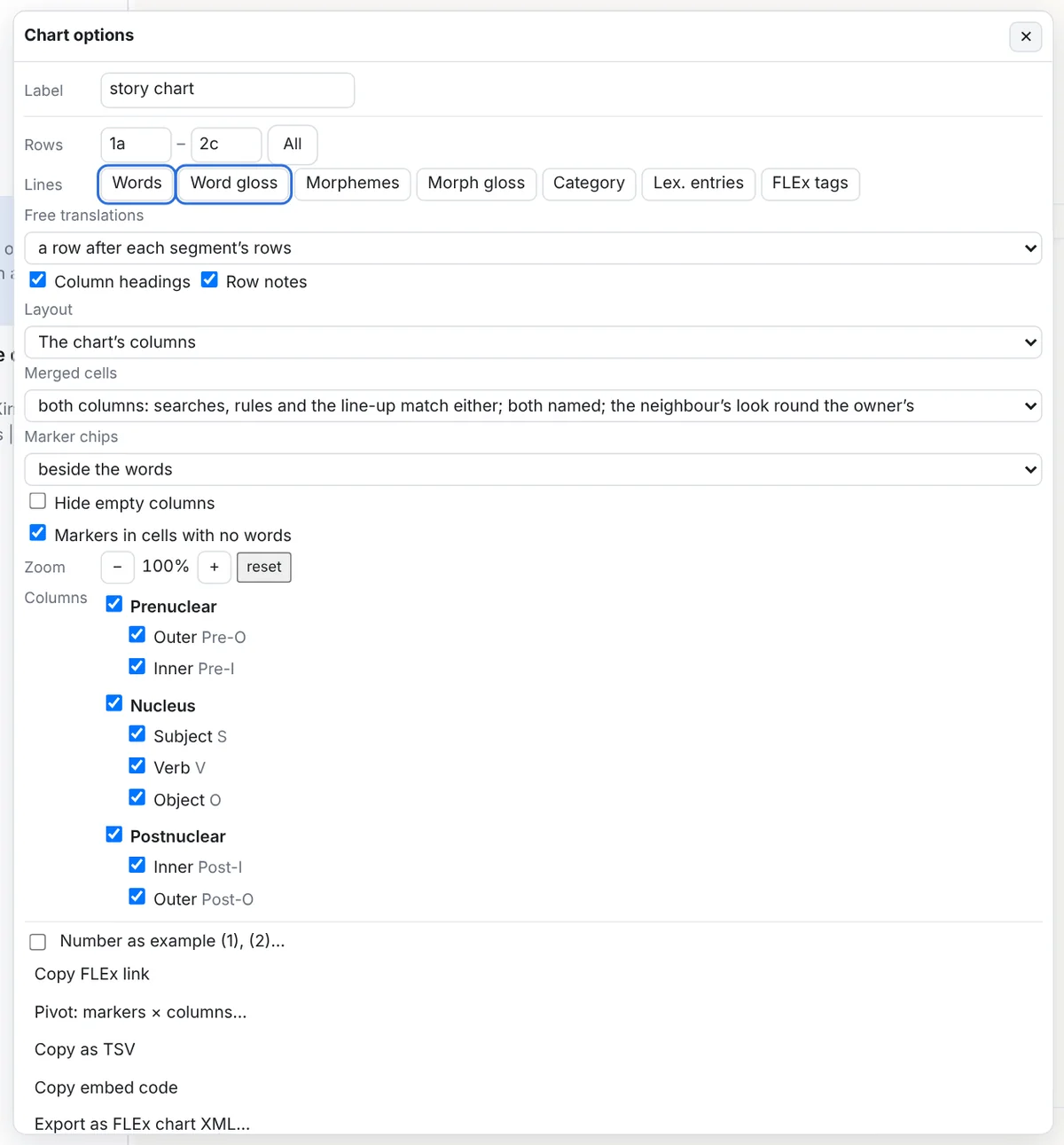
- Lines in a cell: Words, Word gloss (the default), Morphemes, Morph glosses, Category, and the text's FLEx tags as chips.
- Free translations: a row after the last row holding a line's words (naming the rows it covers), a Free column, a tip for the clicked cell, or off. Headings on or off (for a continuation), the row Notes column on or off.
- Columns: a box per column under its header group; Hide empty columns drops the ones with nothing in the rows shown; a heading's popover has Hide this column.
- Layout, Merged cells, Marker chips, Markers in cells with no words, Zoom, Line up on: below.
- Copy as TSV, Export as FLEx chart XML / JSON, Pivot, Change the chart…, Show these lines as an interlinear example, Open as a chart note…, Edit source, Duplicate, Remove.
Styling by click
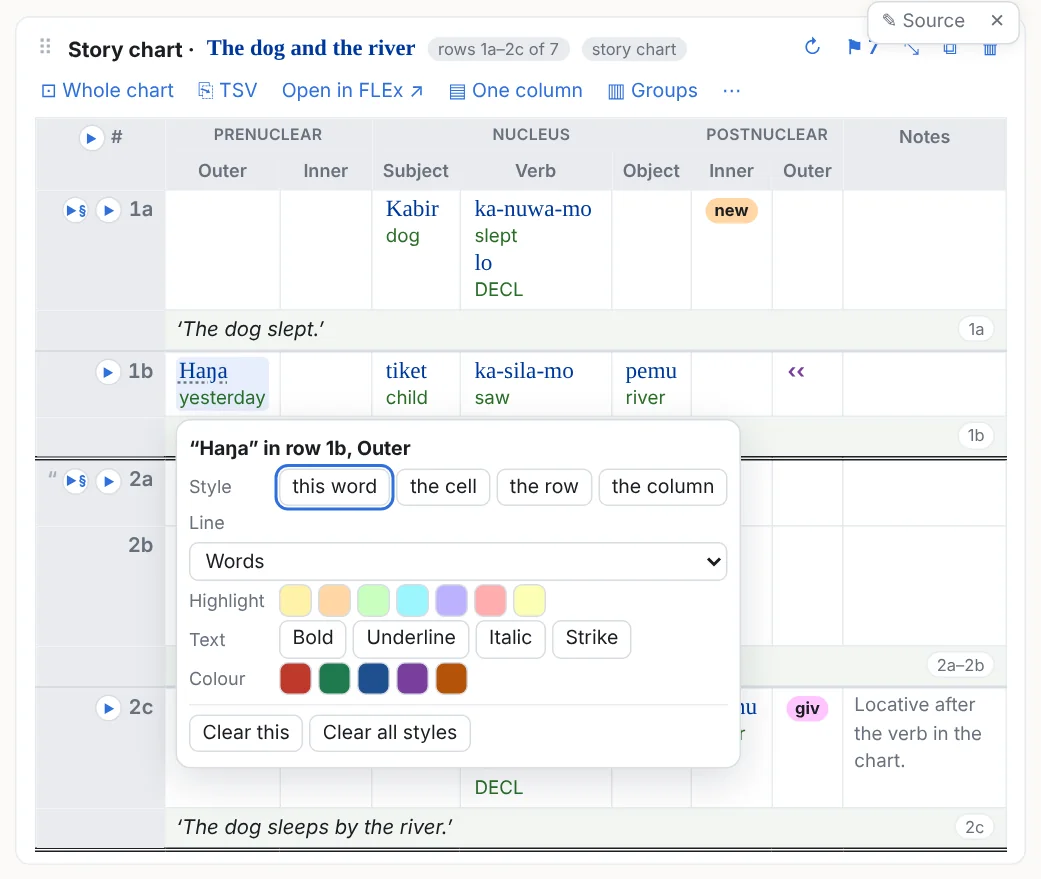
The same highlight, bold, underline, italic, strike and colour as on an example, for this word, the cell, the whole row or the whole column. A column heading's popover also has Hide this column and Style this column everywhere… (⚑); a row label's has Select this row.
⚑ Markers, columns, structure
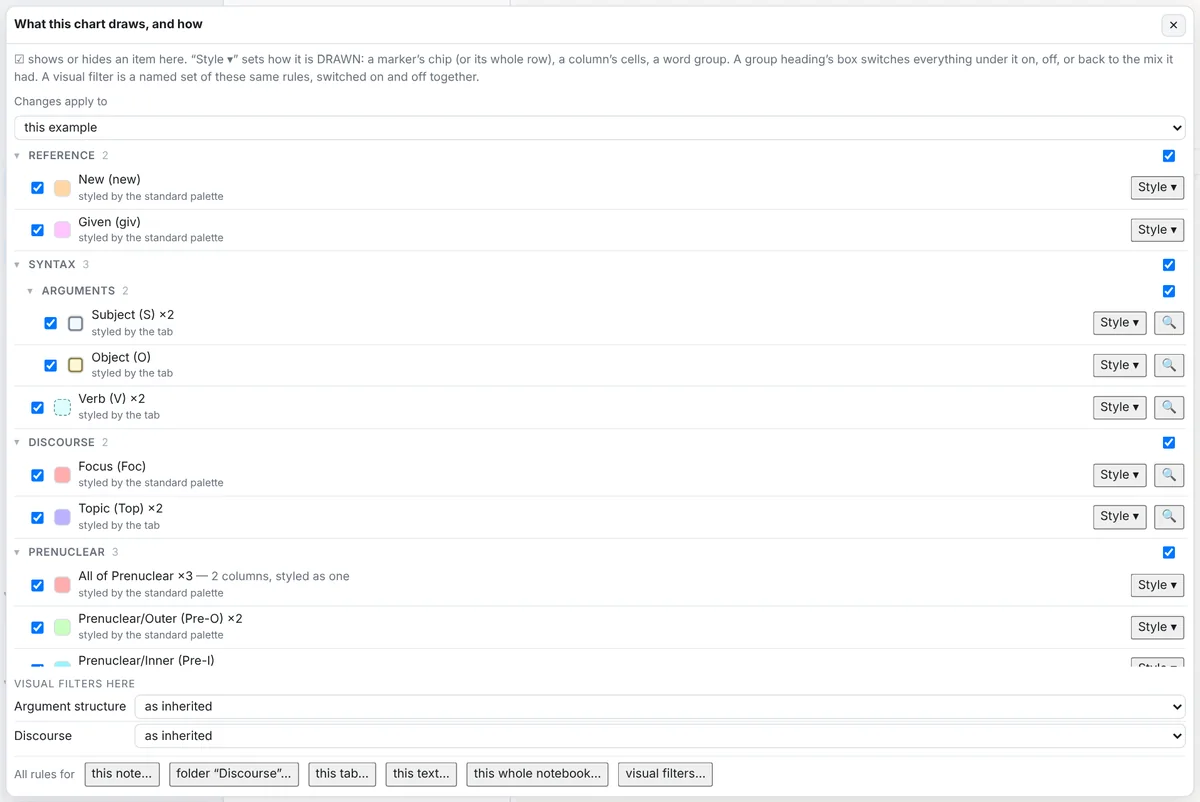
The popover is in three parts, each with the same show/hide box and Style ▾, and the same scopes as a tag (this chart, the note, each folder, the tab, the text, the whole notebook, a visual filter):
- Chart markers (the project's Chart Markers list, as its tree): a chip's colour, bold, hidden, or whole row, which colours every row the marker is in. In an empty cell decides per marker whether it shows in a cell with no words, overriding the menu's switch for all of them.
- Columns and header groups: a tint, a border, a text colour, bold / italic / underline for a column's cells and heading (brackets and the rest too in the one-column layouts and on examples); a header group (All of Nucleus) is styled as one box across its columns. A column whose rule says hidden leaves the table.
- Chart structure: dependent, speech and song clauses (the whole row: a tint, a highlight on its words, a border round the row, brackets round its content, the words’ colour), the
[2a]clause markers, moved text (preposed or postposed word groups: a tint, border, brackets or colour; the look of the column it came from or sits in; a label such as ‹‹ Subj), the sentence and paragraph boundaries FLEx marks (their line style, thickness and colour, or hidden), and merged cells (any, by side, or by column).
A group heading's box switches everything under it on, off, or back to the mix it had. All of these are the same rules a visual filter holds, so one filter can bracket the subjects on your examples and tint the Subject column of your charts.
Three layouts
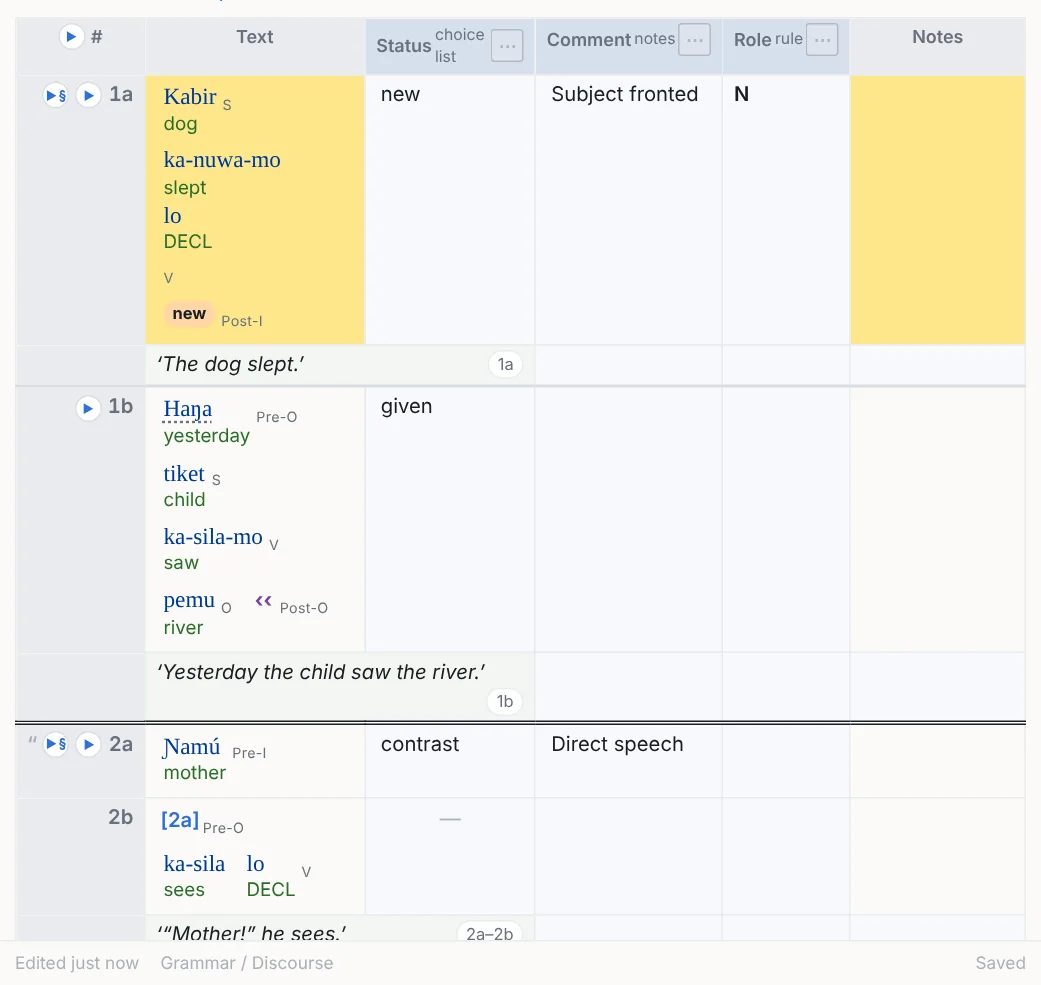
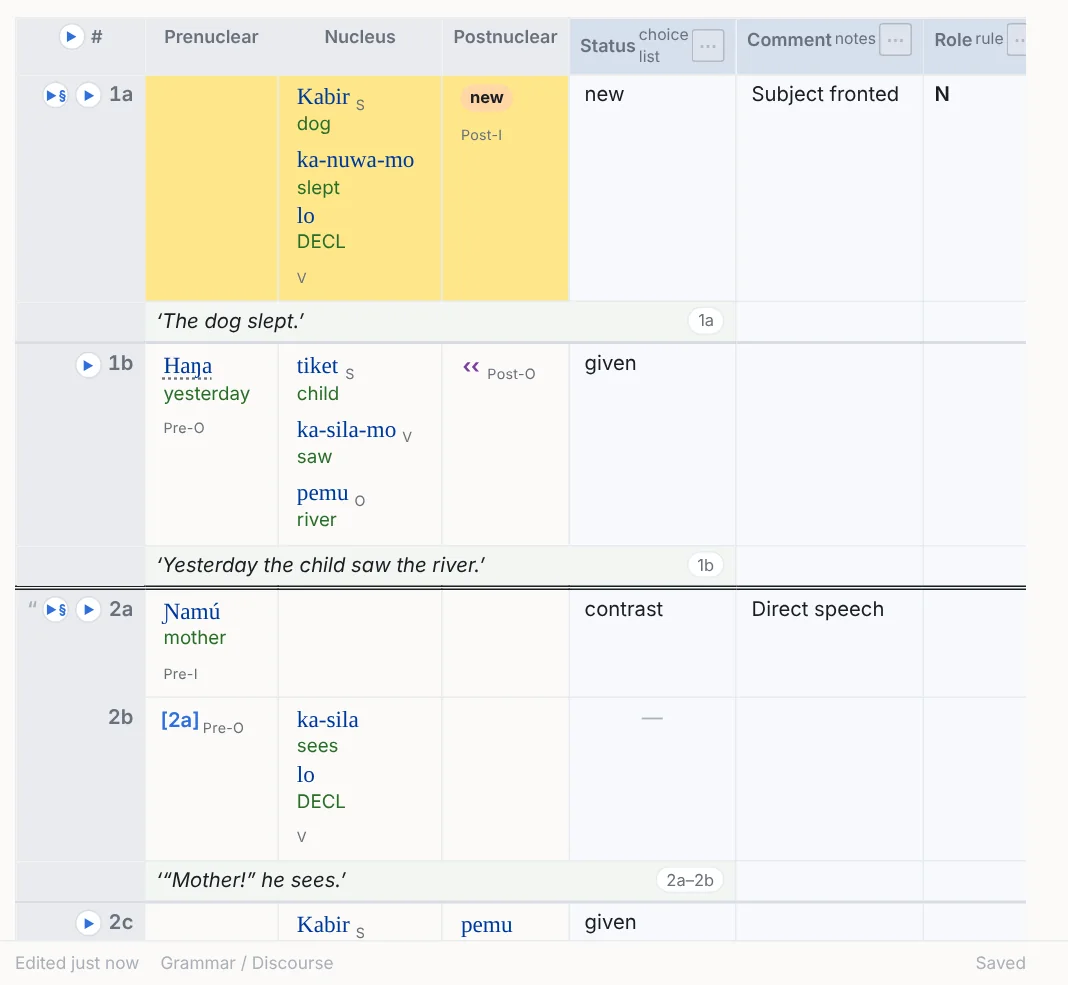
▦ Columns is the chart as FieldWorks draws it. In the two flat layouts the column rules do the work the columns did: a visual filter by column or marker styles each part (brackets, tiles, borders, colours), the parts of one FLEx cell share one box, and Line up on centres (or left- or right-aligns) the parts of chosen columns or header groups on one axis across the rows, the rest flowing beside them. Marker chips go beside the words, on a line of their own under them, or on their own line no wider than the words, so chips never widen a column. The copies and exports follow the layout.
Widths, zoom, hidden and frozen columns
- Column widths: drag the right edge of a heading; a wide chart scrolls sideways under its headings, which stay put, as does the row-label column with the ▶s. Double-click the edge, or Reset column widths, to let it size itself. Widths are kept in the note.
- Sticky headings: the header rows stay at the top of the pane while the chart's rows scroll past.
- Zoom (50–200 %) makes a chart larger or smaller on its own.
- Hidden columns come back from the menu's column boxes; Hide empty columns drops the empty ones for the rows shown.
Merged cells
A cell FieldWorks merged with its empty neighbour ("it could be either column") counts for both columns by default: searches, rule columns, the column profile and Line up on match either, it is drawn with the owner column's look round the words and the neighbour's round that, and in the flat layouts it is labelled S+V. The menu's Merged cells chooses otherwise: the owner column alone for everything, or both named with the owner's look only, or the owner's look and name. The ⚑ popover styles merged cells as a thing of their own: any, merged to the right or left, or merged from a given column.
Playback
▶ beside the first row of each time-aligned line plays that line from the text's recording and lights the cells holding its words; ▶ in the # corner plays every line shown; ▶§ plays a whole sentence (the rows 4a, 4b, 4c) and ▶¶ a whole paragraph. The web page and slideshow exports do the same.
Copying rows, converting, pivoting
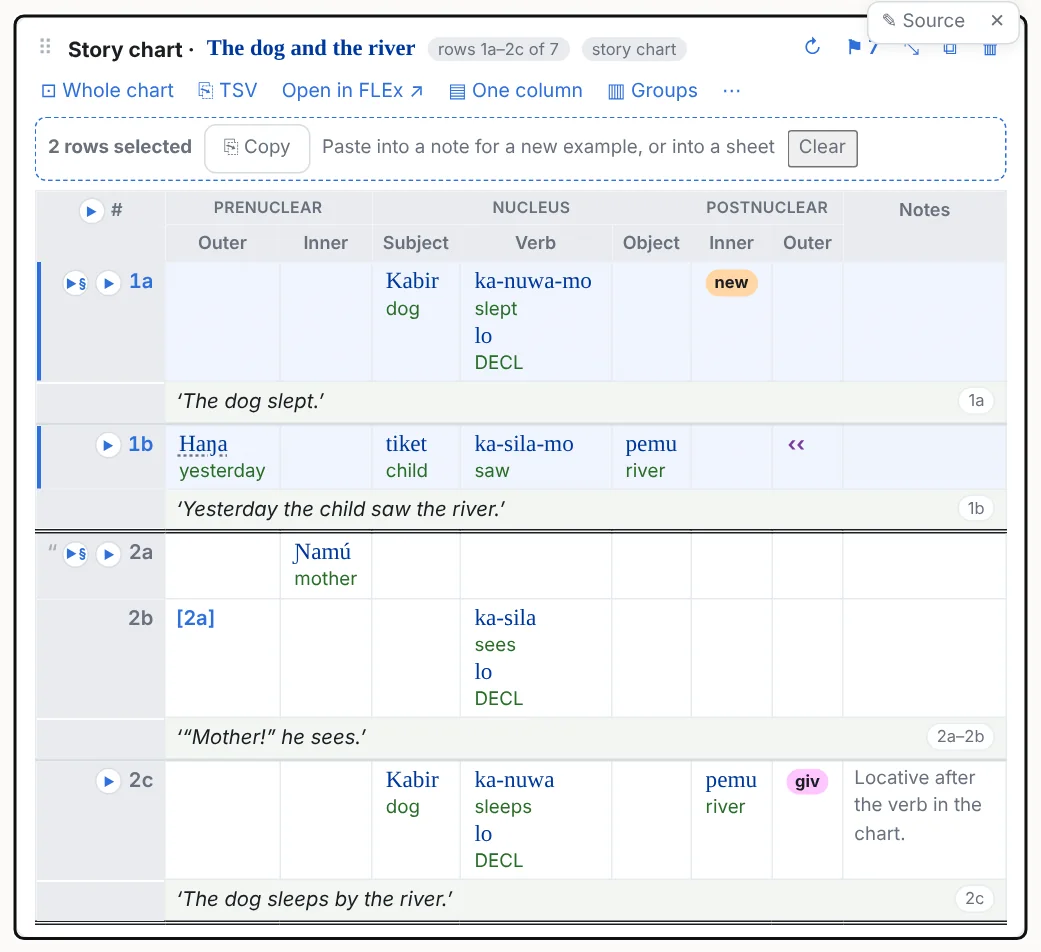
Copy rows: Ctrl+click (or Shift+click for a range) on a row's label; the bar copies the rows as tab-separated text with the header rows and, on the first line, the rows' own reference, so pasting into another note makes a chart object of just those rows and pasting into a sheet gives the rows.
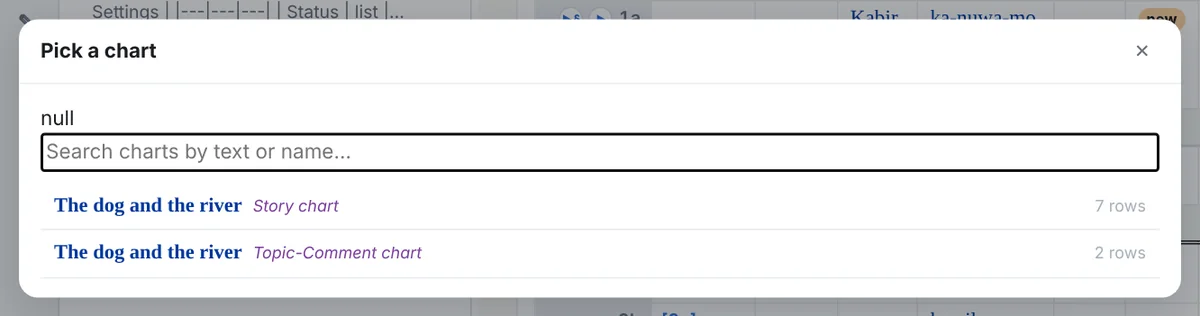
Convert: a chart's Show these lines as an interlinear example shows every line of the text its rows touch, first to last; an example's Show these lines as a text chart… shows the text's chart at every row holding words of those lines (asking which chart when the text has several). Both are inclusive; trim the range afterwards. Change the chart… retargets a chart object or a chart note to another chart.
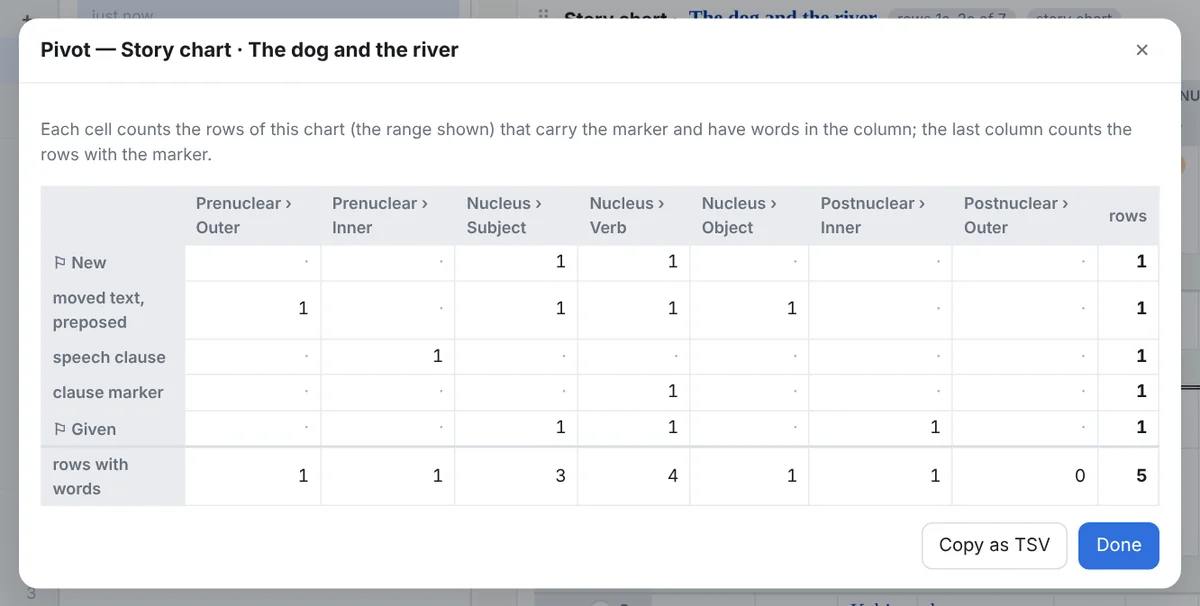
Pivot: a row per marker, clause type, moved text and clause marker, a column per visible template column, each cell counting the rows that carry the marker with words in that column; Copy as TSV.
Charts and examples, joined up
An interlinear example's ⋯ → Chart columns draws, like tags, which chart columns its words sit in (in all the text's charts), and the same column: rules style them. A chart's ⋯ → FLEx tags draws the text's markup tags as chips in its cells, in the look their scopes give them. An entry card's ▦ In charts opens the column profile for its lexeme.
9Chart notes
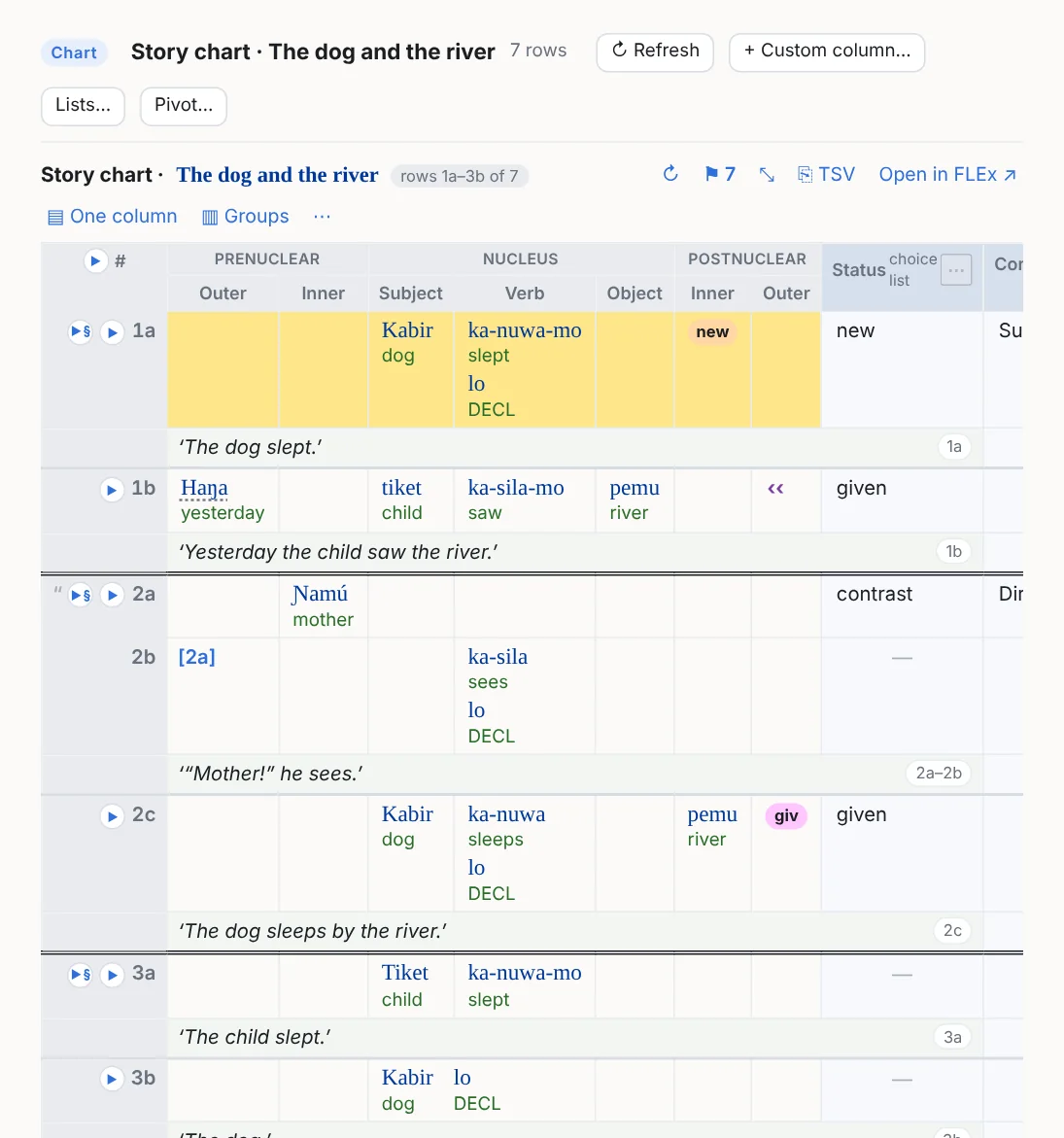
A chart note is a note that is one text chart, with columns of your own beside it: a choice list shared by the whole notebook, free notes, a checkbox you tick or leave empty, or a rule that fills each row from its markers, columns and words. + New ▾ → New chart note…, or a chart's ⋯ → Open as a chart note…, which carries its view settings over.
Your own columns
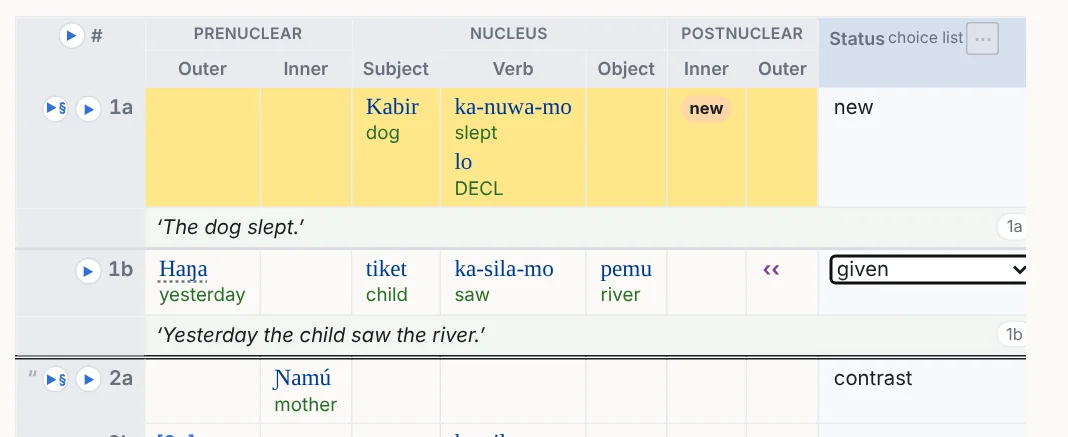
- List: a choice per row from a list that is shared by every chart note in the notebook (Information status: new, given, contrast); an open list offers + Add an option… in the cell.
- Notes: free text per row; click the cell, Enter saves.
- Checkbox: a box per row, ticked or not with one click; saved in the note as
x, exported as ✓, and a rule tests it asChecked:*. - Rule: computed from the chart, never typed; see below.
A column's ⋯ in its heading renames it, edits its settings, moves it, removes it (with Undo), and places it left or right of the FLEx columns and frozen (it stays put while the chart scrolls sideways). Values are keyed to the row's identity, so renumbering in FLEx never moves them. The columns and values are two Markdown tables in the note's file, so the notebook search finds them and the file reads anywhere. The custom columns ride along in the Word, Excel, PDF and slide exports. A chart note's Pivot… and its whole ⚑ / ⋯ apparatus are the chart's.
Rule columns and the builder
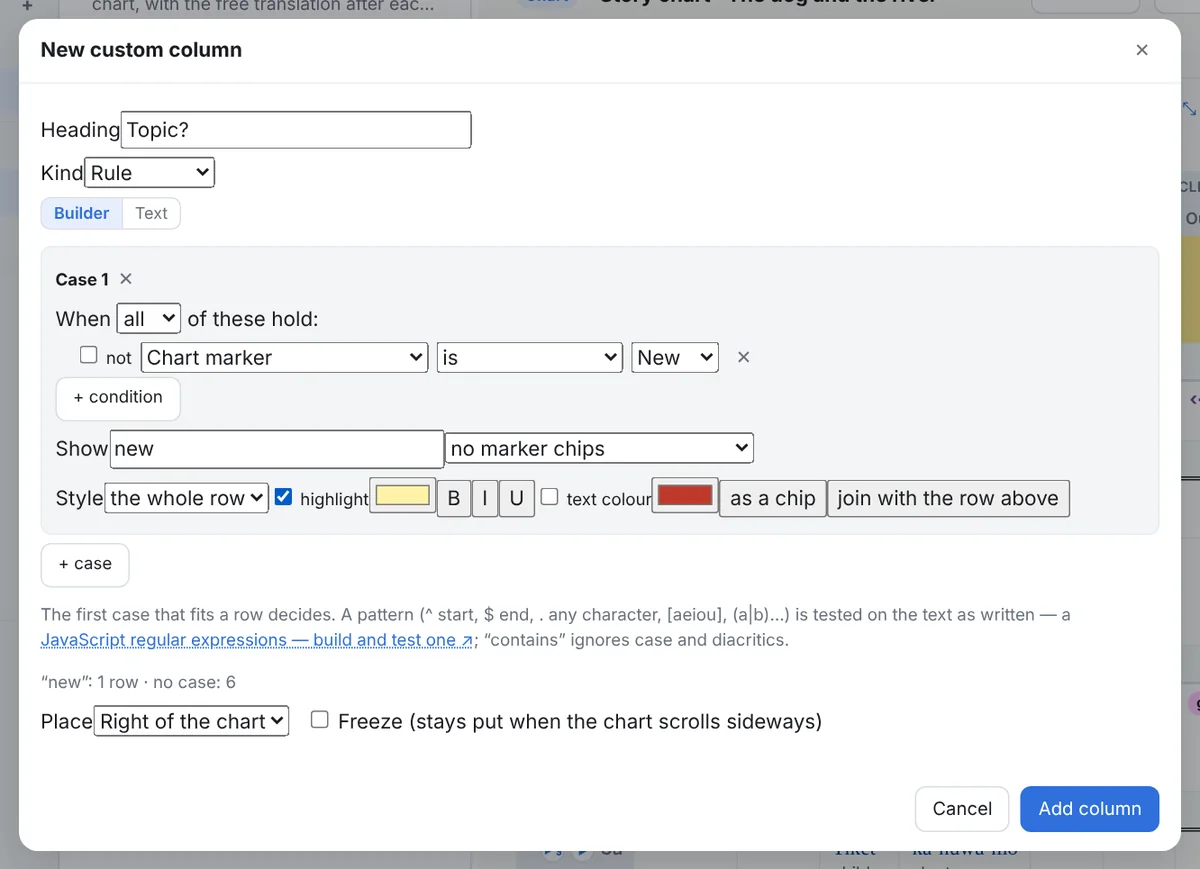
A rule is a list of cases; the first case that fits a row decides what the cell shows and how the cell or the row is styled. The Builder tab makes a case from lists: each condition picks what (a marker, a column, a clause type, moved text, a row flag, a word field such as the word, gloss, category, lexeme or free translation, the row label, or one of the note's list columns), how (is, any, contains, matches pattern), the value from the chart's own markers and columns, a writing system, and in <column> to look in one column only; conditions join with all or any. The Show row sets the text (or the row's markers as chips), and the style: the cell or the whole row, a highlight, bold / italic / underline, a text colour, the text as a chip, or join with the row above. The Text tab shows the same rule as text and takes anything the builder cannot say.
The rule language
What the builder writes, and what is saved in the file: condition → text [styles], cases separated by ;.
| Part | Forms |
|---|---|
| Terms | marker:Name (name, abbreviation or group; * any) · col:Name (the column holds words; name, Group/Name, abbreviation, c3) · clause:dependent / speech / song · moved, moved:preposed, moved:postposed · clauseref · endsent endpara depstart depend · label:"2a" · a list column of the note: Status:new, Status:* (a checkbox column: Checked:* = ticked) |
| Word fields | txt: (the word and its morpheme forms) · gls: (word and morpheme glosses) · form: mgls: pos: cf: lex: · free: (the free translation of the row's line). A plain value is "contains"; txt:/^ka-/i is a JavaScript regular expression. |
| One writing system | gls@fr:…, when the chart carries that system's alternatives |
| One column only | col:Subject[txt:/^ka-/ and not gls:/x/]: the inner condition sees that column's words and markers only; col:/^Post/[…] by pattern |
| Combining | and, or, not, ( ) |
| Outputs | text · @markers (the row's markers as chips) · @markers:Name · @markers:/pattern/; no → gives ✓ |
| Styles | row or cell · hl, hl#rrggbb · b i u · c#rrggbb · chip · join (no line between the row and the one above) |
A rule reads the chart's data, not the drawing: a marker hidden by a visual filter still counts. For example, rows whose argument is shared with the row above, in a project with a ^ShdArg… marker: marker:/^ShdArg/ → @markers:/^ShdArg/ [row join hl#fde68a].
10Searching the charts
Which column does kabir sit in, and how often? Which rows carry a Topic marker in a speech clause? One search box over every chart of the project.
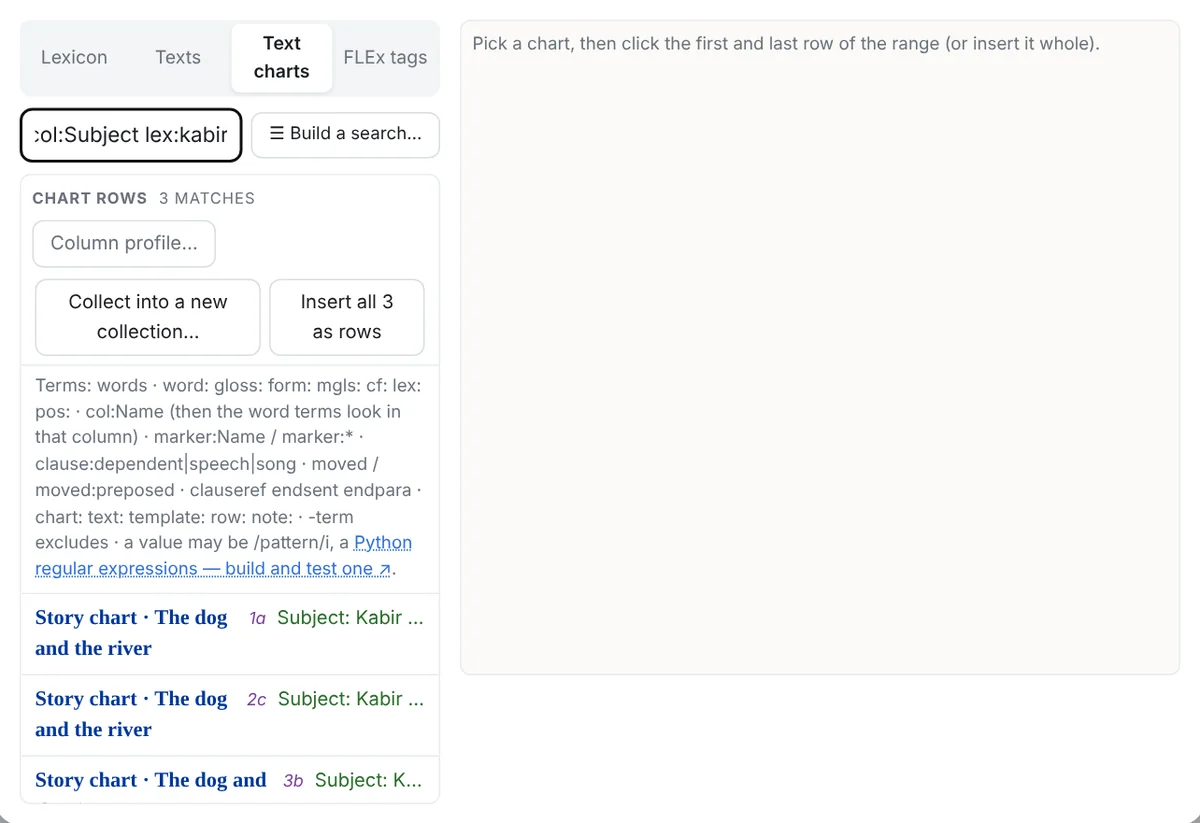
Type a search and the matching rows are listed under their charts: click one to insert the chart at that row, Insert all for every one, Collect into a new collection… for a collection that finds new rows later. In a chart note or a collection the picked rows go into a new note.
The query
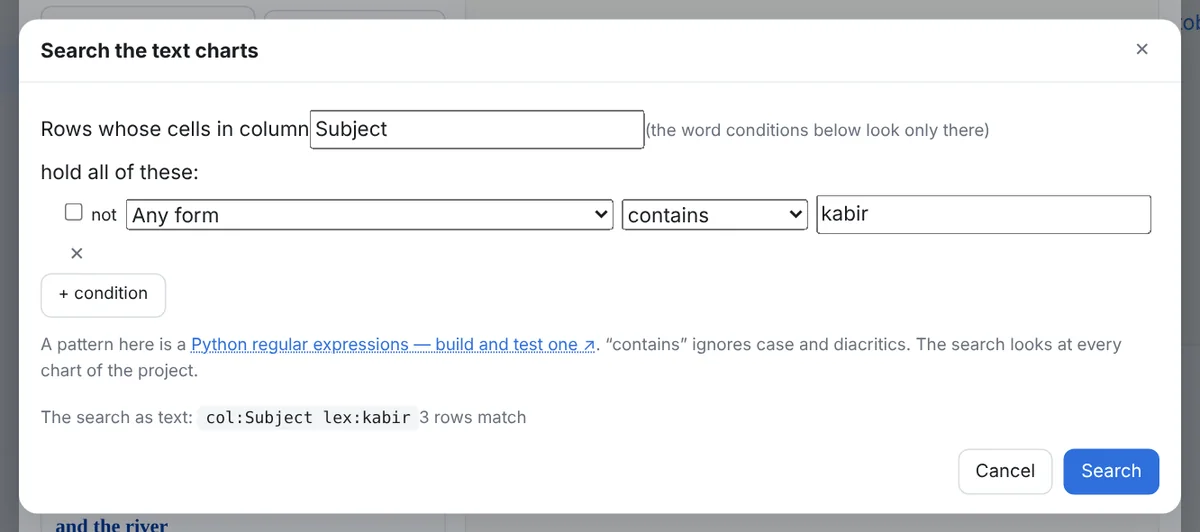
Terms are joined with and; -term excludes. Any value may be a pattern between slashes (word:/^ka-/i); these run in Python, so they are Python regular expressions (the tab's footer links to regex101 set to that flavour).
| Term | Matches |
|---|---|
kabir, "ka-sila" | the row's words, glosses, morpheme forms, lexeme forms or notes |
word: gloss: form: mgls: cf: lex: pos: | one word field (lex: any form of the lexeme; pos: exact) |
col:Subject | a column by name, Group/Name, abbreviation or c3; the word terms then look only in that column's cells, and the hits name the column |
marker:Topic, marker:Reference, marker:* | a chart marker, any marker of a group, any marker |
clause:dependent (speech, song, normal) · moved, moved:preposed · clauseref endsent endpara | the row's structure |
chart: text: template: row:2a note: | the chart, its text, its template, a row label, the row's notes |
Column profile and collections
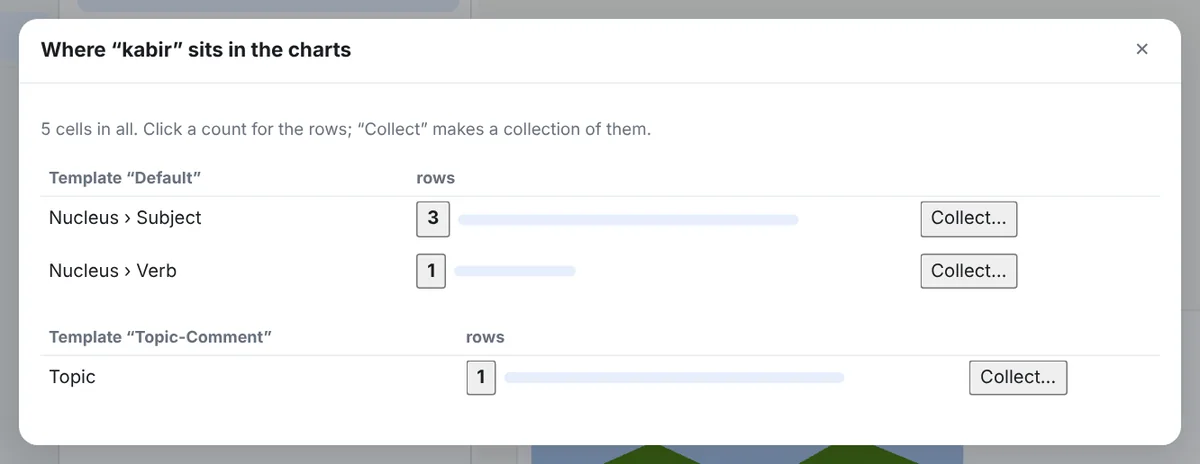
When the query has lex: or word:, Column profile… counts the cells holding the item per template and column, with the rows under each count and Collect…. The entry card's ▦ In charts opens it for the entry. A chart collection is a collection whose rule is a chart search; ⟳ Find new rows appends the rows that are new.
11Exports
An export asks its questions first (embed the recordings? where to save?) and then runs in the background: a bar under the FLEx status in the sidebar shows what it is doing (reading the examples from FLEx, preparing the recordings, writing the file), the program stays usable meanwhile, and a second export waits its turn. Click the bar for the list, to stop the running export or take a waiting one out. The note is exported as it was when you clicked.
The formats
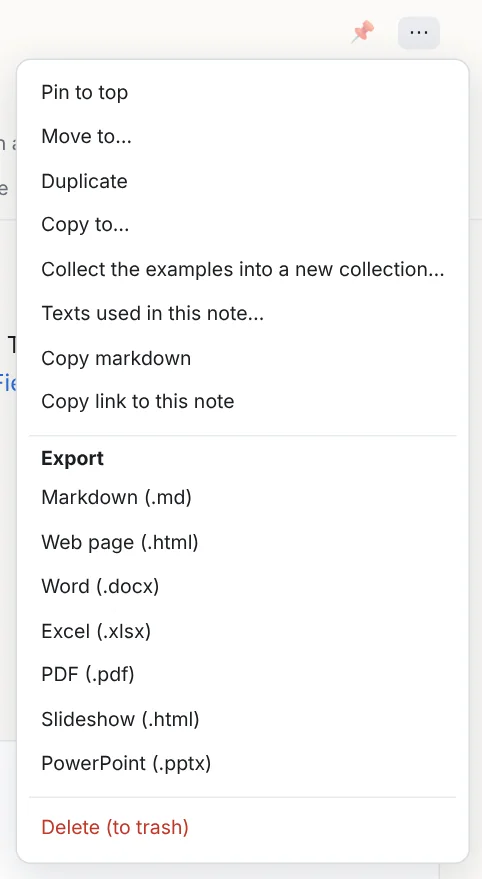
| Format | What you get |
|---|---|
| Markdown | The note's file as it is, with the readable copies of its objects and the attached files beside it. Copy markdown puts it on the clipboard. |
| Web page | One self-contained HTML file: a header, the note, examples and charts drawn as in the program, the styling kept; printable. With the recordings embedded as players if you say so. |
| Word | A .docx: headings 1–6, lists, tables, examples and pictures; the examples are LingTeX-Word tables (below), charts come on landscape pages with their custom columns and row colours, and chips and collapsed examples are links into FLEx. |
| Excel | A sheet Note with the blocks in order, a sheet per chart (the table as drawn, merged header groups, word and gloss in each cell) followed by Chart rows with one flat row per chart row (label, clause type, flags, each column's words and glosses, markers, moved text, custom columns, free translation, notes: what Excel filters and pivots), and Examples with one row per interlinear line. |
| Saved straight away on Windows; elsewhere the print dialog's Save as PDF. Charts land on landscape pages with the header rows repeated. | |
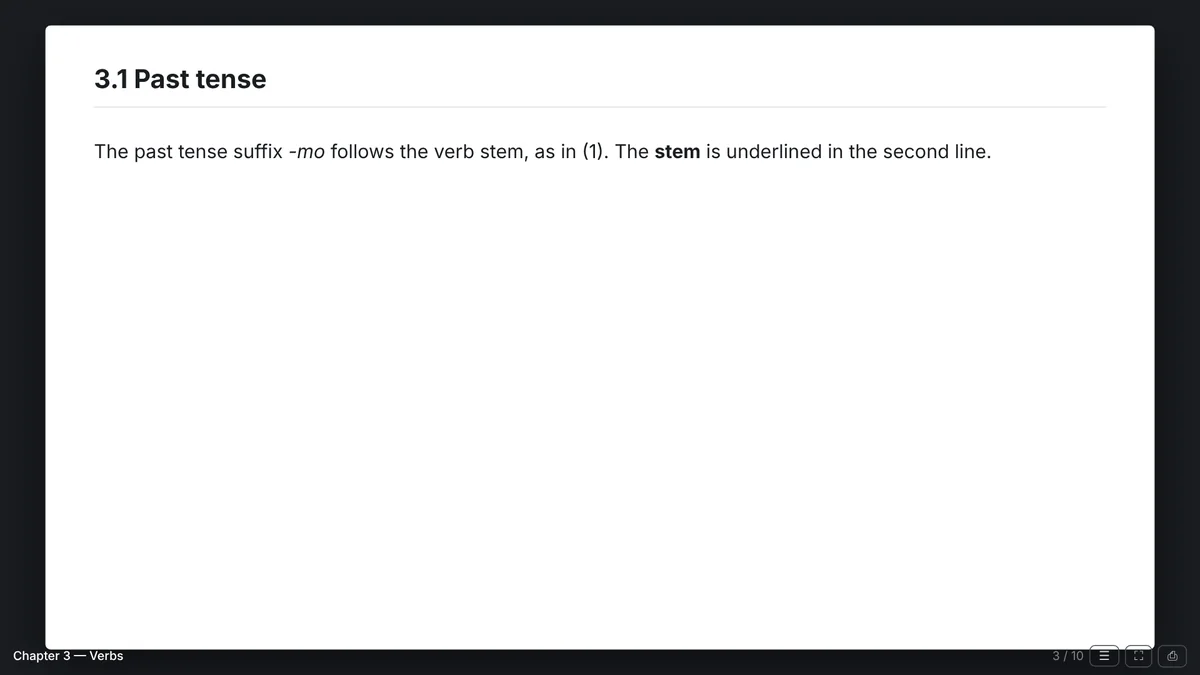
| Slideshow | One web page: a title slide, a slide per heading, example, chart, table, entry and picture, running text continuing on "(cont.)" slides; arrow keys, T for contents, F full screen, P print; the players ride along. |
| PowerPoint | A .pptx of the same slides: a title slide, a heading bar per slide, examples as tables, charts filling the slide; no audio (the slideshow carries it). |
| FLEx text | A collection as a .flextext with its audio (above). |
| Chart XML / JSON | One chart in FieldWorks' own discourse-chart XML shape (with identities added), or as data, from the chart's ⋯. |
| TSV | A whole example, table cells, a pivot, chosen lines of an example or rows of a chart: on the clipboard for a spreadsheet. |
Word, in LingTeX-Word styles
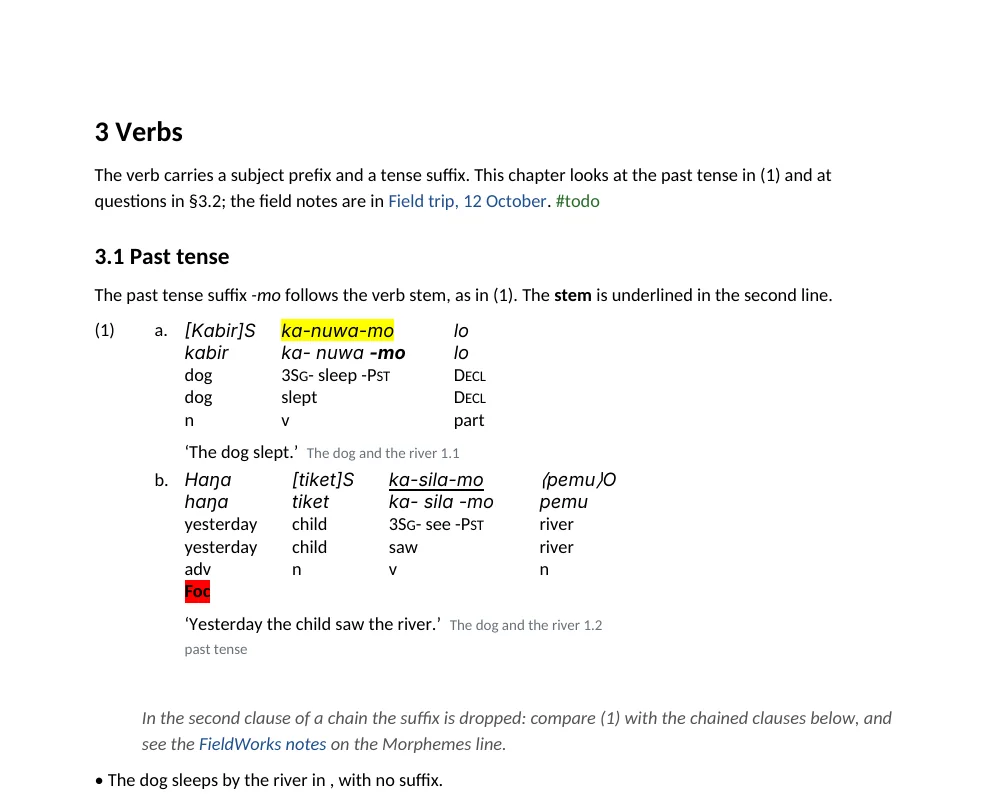
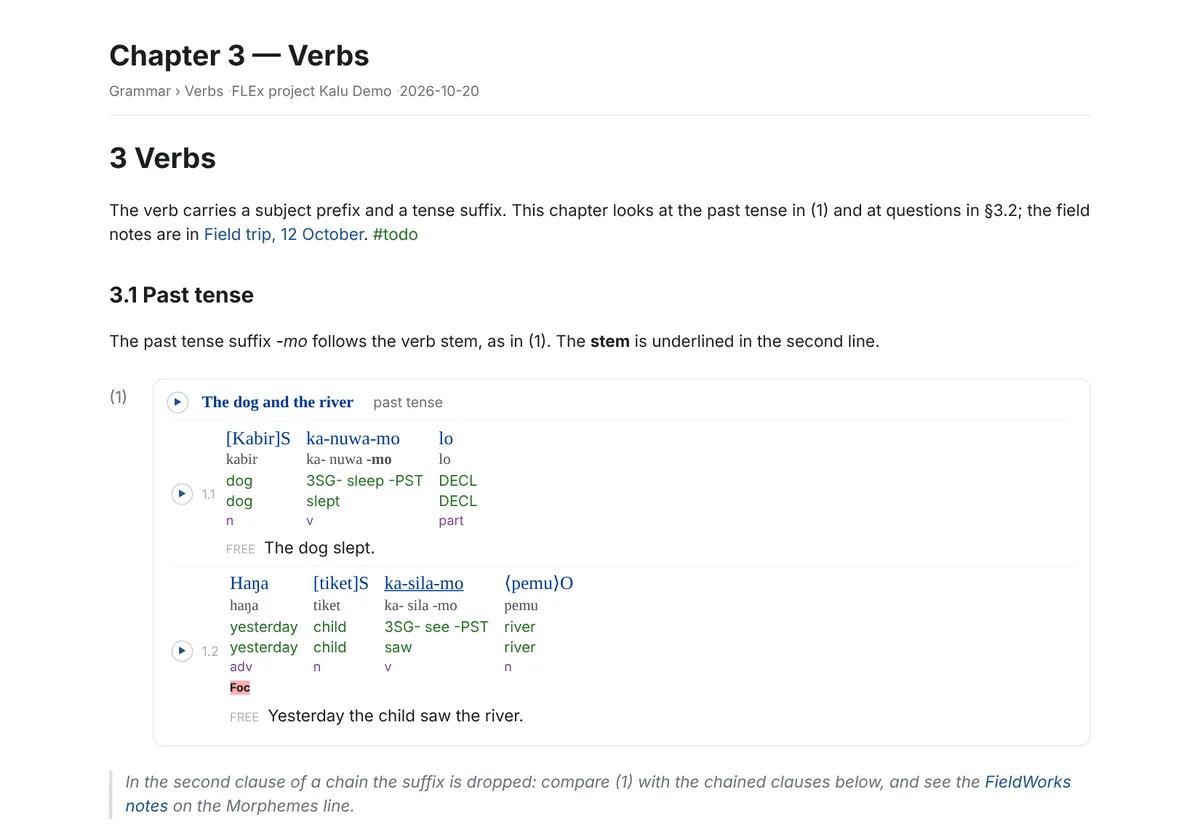
Every expanded example is written as a LingTeX-Word interlinear table: the add-in's own table and tier styles (LingTeX Interlinear, Vernacular, Morphemes, Gloss, Word Gloss, Category), grammatical glosses set in small capitals, Word's own (1) numbering with a., b. for several lines, the free translation in quotes followed by the text's title and FLEx line number as a link that opens the text in FLEx. A document with the add-in installed re-wraps them. Your highlights, bold, underline and colours stay.
Audio in the web page and slideshow
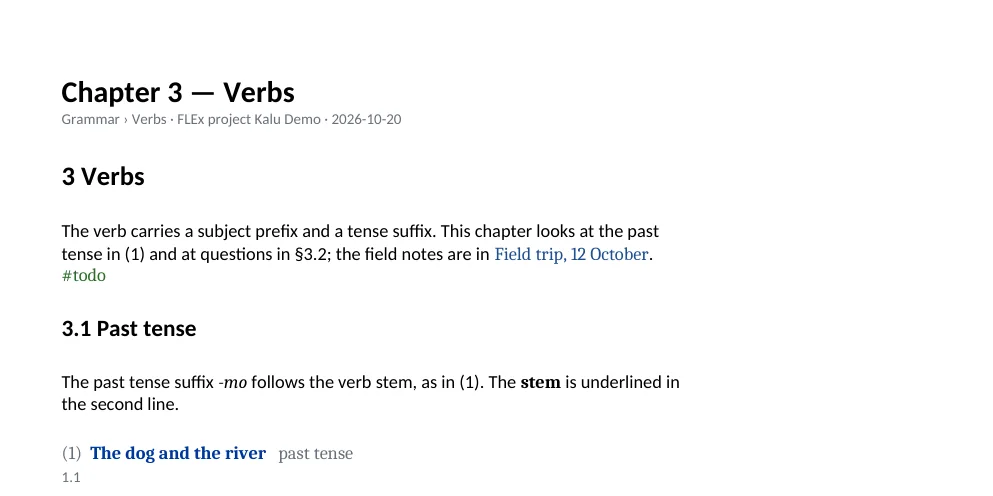
When the note has time-aligned examples or charts, the export asks whether to embed the recordings: one clip per object, compressed (about 300 KB a minute), inside the page. Each line then has ▶, an example and a chart their own, the playing line or cells are lit, and a bar at the bottom pauses, stops and seeks. An object whose recording is not there exports without a player.
12Backup and storage
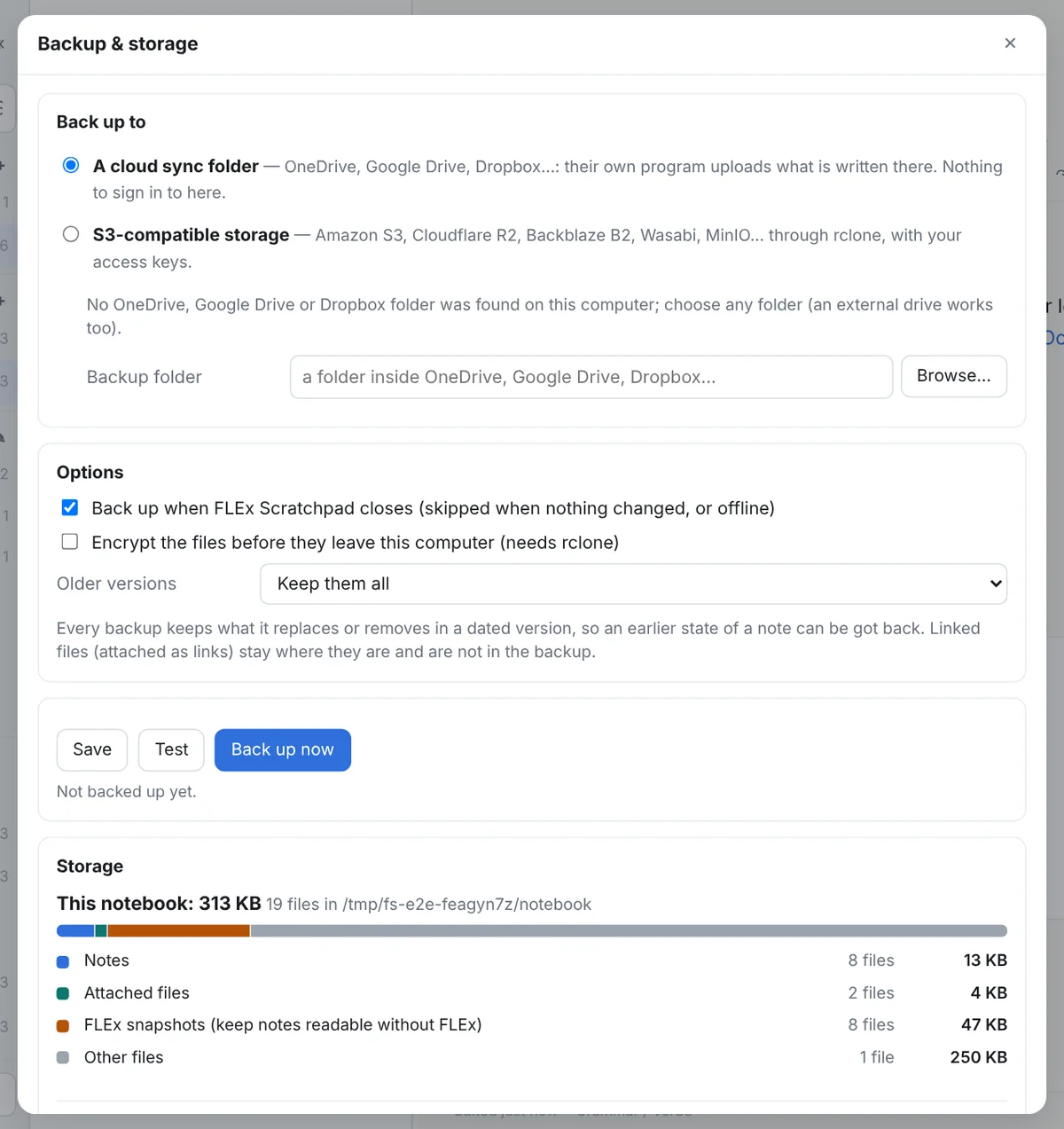
- Where: a folder, with the program guessing your OneDrive, Google Drive, Dropbox, iCloud or Box folder (FLEx Scratchpad backup/<notebook> inside it), or S3-compatible storage through the bundled rclone, with the keys kept in Windows' Credential Manager, never in a file. Encryption is optional and off by default.
- When: Back up now, and on close when something changed; the window then shows the progress and lets you close without waiting.
- Versions: a mirror of the notebook plus a dated folder per backup holding what that backup replaced or removed; keep old versions N days prunes them, and Restore… brings a version back.
- Storage: how much the notes, attached files, pictures, FLEx snapshots, cached clips and the trash take; cleanup moves unused attachments to the trash, clears the cached clips, and Empty the trash is the one real deletion, asked first. Snapshots are never offered for cleanup: they keep notes readable without FLEx.
Beside the backup, the whole notebook can be exported and imported as a zip, and the notebook folder itself is plain files you can copy, sync or put under version control.
13Settings and shortcuts
Settings
⚙ or Ctrl+,: the notebook folder, the FLEx project (or a .flextext file, or the demo), diacritics-insensitive search, markers hidden, Backup & storage, the program's version and build, the bar between blocks, sticky headings, the FLEx text markup tag styles for the whole notebook, visual filters and the list of keyboard shortcuts. The window remembers its size and place.
Keyboard shortcuts
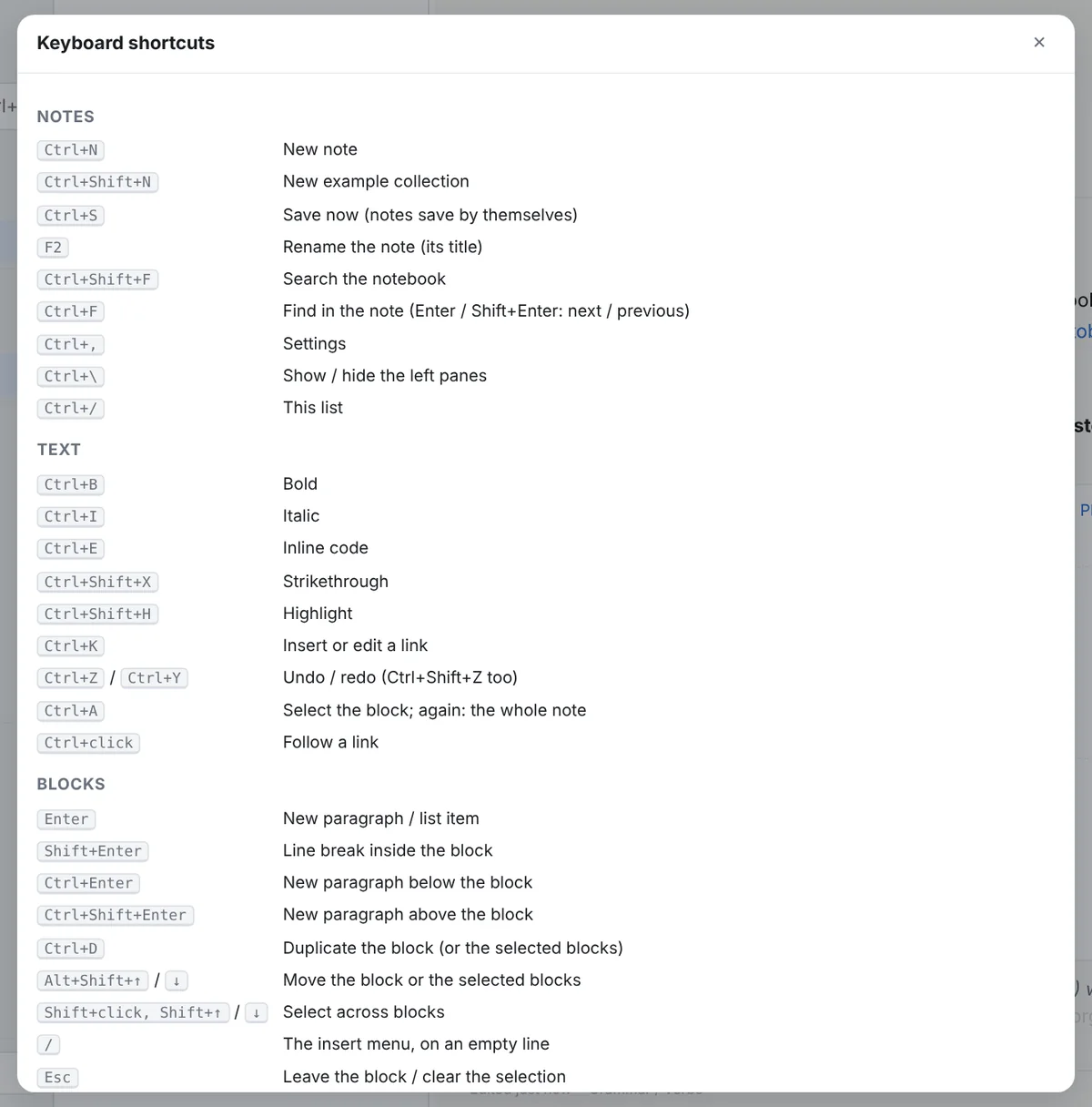
| Notes | |
|---|---|
| Ctrl+N | New note |
| Ctrl+Shift+N | New example collection |
| Ctrl+S | Save now (notes save by themselves) |
| F2 | Rename the note |
| Ctrl+Shift+F | Search the notebook |
| Ctrl+F | Find in the note (Enter / Shift+Enter: next / previous) |
| Ctrl+, | Settings |
| Ctrl+\ | Show / hide the left panes |
| Ctrl+/ | The shortcut list |
| Text | |
| Ctrl+B / I / E | Bold / italic / inline code (Ctrl+E) |
| Ctrl+Shift+X / H | Strikethrough (Ctrl+Shift+X) / highlight |
| Ctrl+K | Insert or edit a link |
| Ctrl+Z / Ctrl+Y | Undo / redo (Ctrl+Shift+Z too) |
| Ctrl+A | Select the block; again: the whole note |
| Ctrl+click | Follow a link |
| Blocks | |
|---|---|
| Enter | New paragraph / list item |
| Shift+Enter | Line break inside the block |
| Ctrl+Enter / Ctrl+Shift+Enter | New paragraph below / above the block (above) |
| Ctrl+D | Duplicate the block or the selected blocks |
| Alt+Shift+↑ / ↓ | Move the block or the selected blocks |
| Shift+click, Shift+↑ / ↓ | Select across blocks |
| / | The insert menu, on an empty line |
| Esc | Leave the block / clear the selection |
| Headings and lists | |
| Ctrl+Alt+1 … 6 | Heading 1 … 6 |
| Ctrl+Alt+0 | Plain text (no heading, list or quote) |
| Ctrl+Alt+[ / ] | Promote / demote every heading (note or selection) |
| Ctrl+Shift+8 / 7 / 9 | Bulleted list / numbered list / checklist |
| Tab / Shift+Tab | List item in / out (also Ctrl+] / Ctrl+[) |
| FLEx and tables | |
| Ctrl+Shift+L | Insert a FLEx object |
| Ctrl+Shift+K | Search the text charts |
| Ctrl+V | Paste FLEx rows or a FLEx link as an example; a grid as a table |
| Tab (in a table) | Next cell; at the end, a new row |
| Alt+↑ / ↓ (in a cell) | The cell above / below |
| Esc (while playing) | Stop playback |
14Your notes are files
The notebook is a folder: a folder per tab, a folder per folder, and a Markdown file per note with a few lines of front matter (its id, title, tags, dates). notebook.json holds the tabs, tags, project and styles; attachments/ the attached files; .scratchpad/ the snapshots, cached clips and the trash. Everything is UTF-8 and keeps its Unicode, filenames included, so a Tamil or Arabic title is a readable filename.
A FLEx object in a note is a short reference, written and read only by the program:
{{flex:text 9b1c2d3e-… seg=1-2 ex hl=1.2 b=morph:"-mo" u=2.3 "past tense"}}
{{flex:entry 6a5f3a2e-…}}
{{flex:chart d15c0000-… rows=2-5 cols=Nucleus,Postnuclear/Inner free=row hl=r2 "label"}}
{{file attachments/wordlist.xlsx "Wordlist, October"}}
and after every such reference the file carries a plain-text copy that the program never shows: a link line with the text's title and FLEx line numbers (a silfw:// link that opens FLEx), and the lines of the example as a plain fenced block, each word a column, so a note is readable, searchable and diffable in any editor or on GitHub, in ten years, without the program or FieldWorks. The copy is refreshed whenever the example changes. Folded headings carry {collapsed}; a table's styling is a line after it; a collection is a note whose body is one example per paragraph with ## Group headings and > notes; a chart note's custom columns and values are two Markdown tables. The Markdown export and Copy markdown keep all of it; the other exports draw from it.
15Questions people ask
How do I get audio to match the interlinear text lines in my FLEx database?
FieldWorks stores a start and an end time on each line of a text, but it cannot set them itself: it has no tool for aligning a recording to the lines. The times come in with an import. Three ways in:
- From ELAN. In ELAN, File › Export As › FLEx file writes the text with each annotation's times; FieldWorks' interlinear text import keeps them on the lines.
- From the FlexText Editor suite. A
.flextextwritten by the FlexText Editor or the Recorder carries each line's times and the name of the recording; the same import keeps them. - A text that is already in FLEx, as text only. Use the FlexText Audio Segmenter: export the text from FLEx, align the recording to its lines there, and import the result; the lines keep their analyses and gain their times. A release that works inside FLEx directly, without the round trip, is coming soon.
Where to keep the recordings. Keep whole-text recordings outside the FLEx project's own folder. FieldWorks' Send/Receive tries to carry everything in the project's LinkedFiles, and a recording larger than a few megabytes makes it fail, and keep failing until the file is moved out. A good home is lameta, which keeps each session's recordings and their description in a folder of its own; point FLEx at the recordings there rather than copying them into the project. In FLEx Scratchpad an example whose recording is not found offers Browse…: pick the recording in its lameta session folder, and the program remembers the whole lameta project, so every other session's recordings are found too. An example collection exported as a FLEx text comes with one recording stitched from its examples, named to pair with it in the Segmenter.
Can it change my FLEx project?
No. It opens the project for reading only, has no code that writes to one, and its own tests fail if any appears. Everything you write lives in your notebook folder. The only files it makes for FLEx are exports you import yourself, as new texts.
Can FieldWorks be open at the same time?
Yes, when the project is shared: in FLEx, Project Properties › Sharing › Share project contents with programs on this computer. Otherwise FLEx holds the project and the status pill says so; the notes then show their snapshots until it is free. What FieldWorks saves while both are open appears after ↻ on an example or Refresh all.
Where are my notes, and can I read them without the program?
In the notebook folder you chose (by default Documents\FLEx Scratchpad): a Markdown file per note in a folder per tab. Every example in them is also written as plain text with a link into FLEx, so the files read in any editor, on GitHub, or in ten years. See Your notes are files.
Can I use it on a computer without FieldWorks?
The program needs FieldWorks' own libraries to read a project, so a live project needs Windows and FieldWorks 9. Without them it can open a .flextext file (texts only) or the built-in demo, and a notebook made elsewhere still shows every example from its snapshots. The notes themselves are plain files you can read anywhere.
Which version should I install?
The one on the home page: there is one current release, 0.1.0, as an installer or a portable zip, and they are the same program. A newer Setup upgrades in place and keeps your notebooks. If you report a problem, say which version you are on (Settings shows the version and build).
Why does an example say snapshot?
The project could not be read at that moment (FLEx holds it unshared, it is on another computer, or no project is set), so the example is drawn from the copy kept in the notebook the last time it was read. It is the same lines as last seen; ↻ reads the project again once it is reachable.
A pasted example landed on the wrong line, or nowhere.
Copy with the Word line showing: the program finds lines by their baseline first, then by morphemes and glosses, and by FLEx's own line numbers when the copy carries them. When it still lands wrong, the dialog lets you insert the paste as text, and When something goes wrong says how to send what the program read.
Does it need the internet?
No. Everything comes in the download, audio tools included, and it never fetches anything while it runs. It works the same on a field laptop with no connection.
16When something goes wrong
| What you see | What to do |
|---|---|
| The window says Waiting for the app… | The page is open but the program behind it has not answered yet; it waits, reloads itself twice, and never shows the sample data in place of your notebook. Your notes are on disk and untouched. If it stays, start the program from a terminal with flex-scratchpad -v and send the log. |
| The project cannot be opened | The status pill says why: FieldWorks has it open without sharing (turn sharing on in FLEx's Project Properties), the project needs opening in FLEx once after an upgrade, or the FieldWorks libraries were not found. Until then the notes show their snapshots. |
| A paste lands on the wrong line, or nowhere | Copy with the Word line showing. For a report: flex-scratchpad --project NAME --locate clip with the rows still copied writes flex-scratchpad-locate.json, which shows what the program read and what the project holds there. |
| A line of an example looks wrong (a morpheme twice, a missing gloss) | flex-scratchpad --project NAME --dump "TEXT TITLE" --seg 11.1 prints that line exactly as the project returns it. A word shown twice in the Morphemes line (budu budu) is FieldWorks' own import of a word glossed in two languages with no morphemes; --doubled-morphs lists every such analysis, and the fix is in FLEx's Word Analyses. |
| Tags or a chart look wrong | --dump-tags and --dump-charts [TEXT] write what the project returns, to attach to an issue. |
| Anything else | Run flex-scratchpad -v from a terminal: every call the page makes, every FLEx read and every file written, with times, and the same goes to %LOCALAPPDATA%\FLEx Scratchpad\log\flex-scratchpad.log for the installed program. Nothing in the log is ever a secret. --devtools (or F12 in the program) opens the browser developer tools. FLEx Scratchpad.exe --selftest report.json checks the installation and writes a report to attach. |
Known issues
- Some export formats are still rough. Word, PDF and the web page come out well. The slideshow and PowerPoint less so: in PowerPoint some examples' tables are crowded or overlap, and where a note breaks into slides is not settled yet. In Word the examples are LingTeX-Word tables and look right, but asking the LingTeX-Word add-in to re-render them does not work correctly yet (issue 21).
Please report what you find; the planned features are the issues labelled planned.
↑ Back to the top