
Visual Stimulus Kit Tool
Download
-setup.exe) — installs the app, adds a Start Menu shortcut and can be
uninstalled normally; best if you own the computer.
Portable folder (-portable-folder.zip) — extract once, then run the .exe
inside; starts much faster, and still runs from a thumb drive. Keep the folder together
(the _internal folder must stay beside the .exe).
Single file (-portable.exe) — nothing to extract, but it starts slowly
because Windows unpacks the whole program every time you launch it. Best for a quick one-off run.
What it does
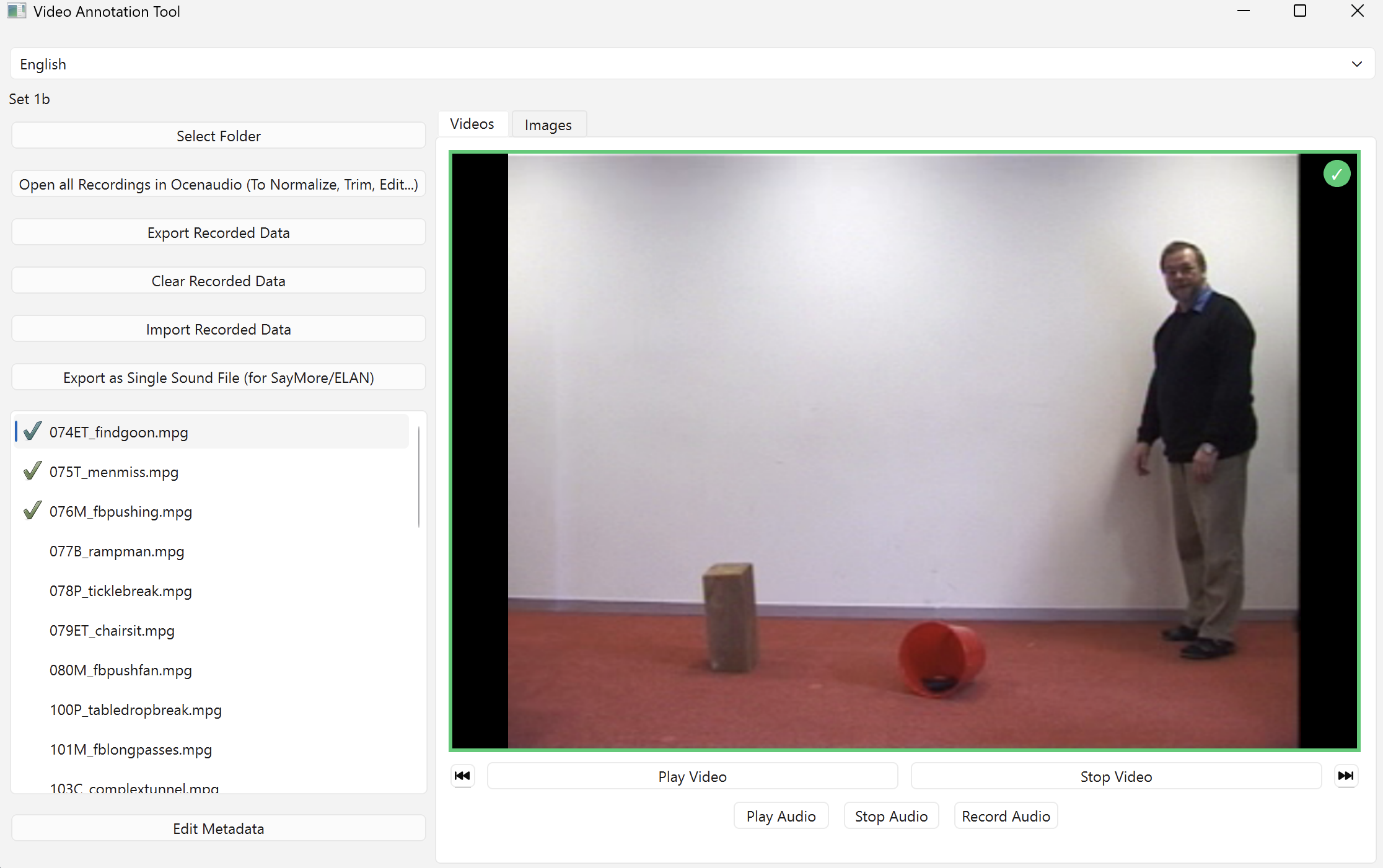
- Play videos and record native speaker descriptions of each.
- Keep simple project info in a built‑in metadata editor.
- Export all your recordings (and metadata) in one step.
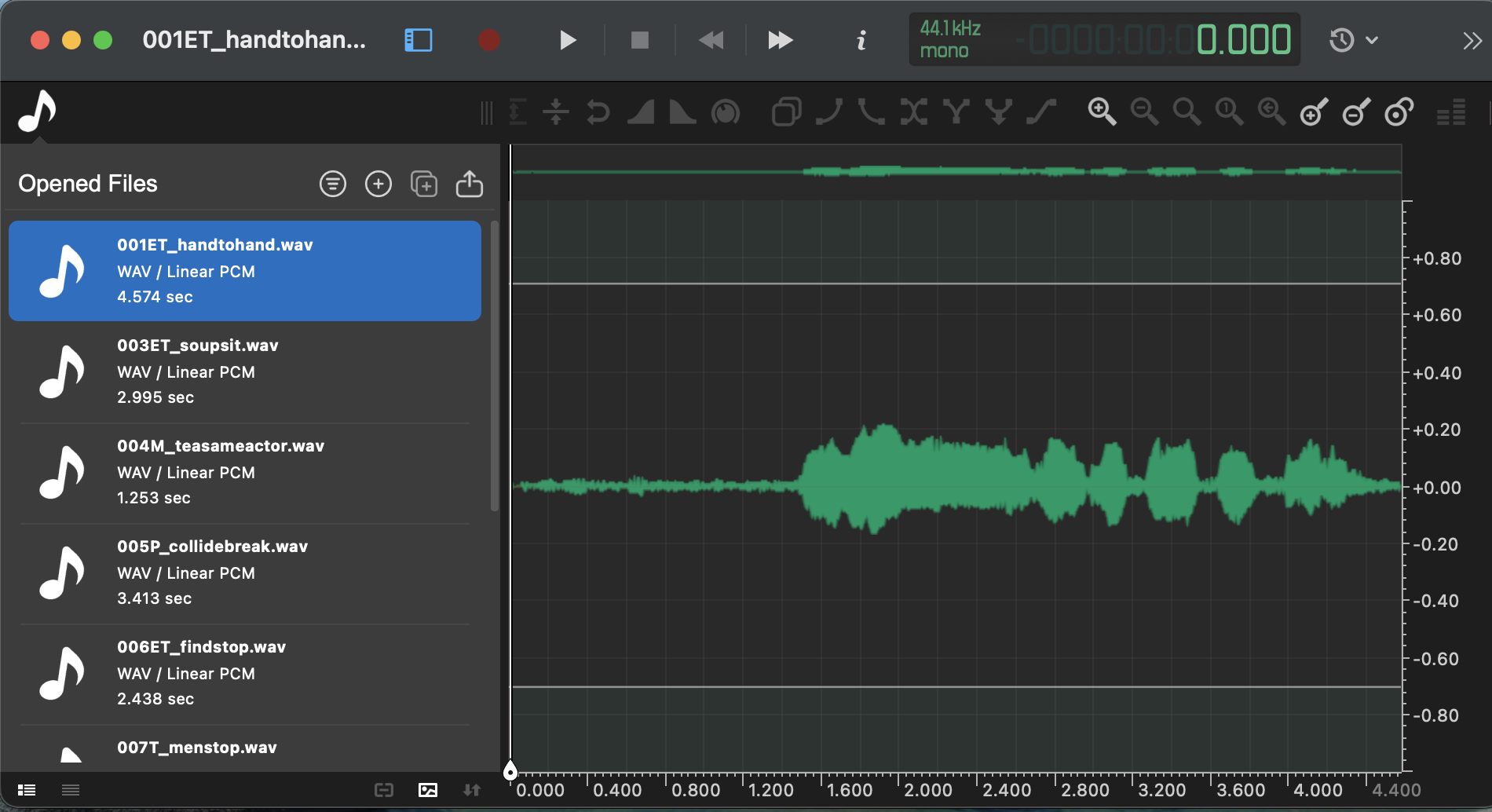
- Open recordings in Ocenaudio for trimming, normalizing, and fine‑tuning.
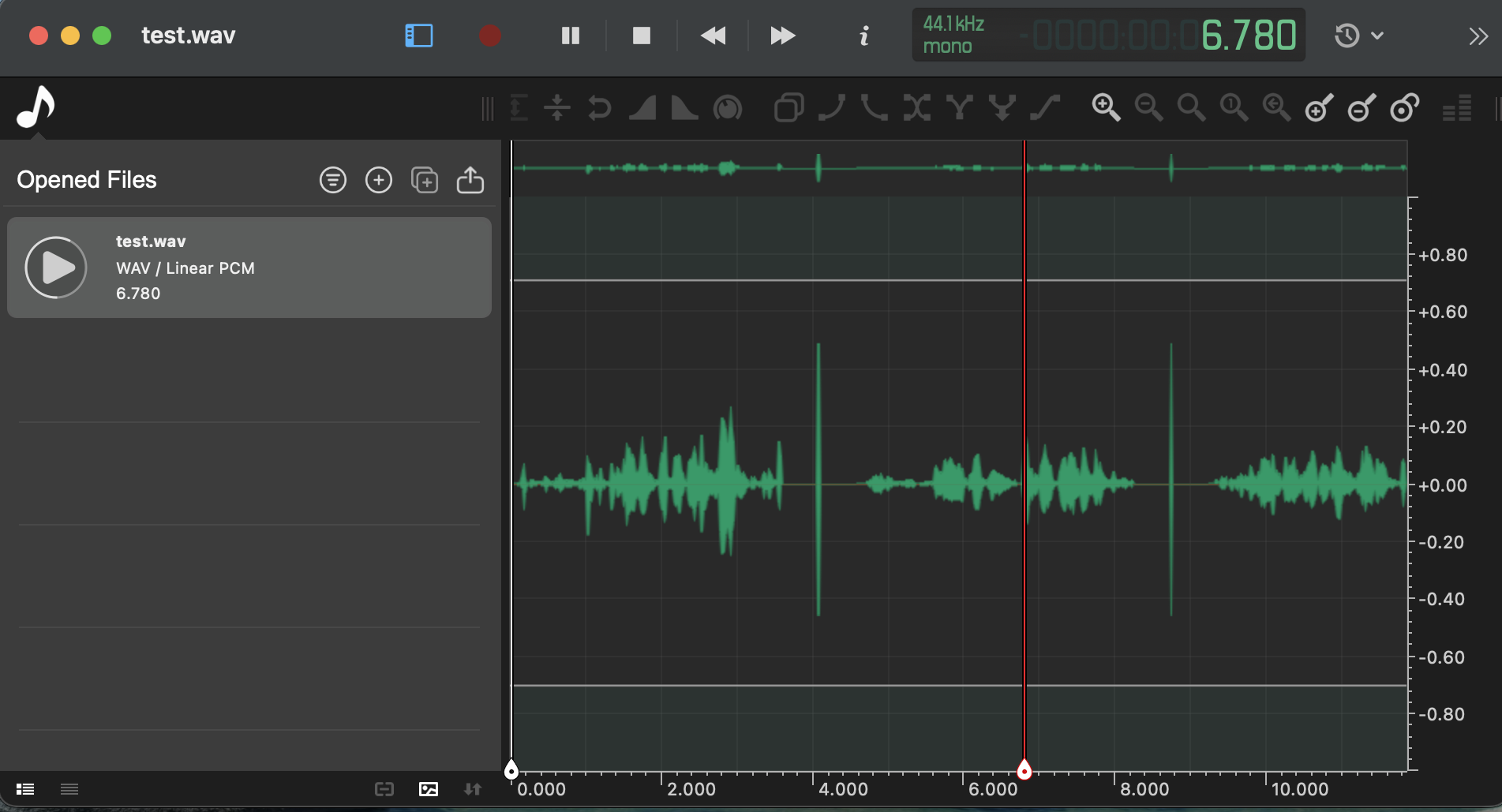
- Combine all WAV files into a single audio file with subtle click markers between items.
- Choose your language for the interface.
Quick start
- Prepare a folder with your video files (MP4, MOV, AVI, MKV, etc.).
- Open the app and click “Select Folder”. Pick your video folder.
- Select a video from the list to preview the first frame.
- Press “Record Audio” to capture your native-speaker description; press again to stop and save. The app saves a WAV with the same name as the video.
- Use “Export Recorded Data” to copy all WAVs and metadata.txt to a folder of your choice.
Getting started with a stimulus kit
- Download a stimulus kit (see “Usage and recommended stimulus kits” below) and carefully read the goals and instructions for that kit before you start.
- Prepare a folder with the kit’s videos (and any still images). Keep the presentation order recommended by the kit; exact filenames don’t have to match, but the intended sequence and meanings should.
- Open the folder in the app using “Select Folder”.
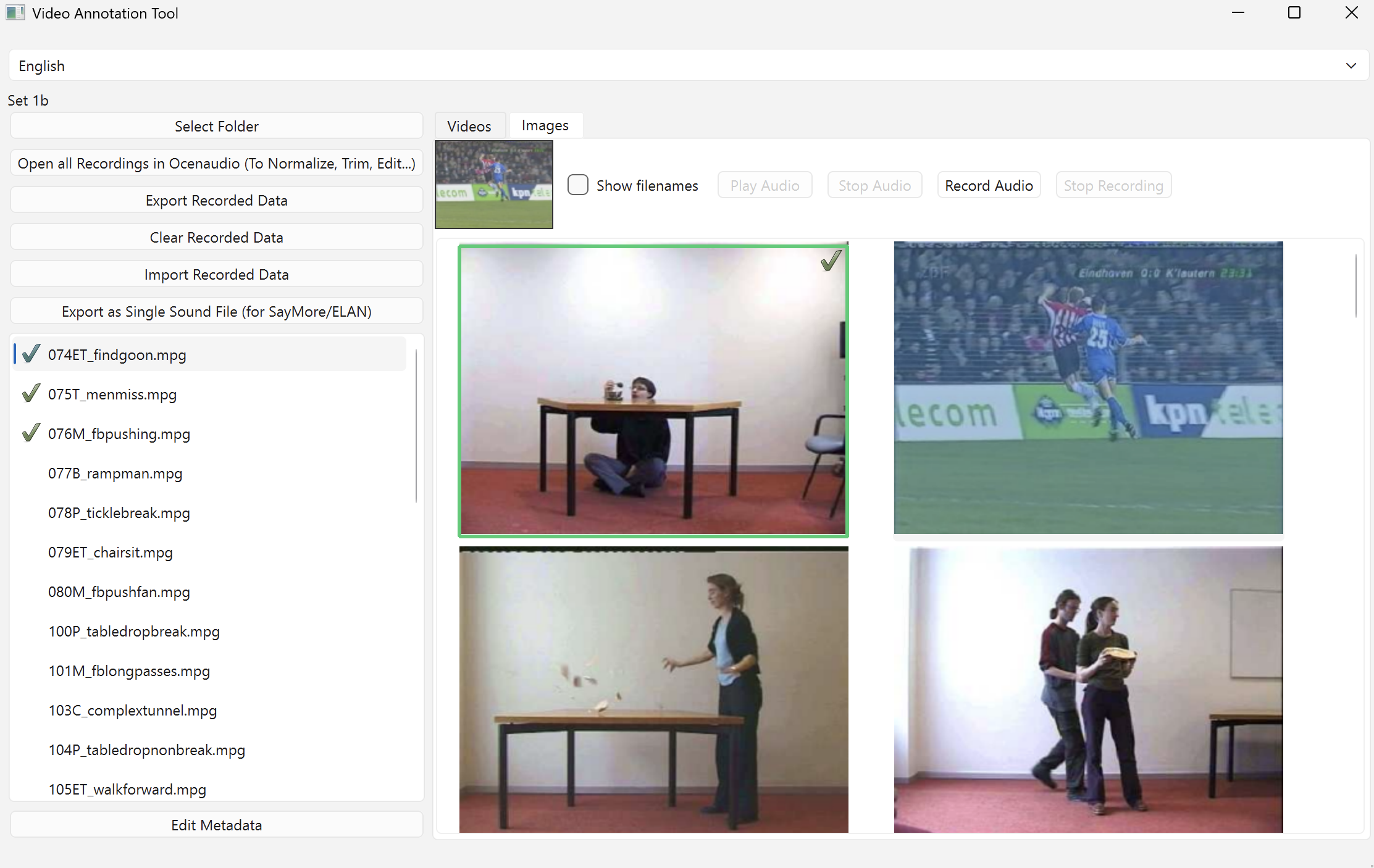
- Record one WAV per item: use the Videos tab for clips and the Images tab for stills.
- Back up continuously when possible (a parallel audio/video recorder of the entire session is helpful).
- Export your WAVs and
metadata.txtwhen finished, or open them in Ocenaudio for trimming/normalization.
GPA “Dirty Dozen” review (Review tab)
The Review tab can run a quiz‑style session with fairness, per‑item timing, repetitions, grading, and YAML / grouped exports. It only quizzes items that have recordings.
Setup
- Create a folder with the images/videos for the words you want to learn and review.
- Name files with a 2‑digit prefix (or letter) so they alphabetize in your desired session order (e.g.,
01_dog.jpg,02_cat.jpg). - Select the folder in the app with “Select Folder”.
- Record in the Videos tab (for clips) and the Images tab (for stills). The Review tab shows only items that already have recordings.
Default: record after the session for independent review
- Prepare your folders (images/videos) in advance and open them in the app.
- Meet with a native speaker and collect a small set of words/phrases using props, real‑world context, or paper notes.
- At the end of the session, use the Videos and Images tabs to record a clean prompt/definition for each item. Each WAV will share the media filename.
- Later, you can open the Review tab and quiz yourself on the recorded items (the Review tab only shows items with recordings).
Tip: Configure fairness rules, timing, and sounds in the Review header. Export session stats as YAML and use grouped export when needed.
Alternate: train a partner during the session
- Prepare and open your folders in the app.
- Record one word (Videos or Images tab), then switch to Review and quiz it (set reps to 3–5).
- Add one new word, record it, then quiz the growing set in Review.
- Repeat until you reach twelve items (“Dirty Dozen”).
- Use this flow to help a native speaker partner see and practice the add‑one‑quiz process.
Alternate: maximize limited face‑time
- Prepare a picture dictionary of the words you need to learn and open the folder in the app.
- When you have limited time with a native speaker, record prompts quickly for as many items as possible.
- Later, in the Review tab, use Items per Session to simulate Dirty Dozen: start with 2, quiz; then 3, quiz; then 4, etc.
Best Practice: Live, interactive activities with a native speaker and real‑world context are ideal. If that’s not feasible, this app can help you learn efficiently with limited access.
Background and instructions: Growing Participator Approach.
Install on Windows
- Download the .exe above.
- Double‑click to run. If SmartScreen appears, choose “More info” → “Run anyway”.
- No separate install is required.
macOS (interpreted mode only)
- There is currently no official installer for macOS.
- Advanced users can run the tool from source with Python 3.11+; see the README on GitHub for setup steps.
- If you need macOS support, please open an issue on GitHub so we can track demand.
Working in a project
- Folder display: The app shows the current project folder at the top; hover to see the full path.
- Video preview & playback: Pick a video to preview the first frame and play/stop as needed.
- Audio notes: Record a short WAV per video. Recordings save automatically the moment they are captured — there is no separate save step. Recording again immediately overwrites any existing file. Use the delete button to remove a recording, or the edit button to open it in Ocenaudio.
- Metadata: Edit project info in the side panel; it’s saved to
metadata.txtin your folder. - Open in Ocenaudio: Bulk-open all WAVs from the current set in Ocenaudio for trimming, normalization, and volume adjustment. A separate bulk normalizer utility is also available (ask the developer) that raises all files to maximum volume without clipping.
- Export / Import: Export all WAVs + metadata, or import WAVs that match your video names.
- Join WAVs: Make a single WAV of all items, with subtle click separators between each clip.
- Languages: Use the top dropdown to switch the interface language.
Usage and recommended stimulus kits
This tool is designed for linguistic fieldwork. You play short video clips (or show still images) and ask a native speaker to describe what happens. The app records one audio file per clip so you can analyze grammar, meaning, and discourse later.
A simple way to get started is to use existing stimulus kits that have already been tested in many languages. Download a kit, put the video files into a folder, and select that folder in the app. Follow the kit instructions as closely as you can so your results are comparable with other studies.
General-purpose stimulus kits (Max Planck Institute)
-
MPI Field Manuals and Stimulus Materials
A large collection of manuals and stimuli (including many video sets) for eliciting verbal descriptions and other kinds of linguistic data.
Browse MPI manuals and stimuli -
MPI Staged Event Videos
Short acted events used to study how languages talk about actions, multi-verb constructions, and event structure (especially useful for serial verbs and clause chaining).
Staged events video sets -
The Pear Story
A silent ~6 minute film used to elicit narratives. It is widely used for studying grammar, narrative structure, and reference tracking.
Download the Pear Story video
Kits for participant reference and case alignment
-
Cut and Break
Very short clips showing cutting, breaking, and related events. These are useful for exploring how your language handles argument structure, case marking, and alignment patterns.
Cut and Break stimulus set -
Caused Positions
Clips of caused motion and placement events, helpful for studying transitivity and how speakers talk about putting and moving things.
Caused Positions stimulus set
These resources are especially well suited for beginning linguistics students or fieldworkers who want ready-made, theory-friendly materials instead of designing their own clips from scratch.
Troubleshooting
For questions about recording, file naming, export, microphone setup, and remote workflows, see the FAQ page.
- Microphone not working (Windows): If recording is silent or fails, check that your microphone is set as the default recording device in Windows Sound settings, and that the app has microphone access in Windows Settings → Privacy & Security → Microphone. Then relaunch the app.
- macOS (interpreted mode): If running from source and macOS blocks the terminal, allow it in System Settings → Privacy & Security.
- No videos listed: Confirm the folder contains supported video files (e.g., .mp4, .mov).
- Need help? Visit the issue tracker. If the developer is unavailable, other experienced users of the app may also be able to help — ask around.